9
screen to PLANNING. If this happens, press
the front left button Lock to GPS to go back
to the GPS Map screen. To avoid this, lock
the keypad (section 2.08).
Successful satellite lock (a ‘x’) is indicated
at the top left of the screen, by the red cross
turning to a green signal icon. The number of
green crescents represents received signal
strength. A weak lock is indicated by a single
crescent plus a ‘2D’ caption (section 4.04).
The unit is WAAS/Egnos enabled. This means
users in the south of England and mainland
Europe are able to benet from ‘differential’
GPS when one of the EGNOS satellites is
in view (section 15.00). When this service is
available, the green signal crescents turn blue
and accuracy is enhanced. The unit does not
lock on to the EGNOS satellites in the same
way as with the GPS satellites, because they
transmit a different type of data. On the GPS
STATUS page, when visible, the EGNOS
satellite icons (numbered 122, 124 and 126)
remain yellow and do not turn orange.
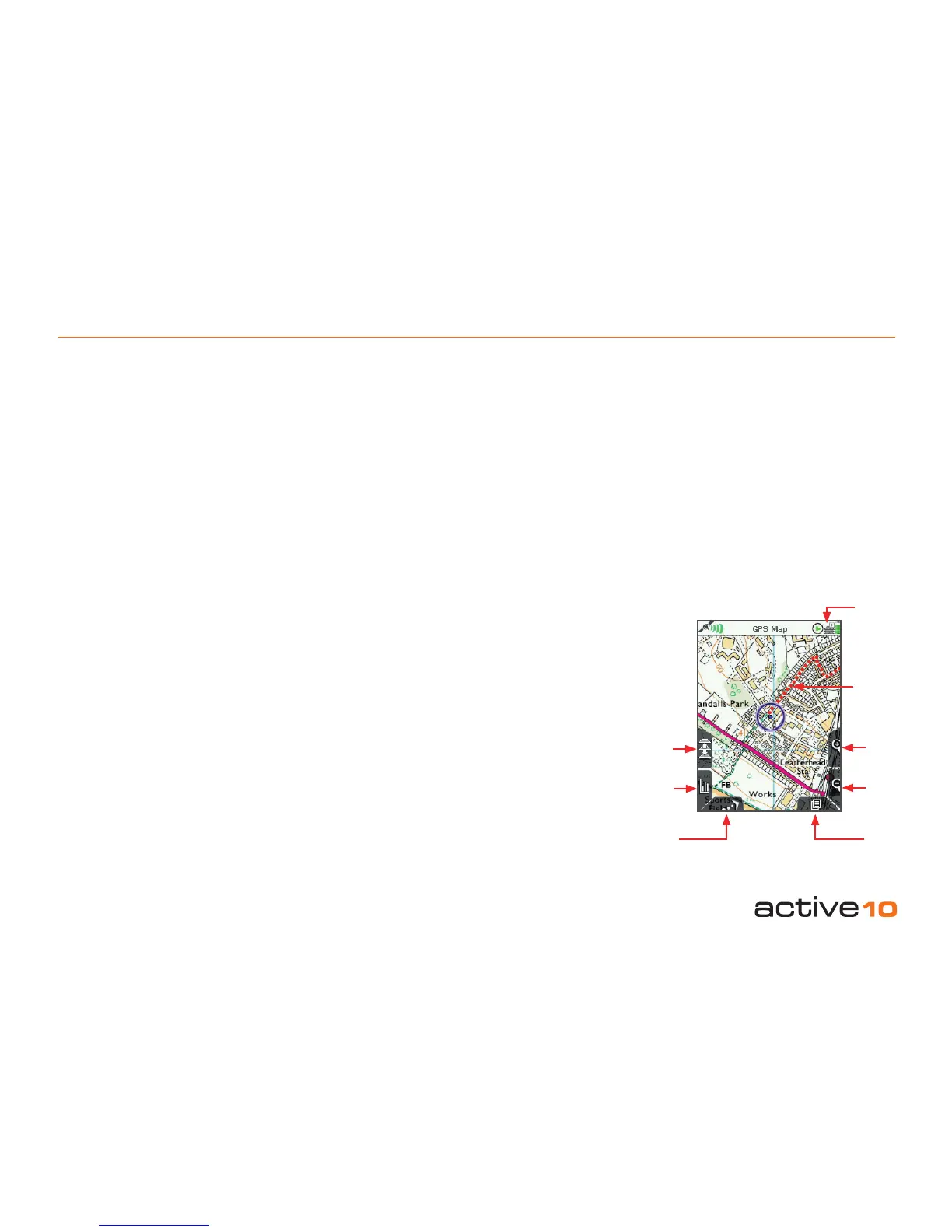
Your position is shown as a blue dot in the
centre of the screen. Once moving, a pointer
appears on the blue circle, indicating the
current direction of travel. As you move, a
snail trail of red dots is laid down, indicating
the path you have taken. (To change the dot
size, see section 8.00).
The Active 10 logs your position once every
second. The rate at which red dots are
3.00 GPS Map Screen
For best results in achieving satellite lock;
• The Active 10 should be pointed at clear
sky. The unit is able to acquire lock through
glass, ie. windows, car windscreen.
• Set the screen page to GPS STATUS
(section 4.04) using the Page button (see
gure 3.00).
Centre press the joystick to access the
POSITION INFO page (section 8.00).
Buttons:
Toggle maps
(Icon shows three layers of stacked mapping)
Toggle between maps at the same zoom level
Data boxes
Toggle between none, 2 or 4 data boxes on-
screen (sections 5.04, 5.05 and 5.06)
North Up/Trail Up
Map display cycles through North Up / Trail
Up (Centre) / Trail Up (Low)
Zoom In/Out
Map scale is continuously displayed during
zooming
Page
Scroll through the primary pages (section
2.10)
Note: Putting the Active 10 into a tight tting
space (eg. the carrying case or a jeans
pocket) will nudge the joystick, switching the
3.00 GPS Map Screen
displayed depends on the map scale and
the speed of travel. Dots are laid down such
that an appropriate distance is rendered
between them to create a clear track. There is
a powersave setting (see Advanced Power
Control, section 5.02), in which the screen
data is updated once every 4 seconds.
Trail Up mode orientates the map so that it
matches your surroundings, similar to turning
a paper map as you ‘nd your bearings’. The
North Up / Trail Up button cycles through
North Up / Trail Up / Trail Up (Low). Trail Up
(Low) mode positions the locator circle low on
the screen so that you can see more mapping
ahead of your position.
Figure 3.00
Toggle
maps
Zoom
In
Snail Trail
North Up/
Trail Up
Data box
Page
Zoom
Out
Toggle
icon



 To Next Page