7
2.05 Battery Insertion
The Active 10 is powered by either three
AA batteries or a rechargeable battery
(sections 11.03 & 11.04). AA batteries vary
signicantly in power and life from one type
to another. The most powerful on the market
are the Lithium Energisers, a set of which are
supplied with the Active 10. It is not advisable
to use cheap batteries in the unit as they will
have a short life.
2.06 Switching On and Off
When rst installed, the software allows users
to select the operating language. Whatever
language is selected, the unit is then set for
the appropriate GPS position: ie. selecting
English sets up the GPS default to Great
Britain.
After switching on the unit the GPS STATUS
page (section 4.04) will load up, the bars at
the bottom of the page indicate how many
satellites are in range of the Active 10.
When the bars turn from yellow to orange
this shows that the unit has locked on to that
specic satellite. In general the unit needs a
minimum of four satellites to get a lock.
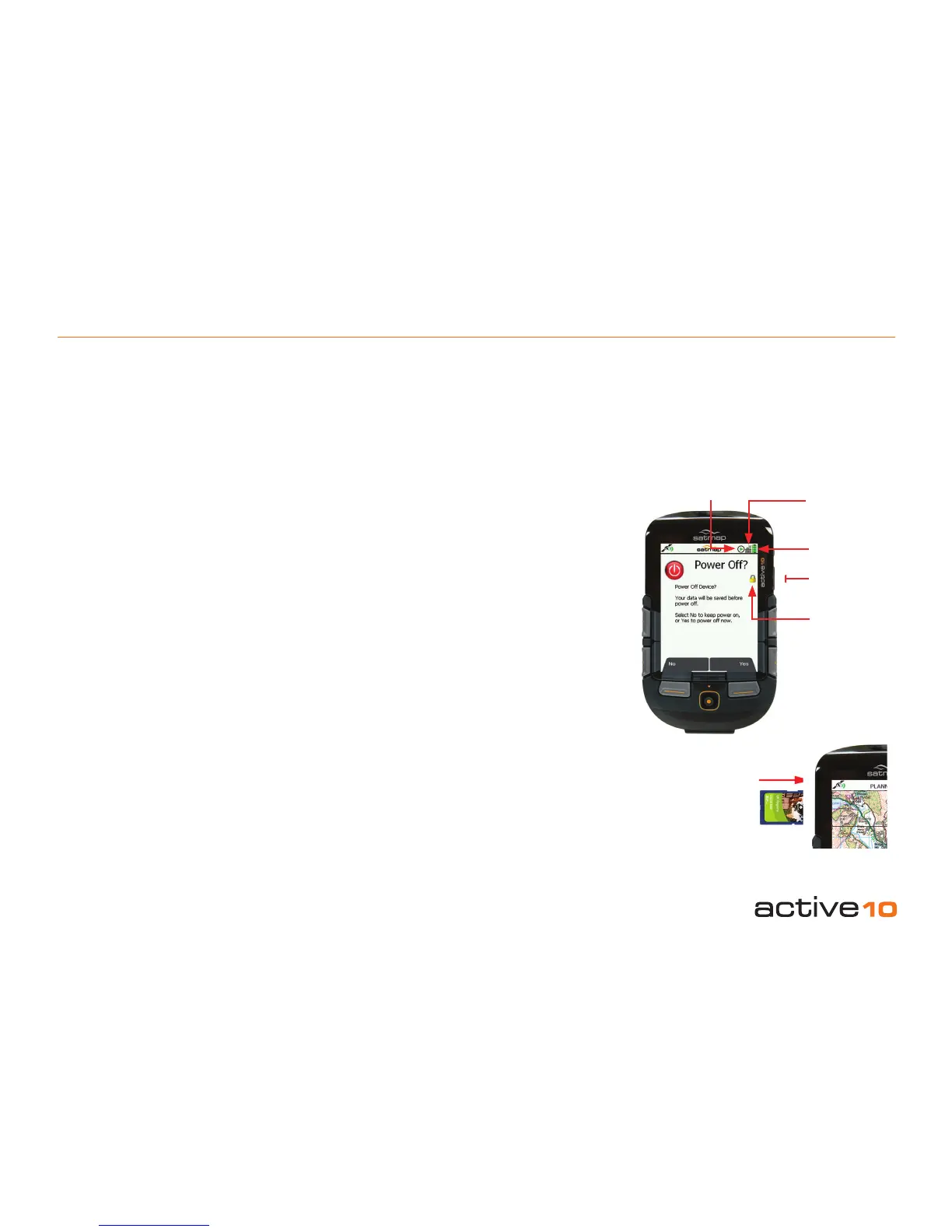
To switch the unit off, press the On/Off button
and a Power Off? page is displayed in order
to prevent accidental switch-off; select Yes.
Your data will be saved before power off. If no
selection is made after 10 seconds the unit
will revert to the previous page.
2.07 Map Card Insertion
The map card door is hinged at the bottom
and opens from the top downwards. When
inserting the card please ensure that the label
is facing you with the arrow pointing inwards.
2.08 Keyboard Lock
The Power Off? page has a padlock (keypad
lock) icon by the On/Off button. Press the On/
Off button to lock the keypad. A padlock icon
is displayed by the battery indicator.
To unlock the keypad press any button and
an Unlock? page is displayed. Select Yes
to unlock the keypad. If no selection is made
after 3 seconds the unit will revert to the
previous page.
2.09 Battery Indicator & Stop/Record
Icon
The battery indicator is solid for new or fully
charged cells. As the charge decreases it
is broken into four bars which then reduce.
When a single bar remains, it is coded red.
After some further time (depending on the
power source and the activity ie. load), there
is an on-screen warning that the unit will
power off in 30 seconds and a countdown is
shown.
If you are using the rechargeable LiPol
battery (section 11.00), during charging the
battery indicator has a lightning ash. When
you disconnect the unit from the power
supply, the indicator is solid if fully charged.
On/Off button
Keyboard Lock
Battery indicator
Toggle icon
Stop/Record icon
Figure 2.07
Figure 2.06
Getting Started
Next to the battery indicator is the Stop/
Record icon, indicating that data logging,
shown on the TRIP LOG page (section 4.03),
is either paused or recording. When the unit
has lock, the record icon is a solid green
arrowhead. Without lock the record icon is
‘empty’.



 To Next Page