19
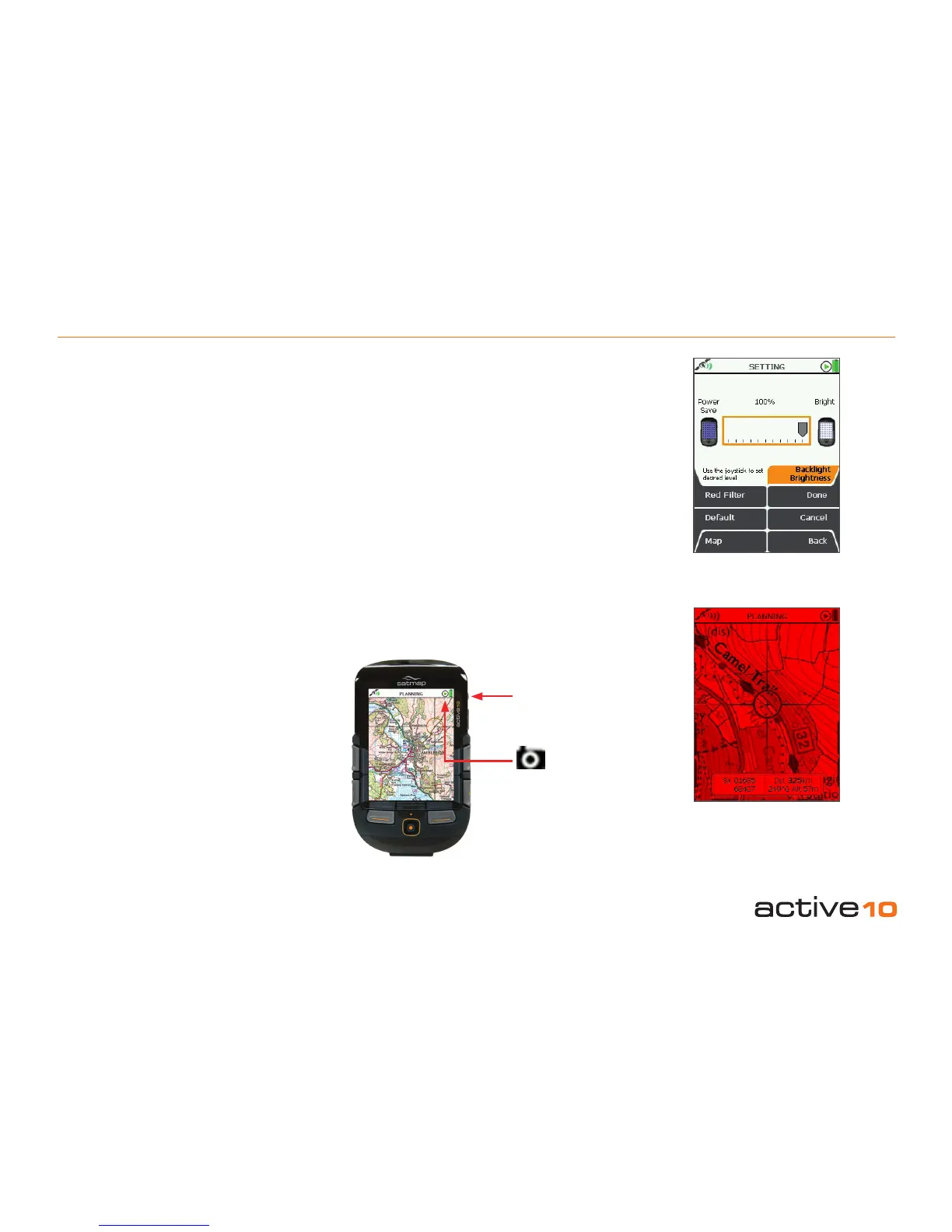
5.03 Backlight
(GPS Map → MAIN MENU → Settings →
Backlight)
The backlight setting has a signicant
impact on battery life. It is recommended
that you choose a setting which you nd
comfortable, not necessarily the brightest.
To preserve night vision, use a low level
setting. Below 10%, the scale goes down in
steps of 2%.
Press the Red Filter button for night use as
another option to preserve night vision. Select
Normal to return to the daylight screen. The
red lter and backlight level can be used in
combination to suit your individual needs.
• Use the joystick, moving left/right to select
the desired level.
• Press Done or centre press the joystick to
return to SETTINGS MENU.
Pressing the Default button restores the
following setting: 90%
5.03a Screen Data Capture
Screenshots may be captured as jpeg les
and accessed in SatSYNC (section 2.03),
listed with time/date details.
This might be useful in a variety of
circumstances. For example, sending a
screenshot of a particular location to another
person or using a series of screenshots in
conjunction with timed digital photos for use in
a presentation.
Press and hold the Backlight Boost button
for ve seconds; a camera icon briey
replaces the Stop/Record icon and beeps
sound to indicate a successful screenshot
capture.
In SatSYNC, a Screenshot jpeg is listed under
SD Card Files.
To view screenshots, export the le from
SatSYNC to a computer (press Export and
choose a le destination). Then double-click
on the computer le. Screenshots may be
copied and pasted by right clicking on the
computer le. To email screenshots, save the
le onto your desktop, then either attach it
to the email or drag the le from the desktop
into the email where it will format itself as an
attachment.
5.03 Backlight & Screen Data Capture
Figure 5.03
Red Filter
Backlight
Boost
Camera icon
Briey replaces
Stop/Record icon



 To Next Page