41
9.02 ADD POIs
9.02 ADD POIs Page
(GPS Map → MAIN MENU → POI Menu →
Create New POI → Add New POI by Map)
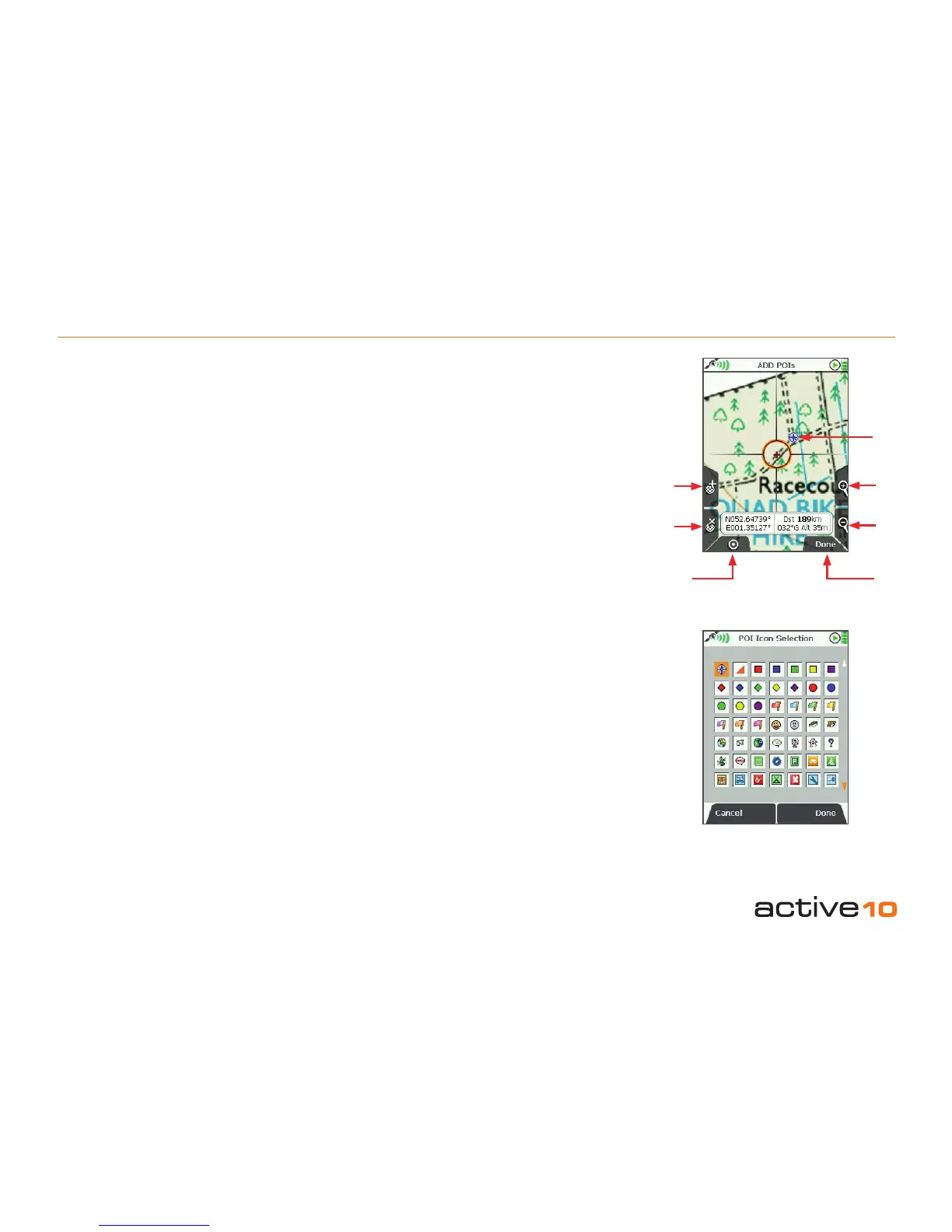
To add a POI either press the ‘+’ button
(upper left) or centre press the joystick. The
keypad page (section 9.03) is shown so
that POIs can be labelled. When the name is
created, press Done. If you have downloaded
the POI collection from the website, the POI
Icon Selection page is shown and you can
select your own icon. Press Done to return to
the ADD POIs page.
To remove a POI, move the crosshair over the
POI and press the ‘x’ button (lower left).
Press Done to return to the Add New POI
page, then Back to go to the POI Menu.
To add a category:
• Highlight a POI category, press Edit.
• Select Copy POI Category, press Copy.
The POI Menu now shows the copied
category which you can rename (press Edit).
In this way you can have categories such as
Favourite Pubs or B&Bs.
Note: In creating a new category it is worth
copying one which contains only one POI
since this saves you having to delete POIs.
Also note that when the last POI is deleted
from a category, the category is also deleted,
so remember to lay down a new POI before
deleting the unwanted POI.
Buttons:
Add POI (+)
Lay down POI icons on the map
Remove POI (x)
Remove POIs from the map
Lock to GPS
Return to last map screen
Zoom
Zoom in/out
Done
Return to Add New POI page
A library of new POI icons are available for
download from satmap.com. These allow
for better management of POIs and faster
recognition.
Press the joystick up/down to access further
pages of POI icons.
POI icon
Remove
POI
Lock to
GPS
Add POI
Zoom
In
9.02
Zoom
Out
Done
Figure 9.02



 To Next Page