34
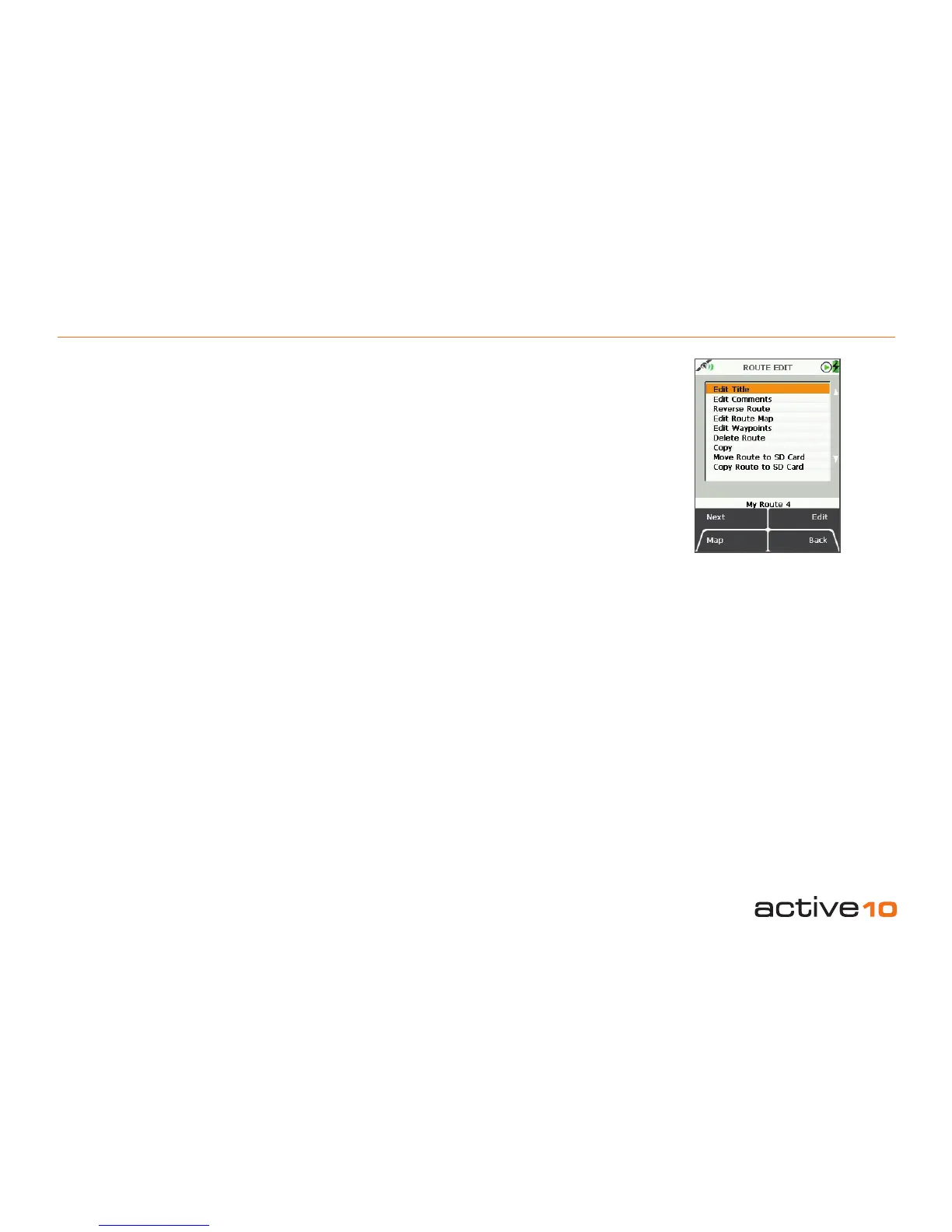
7.02 ROUTE EDIT
7.02 ROUTE EDIT Page
(GPS Map → MAIN MENU → ROUTES
MENU → (folder/route) → Edit)
To access the ROUTE EDIT page, highlight
the route to be edited on the ROUTES MENU
page (section 7.00), and press Edit.
In selecting either Edit Title or Edit
Comments you will bring up an on-screen
keypad (section 9.03). When using the keypad
for labelling, either press Select or centre
press the joystick to select entries. Use the
Shift button for upper case letters, the More
button offers more characters.
Buttons:
Next
Press Next or use joystick to scroll down
options
Map
Return to last map screen
Edit
Either press Edit button or centre press
joystick to access alpha-numeric keypad for
labelling
Back
Return to ROUTES MENU page (section 7.00)
When the title and any comments have been
entered (sections 7.02a & 7.02b), the ROUTE
MAP screen (section 7.03) will be annotated
with the new title and comments. (To get to
the ROUTE MAP screen, select View on the
ROUTES MENU page).
The menu options on the ROUTE EDIT page
are as follows;
• Edit Title
• Edit Comments
• Reverse Route
• Edit Route Map
• Edit Waypoints
• Delete Route
• Copy
• Move Route to/from SD Card*
• Copy Route to/from SD Card*
*The last two options on the list become
available only when a mapcard is inserted.
7.02a Edit Title
(GPS Map → MAIN MENU → ROUTES
MENU → (folder/route) → Edit → Edit Title)
When a route is created it is called My Route
1 by default. To rename it, use Edit Title.
Highlight Edit Title, then either press the Edit
button or centre press the joystick to access
the keypad (section 9.03).
Figure 7.02



 To Next Page