45
9.06 EDIT POIs
9.06 EDIT POI Page
(GPS Map → MAIN MENU → POI Menu →
(folder/category) → Select → Edit)
Alternative access:
GPS Map → MAIN MENU → POI Menu →
(folder/category) → Select → POI 1 → Show
Details → Edit
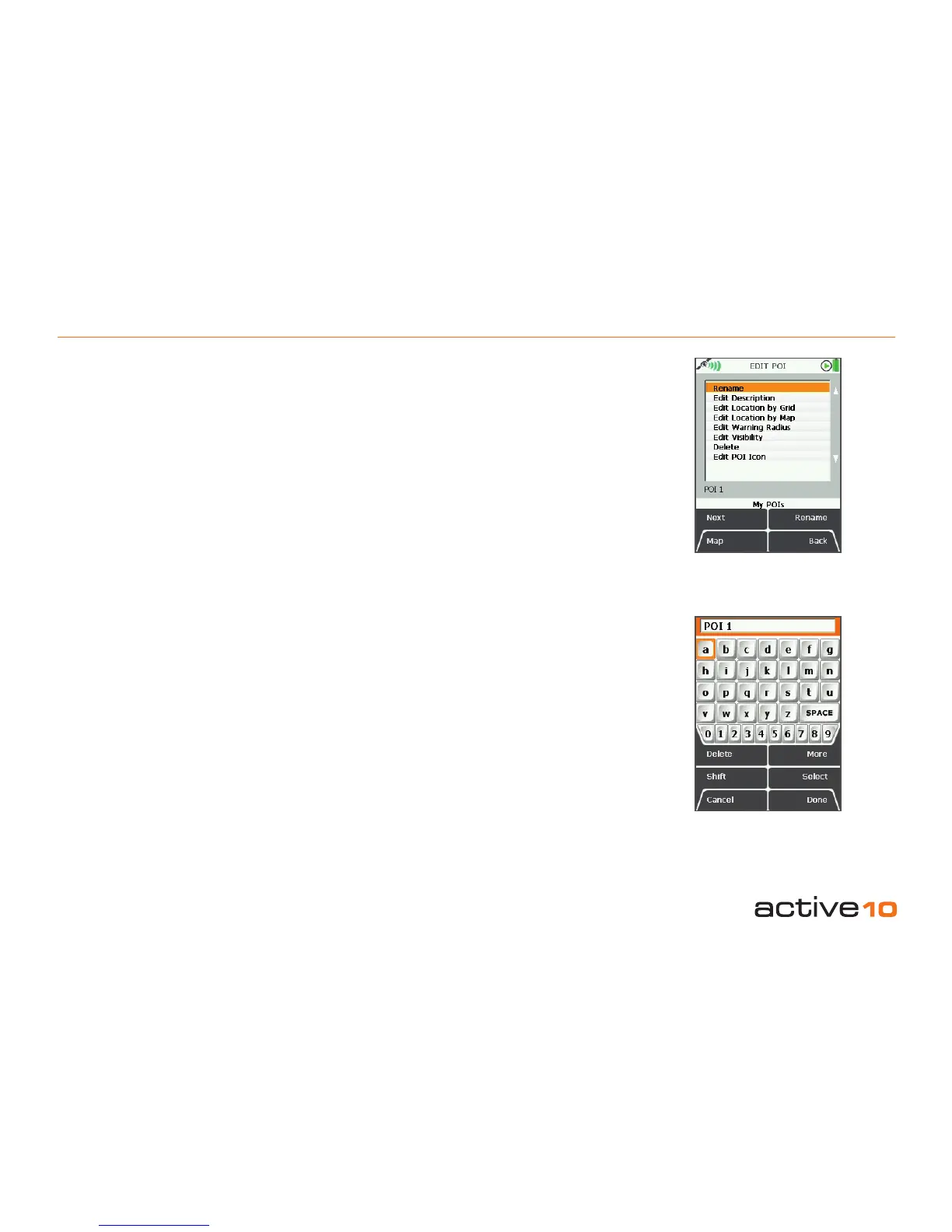
The menu options on the EDIT POI page are:
• Rename
• Edit Description
• Edit Location by Grid
• Edit Location by Map
• Edit Warning Radius
• Edit Visibility
• Delete
• Edit POI Icon*
*Available once the POI collection has been
downloaded from the website.
Scroll up/down using the Next button or the
joystick. Select by using the appropriate
button or centre pressing the joystick.
The current setting for the highlighted option
is shown under the window.
Buttons:
Next
Scroll down
Map
Return to last map screen
Figure 9.06a
Figure 9.06
Rename/Edit/Delete
Button changes according to option
highlighted
Back
Return to POI category
9.06a Rename
(GPS Map → MAIN MENU → POI Menu
→ (folder/category) → Select → Edit →
Rename)
With the Rename option highlighted, the
current name of the POI is given under the
options list (eg. ‘POI 1’). Press the Rename
button to access the keypad to change the
name (section 9.03). Press Done when
nished to return to the EDIT POI menu.
Once you have renamed the POI (section
9.04a), ‘POI 1’ will be replaced with your new
name, eg. ‘The Welcome Inn’.
9.06b Edit Description
(GPS Map → MAIN MENU → POI Menu →
(folder/category) → Select → Edit → Edit
Description)
Use the keypad to type in a POI description
(section 9.03).
To view the description:
• Press Done – return to EDIT POI page.
• Press Back – go to My POIs page (section
9.05).
• Press Show Details – go to POI 1 page
(section 9.05a).



 To Next Page