14
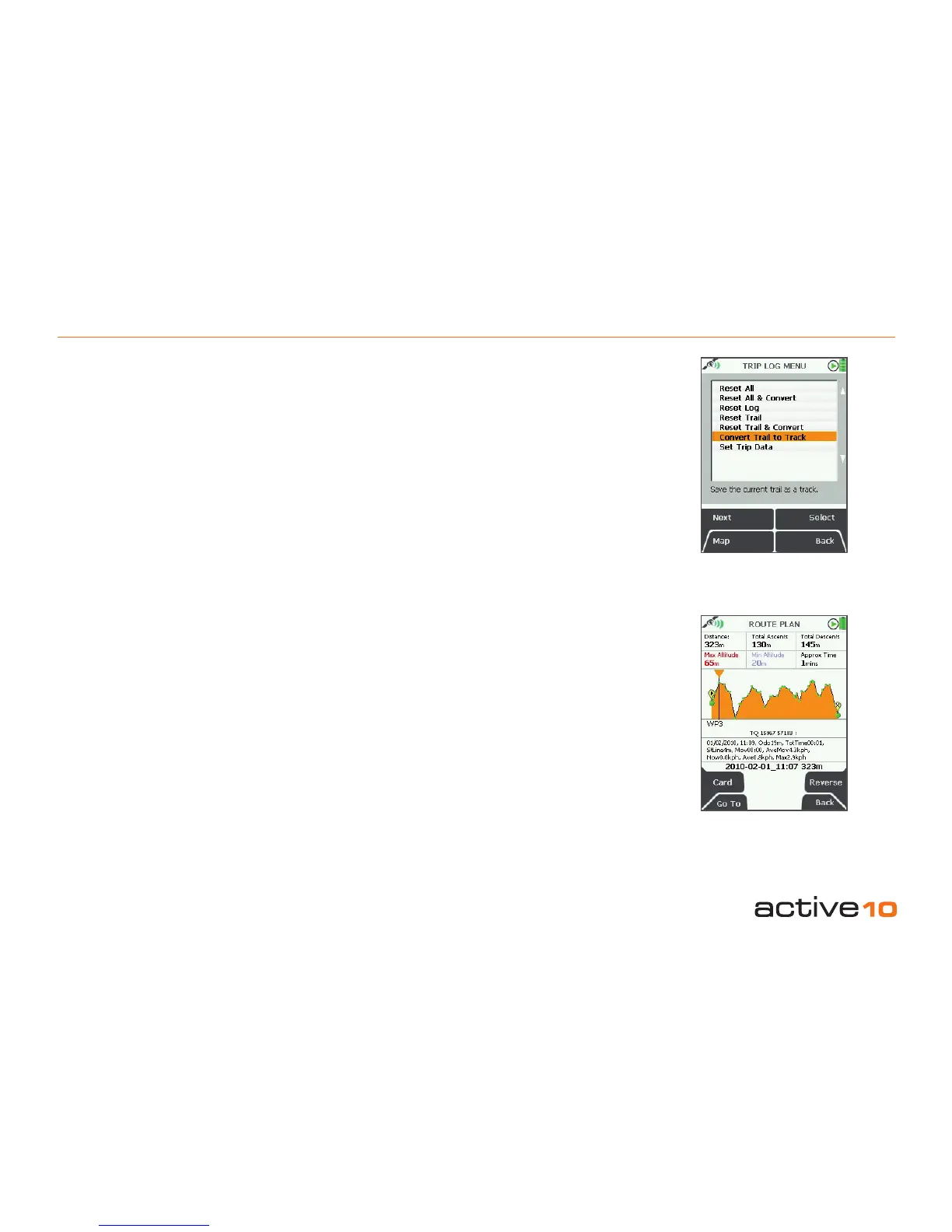
4.04 Convert Trail to Track
4.04 Convert Trail to Track
(GPS Map → MAIN MENU → COMPASS →
TRIP LOG → Menu → Convert Trail to Track)
When a route has been completed it can
be saved for reference, future use, or for
swapping with others on the Route Share
Network (section 12.08). Select the Convert
Trail to Track option to convert the snail trail
of red dots into a trail (yellow line).
Waypoints will automatically be added at key
points on the map. As these are computer
generated, the positions should be checked
and where appropriate, amended to ensure
they are practical from a user’s point of view.
When the Track has been created, this can be
viewed on the unit or can be shared using the
SatSYNC program (free download from
www.satmap.com).
Note: At the bottom of the elevation prole
page there is a list of all the trip data attached
to each waypoint on the route (Figure 4.04a).
Figure 4.04a
Figure 4.04
The terms Route, Track and Trail are used
to allow differentiation between direction
information:
Trail: this is the path that has been taken,
shown as a line of red dots (‘snail trail’).
Route: this is the planned path users intend to
take. It is shown as a yellow line and will have
waypoints laid down at key turning points.
Track: when a snail trail is saved it is
converted to a track (section 4.04), and is
shown as a yellow line. It is called a Track
to differentiate it from a Route,as it can also
contain the trail data log.



 To Next Page