B.3
Date Code 20170601 Instruction Manual SEL-387-0, -5, -6 Relay
SEL-300 Series Relays Firmware Upgrade Instructions
Upgrade Procedure
b. Choose a port and connect an SEL Cable C234A (or
equivalent) serial communications cable to the personal
computer serial port.
If there is no identification label, connect the cable to any
computer serial port. Note that you might later change this
computer serial port to a different port in order to establish
communication between the relay and the computer.
Step 2. Disconnect any other serial port connection(s).
Step 3. From the computer, open HyperTerminal.
On a personal computer running Windows, you would typically
click Start > Programs > Accessories.
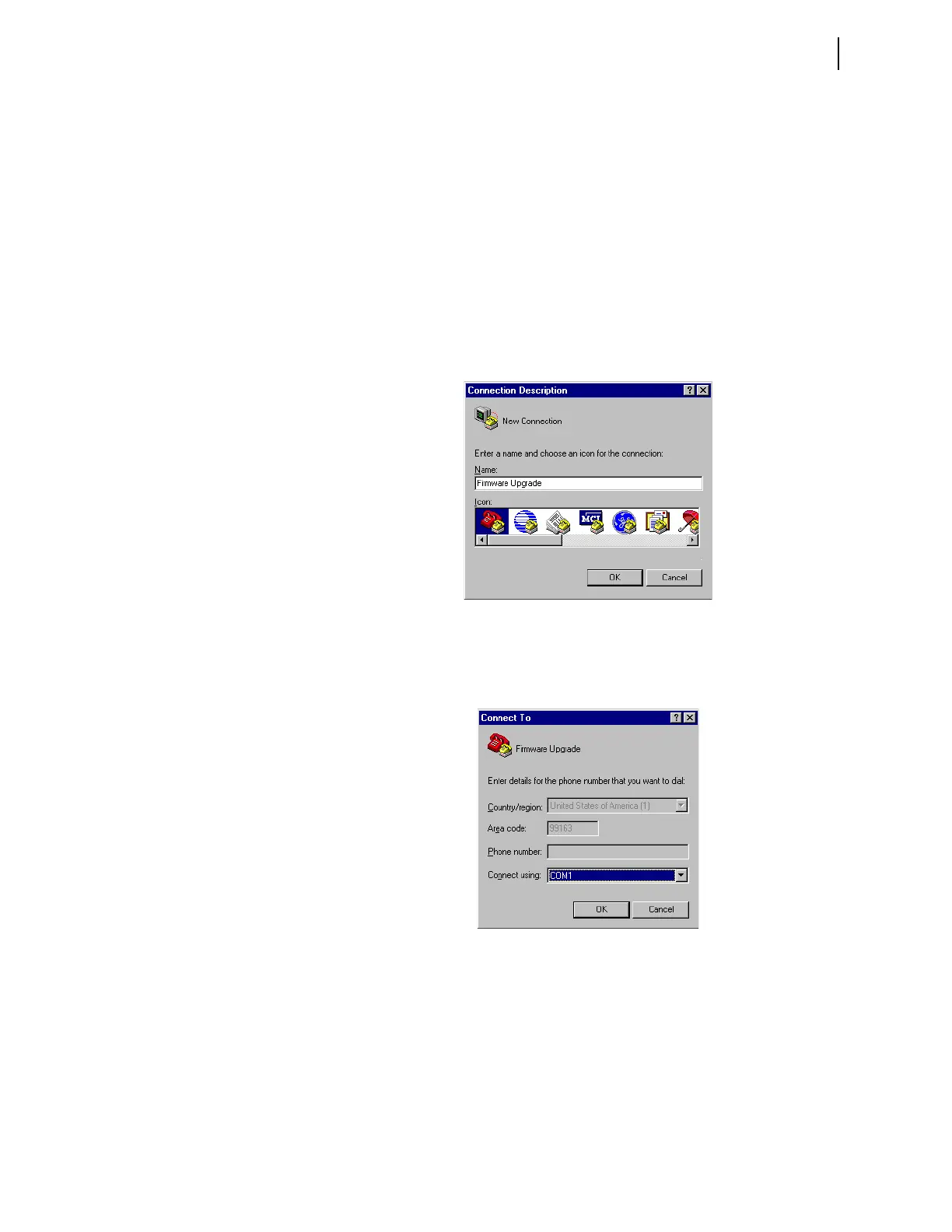
Step 4. Enter a name, select any icon, and click OK (Figure B.1).
Figure B.1 Establishing a Connection
Step 5. Select the computer serial port you are using to communicate
with the relay (Figure B.2) and click OK. This port matches the
port connection that you made in Step 1 on page B.2.
Figure B.2 Determining the Computer Serial Port
Step 6. Establish serial port communications parameters.
The settings for the computer (Figure B.3) must match the relay
settings you recorded earlier.
a. Enter the serial port communications parameters
(Figure B.3) that correspond to the relay settings you
recorded in Step 9 on page B.2.
If the computer settings do not match the relay settings,
change the computer settings to match the relay
settings.


 To Next Page