B.9
Date Code 20170601 Instruction Manual SEL-387-0, -5, -6 Relay
SEL-300 Series Relays Firmware Upgrade Instructions
Upgrade Procedure
Match Computer Communications Speed to the Relay
Step 6. From the Call menu, choose Disconnect to terminate
communication.
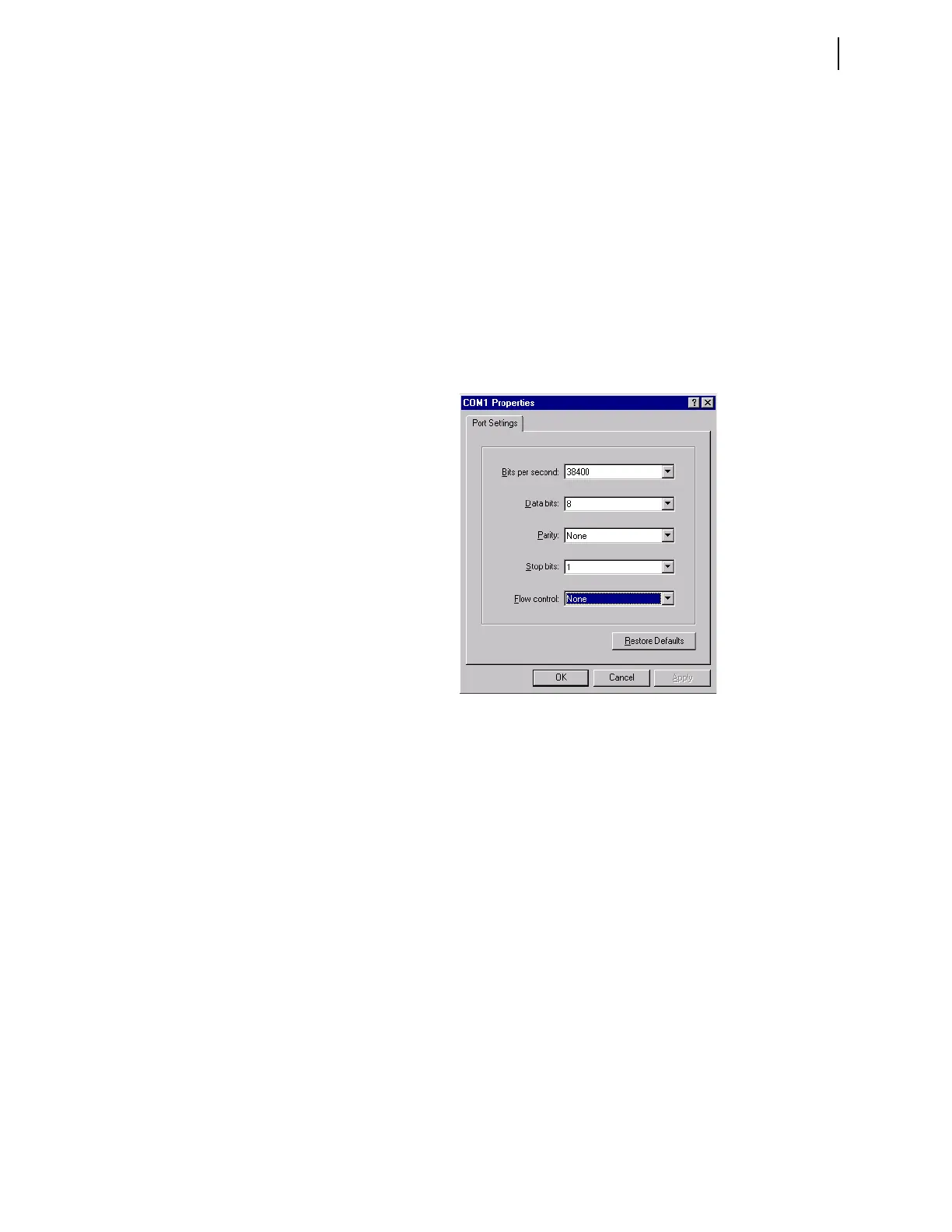
Step 7. Correct the communications parameters:
a. From the File menu, choose Properties.
b. Choose Configure.
c. Change the computer communications speed to match
the new data transmission rate in the relay
(Figure B.10).
d. Click OK twice.
Step 8. Press <Enter> to check for the SEL
boot !> prompt indicating
that serial communication is successful.
Figure B.10 Matching Computer to Relay Parameters
E. Download Existing
Firmware
Copy the firmware presently in the relay, in case the new firmware upload is
unsuccessful. To make a backup of the existing firmware, the computer will
need as much as 3 MB of free disk space. This backup procedure takes 5–10
minutes at 38400 bps.
Step 1. Type SEN <Enter> at the SEL
boot !> prompt to initiate the
firmware transfer from the relay to the computer.
Step 2. From the Transfer menu in HyperTerminal, select Receive
File.
You should see a dialog box similar to Figure B.11.
Step 3. Enter the path of a folder on the computer hard drive where you
want to record the existing relay firmware.
Step 4. Select 1K Xmodem if this protocol is available on the PC.
If the computer does not have 1K Xmodem, choose Xmodem.
Step 5. Click Receive.


 To Next Page