Audio and Media Mode
MEDIA main menu
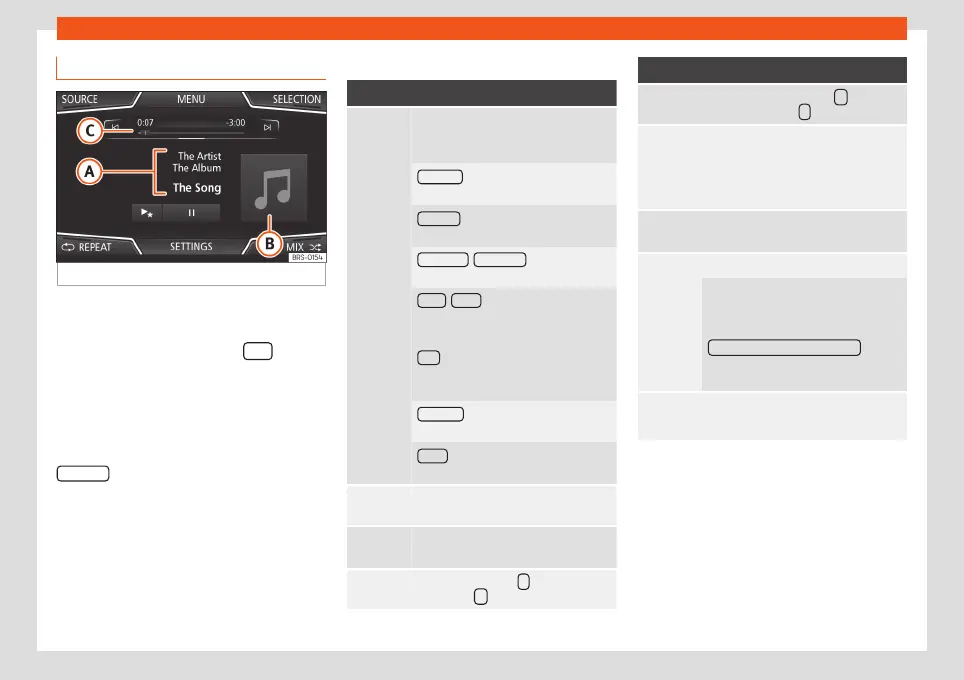
Fig. 31
MEDIA main menu.
Using the MEDIA main menu, different media
sources can be selected and played.
●
Press the infotainment button
to open
the MEDIA main menu
›››
Fig. 31.
It will continue playing the last media source
selected from the same point.
The media source being played is indicated
on the dropdown list when pressing the
SOURCE
function button
›››
Fig. 31.
If there is no available media source, the ME-
DIA main menu is displayed.
MEDIA main menu function buttons
Function button: function
SOURCE
Indicates the media source being
played. Press to select another media
source
›››
page 45.
JUKEBOX
a)
: Internal hard drive (SSD)
›››
page 52.
CD/DVD
b)
: Internal CD and DVD drive
›››
page 48.
SD CARD 1 , SD CARD 2 : SD memory
card
›››
page 49.
USB 1 , USB 2 : External data storage de-
vice connected to the USB port
›››
page 49.
AUX : External audio source connected
to the AUX-IN multimedia socket
›››
page 50.
BT AUDIO : Bluetooth
®
audio
›››
page 51.
WLAN
c)
: External audio source connec-
ted by WLAN
›››
page 53
SELEC-
TION
Opens the track list
›››
page 46.
/
Changes track in Media mode or fast
forward/rewind
›››
page 45.
Playback stops. The function button
changes to
.
Function button: function
Playback is resumed. The function
button changes to
.
a)
Play more like this.
Creates a virtual playlist that includes
tracks with a similar rhythm to the one
being played if available using Grace-
note
®
.
SET-
TINGS
Opens the Media Settings menu
›››
page 56.
REPEAT
Repeat all tracks.
Repeats all the tracks that are on the
same memory level as the track being
played at that moment. If in the
Media
Settings
menu
Mix/Repeat including subfolders is acti-
vated, it also includes the subfolders
›››
page 56.
REPEAT
The current track will be repeated.
»
43



 To Next Page