IfaBSSIDisconfiguredforanetworkthenit'llbeusedinsteadoftheSSID.WEPencryptionisalsosupportedif
thenetworkkeylengthis5or13characters.
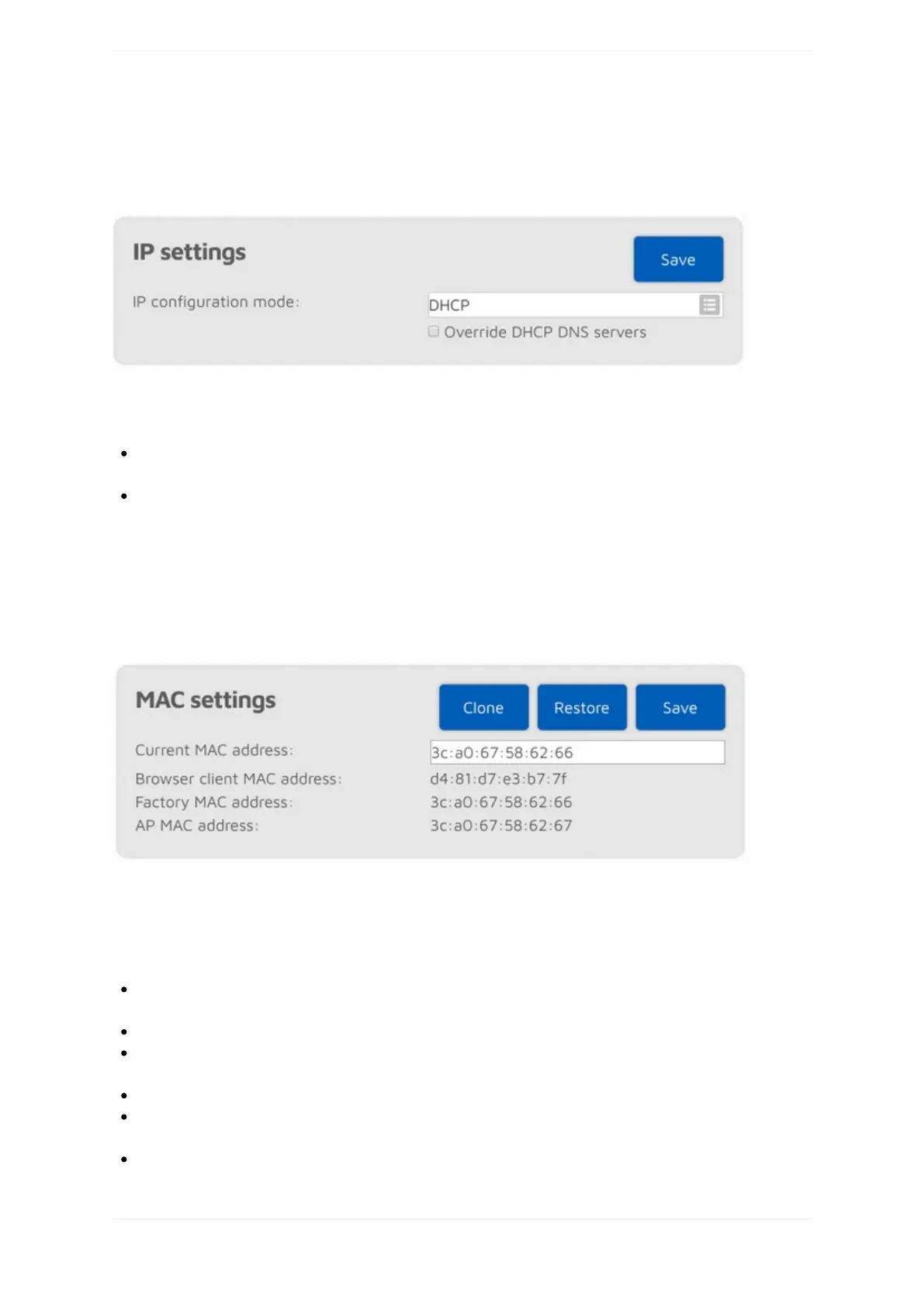
IPsettings
ThissectionisonlyavailableifAdvancedmodeisenabled.
TheopenSPOT2hastwoIPconfigurationmodes:
DHCP:Thisisthedefaultmode.ThedevicewillusetheWi-Finetwork'sDHCPserverforacquiringanIP
address.
Static:astaticIPaddresscanbesetfortheopenSPOT2.Thisisonlyrecommendedforadvancedusers.
TheDNSserversettingswhichareadvertisedbytheDHCPservercanbeoverrideniftheOverrideDHCPDNS
serverscheckboxischecked.IftheopenSPOT2can'tconnecttoaserver(forex.theopenSPOT2shows
connectorconnectingafterswitchingD-STARreflectorsfromyourradio,butitcanconnectusingtheweb
interfaceotherwise),youcantryoverridingtheDNSserversto8.8.8.8and8.8.4.4.
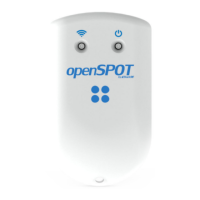
MACsettings
ThissectionisonlyavailableifAdvancedmodeisenabled.
Youcanchange/clonetheWi-FiMACaddressoftheopenSPOT2here.ThisisusefulifyoutrytouseaWi-Fi
networkwhichusesacaptiveportalforauthentication(example:hotelorairportnetworks).Inthiscase,dothe
followingsteps:
ConnecttotheWi-Finetworkwithyourphone/tablet/computer,loginonthecaptiveportaltoenablethe
internetaccessforyourphone/tablet/computer'sMACaddress.
SwitchtheopenSPOT2toaccesspoint(AP)modebyholdingthebuttonfor3seconds.
Connectyourphone/tablet/computertotheopenSPOT2AP,butexittheInitializationsetupandopenthe
Networkpage.
SetthecaptiveportalWi-Finetwork'sSSIDandkeyattheWirelesssettingssection.
ClickontheClonebuttonattheMACsettingssection(makesureAdvancedmodeisenabledsotheMAC
settingssectionisvisible).
SwitchtheopenSPOT2backtonormalmodebyholdingthebuttonfor3seconds,orbyclickingtheSwitch
wirelessmodebuttonatthetopoftheNetworkpage.TheopenSPOT2willconnecttothecaptiveportalWi-



 To Next Page