Manual Clock Setting
Preparation
• See Watching VCR on page 27.
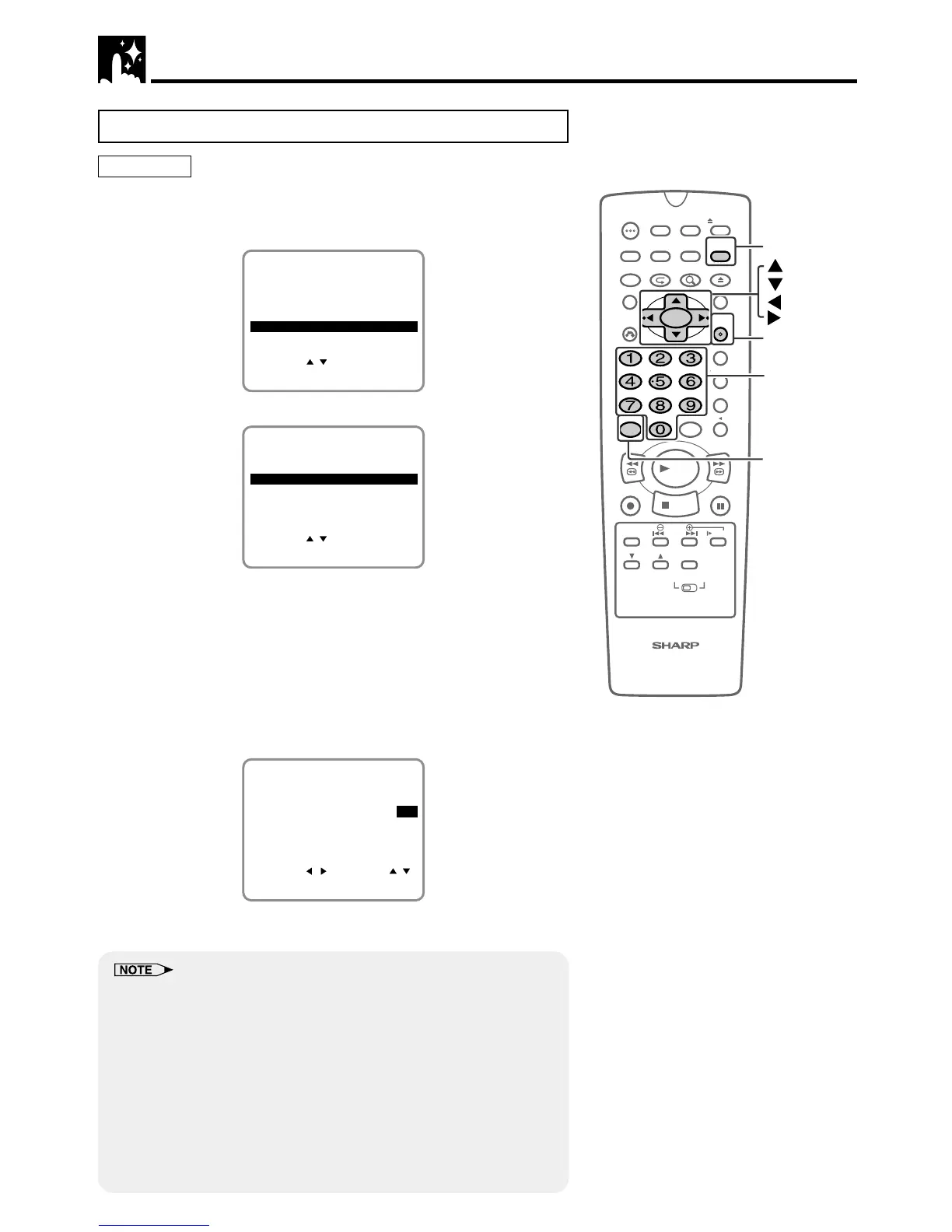
1 Press VCR MENU. Select “CLOCK” with ' / " and then press
SET.
SET UP
MENU
ENTER :SET EXIT :MENU
CHANNEL PRESET
SELECT :
CLOCK
LANGUAGE
TIMER
2 Select “MANUAL” with ' / " and then press SET.
SELECT :
MANUAL
CLOCK
ENTER :SET EXIT :MENU
AUTO
3 Select “TIME” with
\\
\\
\ /
||
||
| and set time by holding ' / ".
(Example) 10:28 AM
• Number buttons can be used instead of ' / " to set time and
date. Press AM/PM to select AM or PM during time setting.
4 Select and set “DATE”, “YEAR” and “DST” in turn, in the same
manner as in Step 3.
• See Automatic Daylight Saving-Time (D.S.T.) Adjustment
on next page.
(Example) Jul. 4, 2001, DST: ON
SELECT : CHANGE:
10:28AM 7/04WED 01 ON
CLOCK
ENTER :SET EXIT :MENU
TIME DATE YEAR DST
5 If the data is correct, press SET to enter.
• The screen returns to normal.
• In Step 1, if you press VCR MENU when operating the screen setting
for the first time or after the power is interrupted for more than 60
seconds, the LANGUAGE screen will appear.
• If you entered incorrect data during the setting procedure, re-enter the
correct data in the following manner:
1 Use
\\
\\
\ /
||
||
| to select the data to be corrected.
2 Set the correct data with ' / ".
3 After correcting the data in Step 2, press SET to enter.
• If you press VCR MENU to exit the CLOCK screen in Step 5, the data
will not be stored.
• If a button is not pressed within 3 minutes during the setting proce-
dure, the screen will return to the normal screen.
VCR Setup



 To Next Page