87
About the Function Control Screen
Subtitle language setting
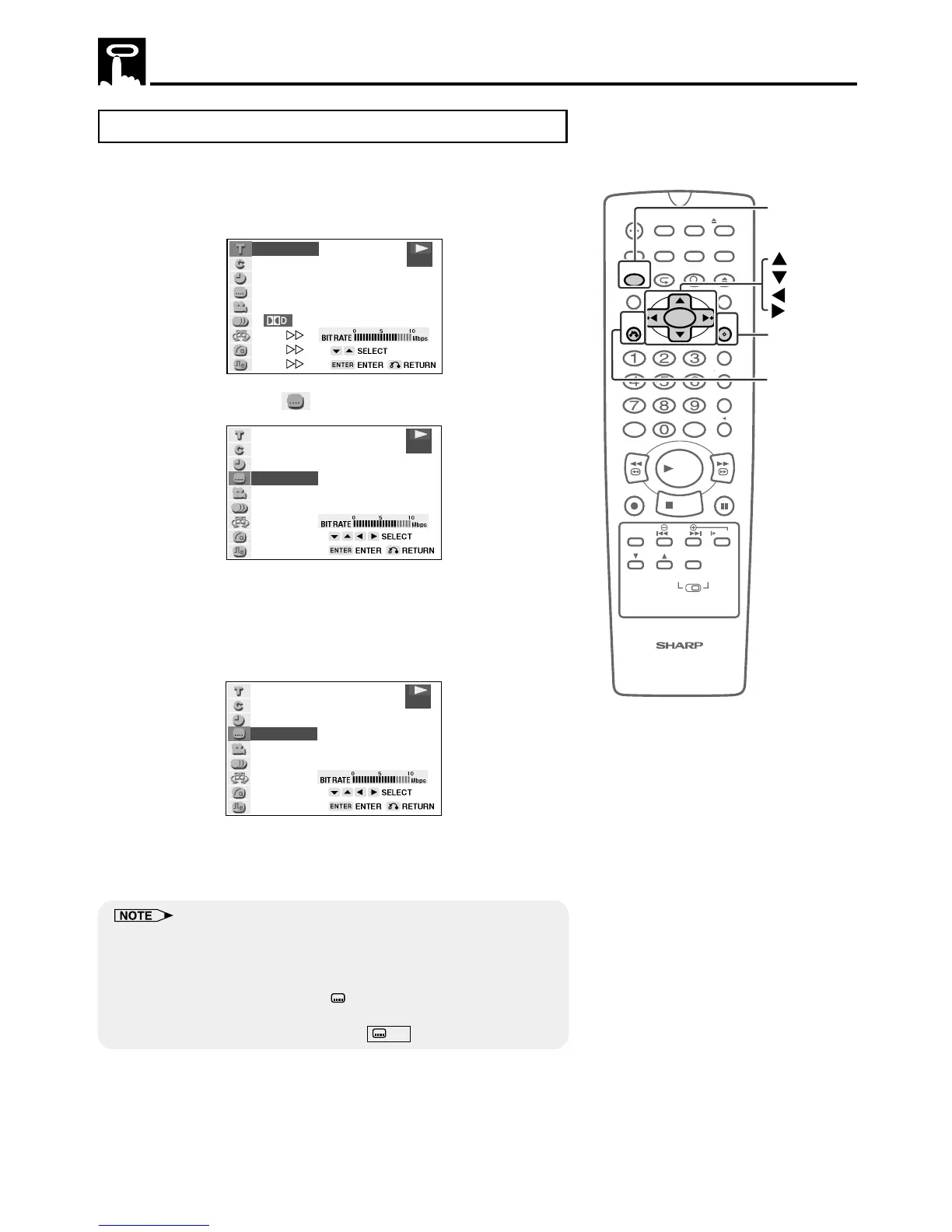
Use the following procedure to perform the Subtitle language setting.
1 Press FUNCTION CONTROL during playback.
• The Function control screen appears.
2/5
8/3‰
‰1:3‰:‰8
2
ENGLISH
1
1
5 1ch
ON
ON
ON
.
DVD
2 Use ' or " to select and then press ENTER.
2
ENGLISH
DVD
3 Press ' or " to select the subtitle language you want to use.
• You can set the subtitle setting to “OFF”.
• You can also toggle the setting between “ON” and “OFF” by
pressing \ or |.
(Example) Selecting “3 SPANISH”
3
SPANISH
DVD
4 Press ENTER to confirm the setting.
• You can exit the Function control screen by pressing
RETURN or FUNCTION CONTROL.
• This function can only be used for discs on which subtitles have been
recorded in multiple languages.
• Some DVD discs are marked “Forced Display”, indicating that the
subtitling cannot be suppressed. With such discs, the subtitles will be
displayed even when you select “ OFF” display. This does not
indicate a fault with this Unit.
• If no subtitles are recorded on the disc, xx is displayed.
100
OPEN/
CLOSE
POWER
VCR/DVD
SELECTOR
VCR MENU
DVD SETUP
TAPE
SPEED
ON
SCREEN
TIMER
ON/OFF
TITLE
DVD MENU
DISPLAY
TV /VCR EJECT
FUNCTION
CONTROL
PROGRAM ZOOM
CANCEL
RETURN
REV FWD
SET
ENTER
ZERO BACK
SKIP SEARCH
REPLAY
VCR DVDAM/ PM INPUT
PAUSE/STILL
REC
VCR/ DVD COMBINATION
PLAY
STOP
SLOW
CH
VCR DVD
SKIP
DPSS
AUDIO
OUTPUT
ENTER
RETURN
FUNCTION
CONTROL



 To Next Page