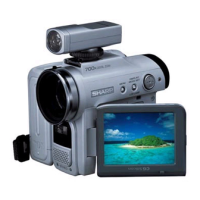
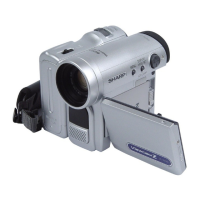
Inserting and Removing a
Mini DV Cassette
Inserting a Cassette
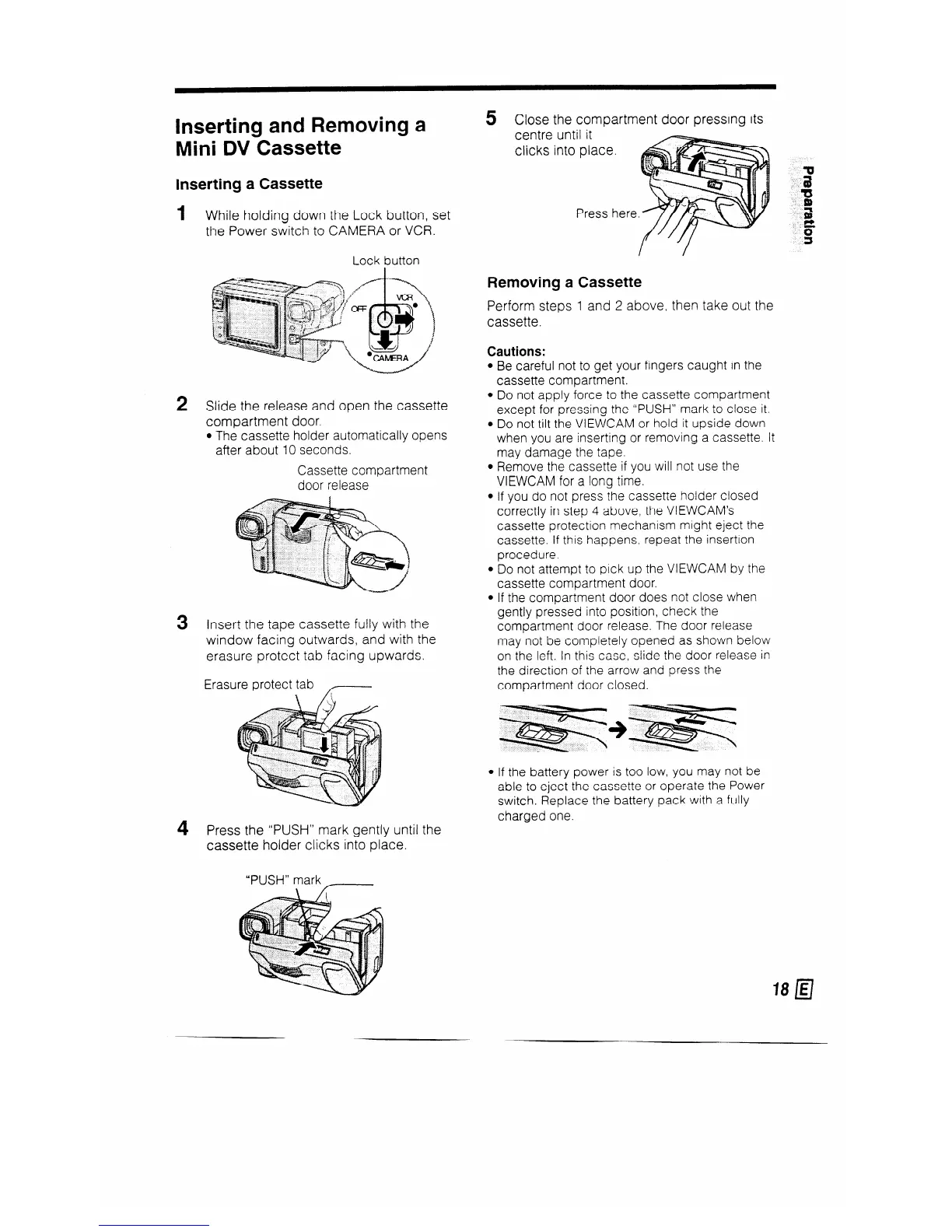
1
While holding down the Lock button, set
the Power switch to CAMERA or VCR.
Lot k button
2
Slide the release and open the cassette
compartment door.
l The cassette holder automatically opens
after about IO seconds.
Cassette compartment
door release
3 Insert the tape cassette fully with the
window facing outwards, and with the
erasure protect tab facing upwards.
Erasure protect tab
4 Press the “PUSH” mark gently until the
cassette holder clicks into place.
“PUSH” mark
_
5 Close the compartment door pressing its
centre until it
clicks into place.
Removing a Cassette
Perform steps 1 and 2 above, then take out the
cassette.
Cautions:
Be careful not to get your fingers caught in the
cassette compartment.
Do not apply force to the cassette compartment
except for pressing the “PUSH” mark to close it.
Do not tilt the VIEWCAM or hold it upside down
when you are inserting or removing a cassette. It
may damage the tape.
Remove the cassette if you will not use the
VIEWCAM for a long time.
If you do not press the cassette holder closed
correctly in step 4 above, the VIEWCAM’s
cassette protection mechanism might eject the
cassette. If this happens, repeat the insertion
procedure.
Do not attempt to pick up the VIEWCAM by the
cassette compartment door.
If the compartment door does not close when
gently pressed into position, check the
compartment door release. The door release
may not be completely opened as shown below
on the left. In this case, slide the door release in
the direction of the arrow and press the
compartment door closed.
l If the battery power is too low, you may not be
able to eject the cassette or operate the Power
switch. Replace the battery pack with a fully
charged one.


 To Next Page