Preparation
Controlling the Monitor Display
You can use various functions and make mode
MODE DISPLAY button
settings while viewing the monitor display.
Notes:
l The monitor illustrations in this operation manual
are for the purpose of explaining the functions of
the VIEWCAM. and may differ from the actual
monitor displays.
l The displays below are those when a cassette is
loaded in the VIEWCAM and the power is
supplied from a battery pack.
I Lock button
Operation
Power l Hold down the Lock button when setting the Power
button
switch
switch to CAMERA or VCR.
/
Camera mode (when the Power swiG?
is set to CAMERA)
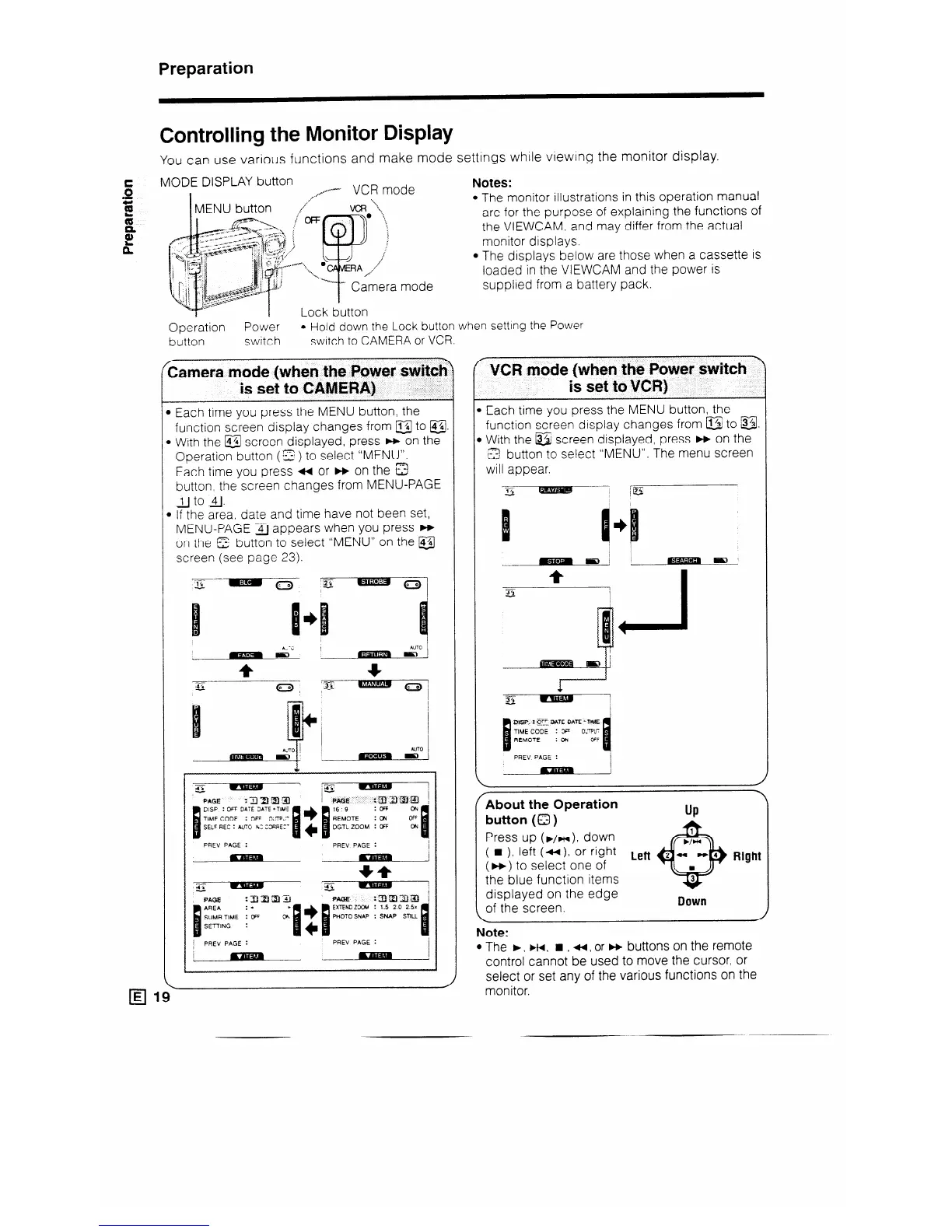
1 Each time you press the MENU button, the
function screen display changes from a to a.
) With the @ screen displayed, press m on the
Operation button (
*z) to select “MENU”.
Each time you press ++ or w on the 3
button. the screen changes from MENU-PAGE
lJ to 4j.
) If the area, date and time have not been set,
MENU-PAGE 41 appears when you press w
on the E button to select “MENU” on the @
screen (see page 23).
PAEV PAGE :
PREV PAGE :
El
E 1~
Y
\
VCR mode (when the Power switch
is set to VCR}
Each time you press the MENU button, the
function screen display changes from B to @.
1 With the @ screen displayed, press w on the
12 button to select “MENU”. The menu screen
will appear.
I
lil
PREV PAGE :
FAbout the Operation
button (Q)
Press up (F/H), down
( n )l left (44 ). Or right Left
(w) to select one of
the blue function items
displayed on the edge
of the screen.
Dcim
Note:
l The b, FH, H , u, or H buttons on the remote
control cannot be used to move the cursor. or
select or set any of the various functions on the
monitor.


 To Next Page