Using the Infrared Remote
Control
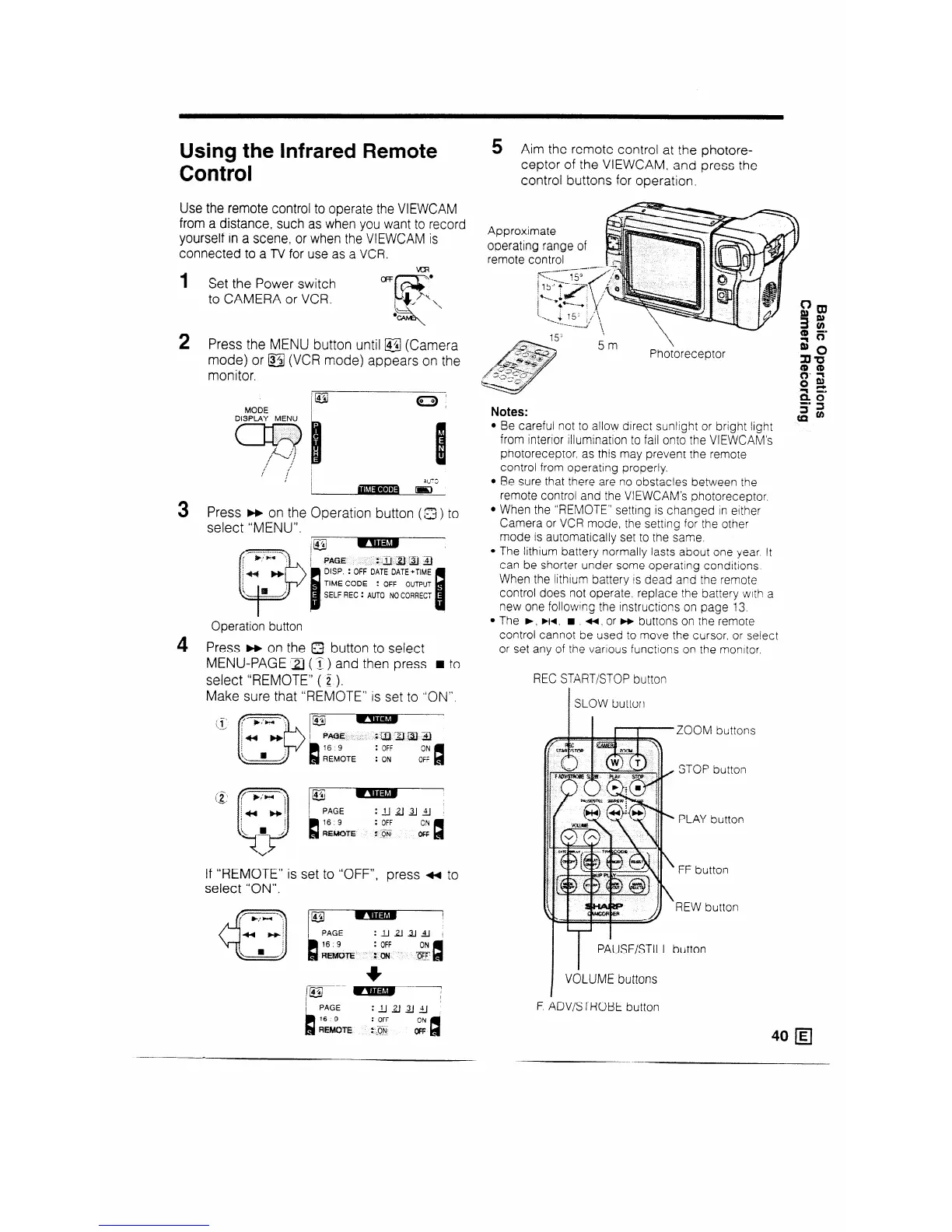
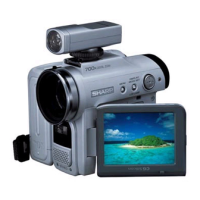
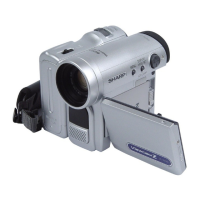
Use the remote control to operate the VIEWCAM
from a distance, such as when you want to record
yourself in a scene, or when the VIEWCAM is
connected to a TV for use as a VCR.
1 Set the Power switch
to CAMERA or VCR.
2 Press the MENU button until @J (Camera
mode) or &I (VCR mode) appears on the
monitor.
MODE
DISPLAY MENU
3 Press B+ on the Operation button (2) to
select “MENU”.
’ 44’
II
/ PAGE
:.3-J B:a 2
D
DISP. : OFF DATE DATE+TIME
TIME CODE
: OFF OUTPUT
SELF REC : AUTO NO CORRECT
I
Operation button
4 Press m on the Q button to select
MENU-PAGE 2) (s) and then press n to
select “REMOTE” ( 2_ ).
Make sure that “REMOTE” is set to “ON”.
(E
u
PAGE;
:g)agJa
16 9
: OFF
ON
REMOTE
: ON
OF;
If “REMOTE” is set to “OFF”, press ++ to
select “ON”.
5 Aim the remote control at the photore-
ceptor of the VIEWCAM. and press the
control buttons for operation.
Approximate
operating range of
remote control
Notes:
l Be careful not to allow direct sunlight or bright light
gz
from interior illumination to fall onto the VIEWCAM’s
photoreceptor, as this may prevent the remote
control from operating properly.
l Be sure that there are no obstacles between the
remote control and the VIEWCAM’s photoreceptor.
l When the “REMOTE” setttng is changed in either
Camera or VCR mode, the setting for the other
mode is automatically set to the same.
l The lithium battery normally lasts about one year It
can be shorter under some operating conditions
When the lithium battery is dead and the remote
control does not operate. replace the battery wtth a
new one followng the instructions on page 13
l The b, ä . n u 3 or H buttons on the remote
control cannot be used to move the cursor, or se!ect
or set any of the various functions on the monttor.
REC START/STOP button
ZOOM buttons
F. ADVLSTROBE button
40 q


 To Next Page