Fade In and Fade Out
Fade Out
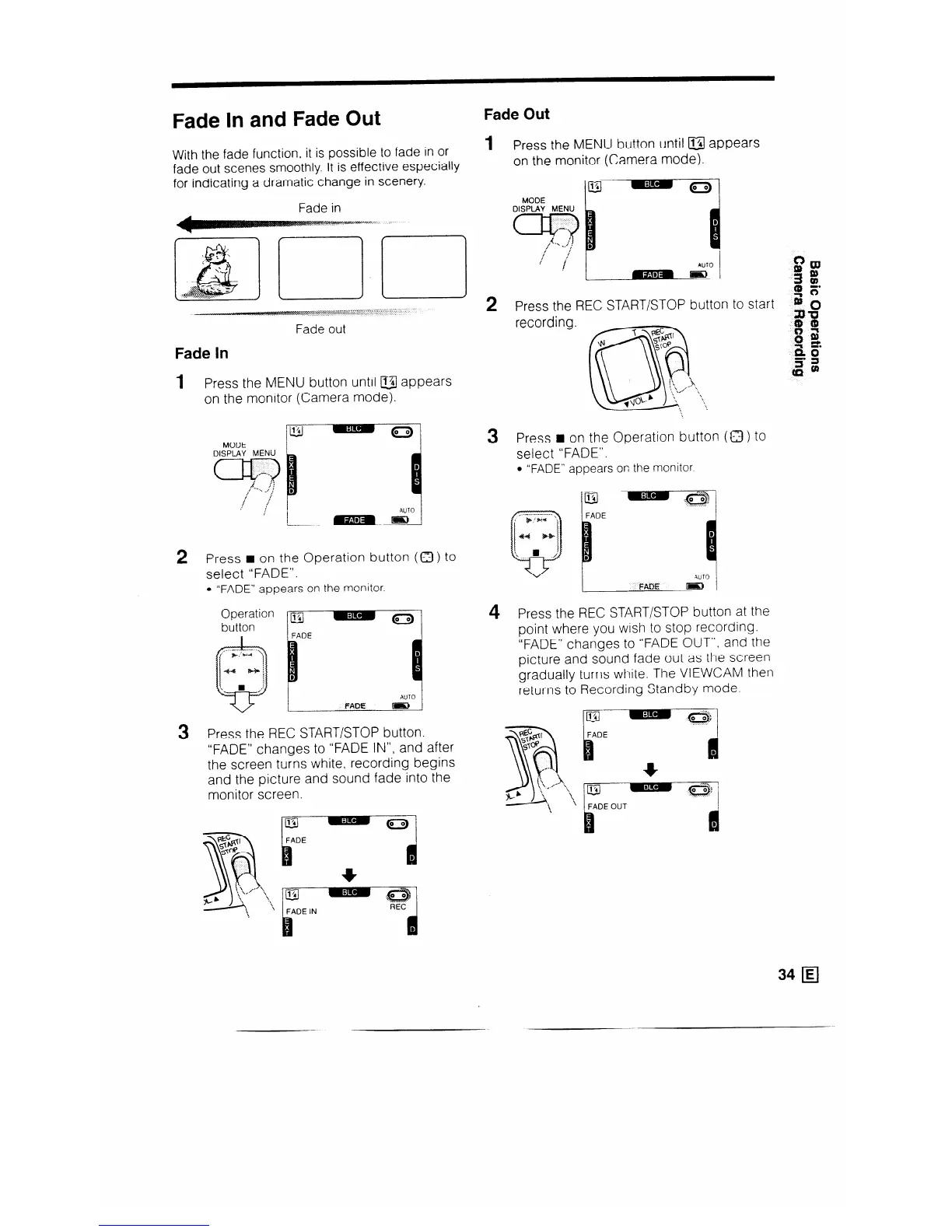
With the fade function, it is possible to fade in or
fade out scenes smoothly. It is effective especially
for indicating a dramatic change in scenery.
Fade out
Fade In
1
Press the MENU button until u appears
on the monitor (Camera mode).
2
Press w on the Operation button (a) to
select “FADE”.
l “FADE” appears on the monitor.
Operation
button
I
3
Press the REC START/STOP button.
“FADE” changes to “FADE IN”, and after
the screen turns white, recording begins
and the picture and sound fade into the
monitor screen.
@
:
F
FADE
(00)
d
D
1
Press the MENU button until a appears
on the monitor (Camera mode).
DISPLAY MENU
!
AUTO
2
Press the REC START/STOP button to start
recording.
3
Press w on the Operation button (a) to
select “FADE”.
l “FADE” appears 011 the monitor.
4
Press the REC START/STOP button at the
point where you wish to stop recording.
“FADE” changes to “FADE OUT”, and the
picture and sound fade out as the screen
gradually turns white. The VIEWCAM then
returns to Recording Standby mode.
34 q


 To Next Page