Preparation
Picture/Backlight Adjustments
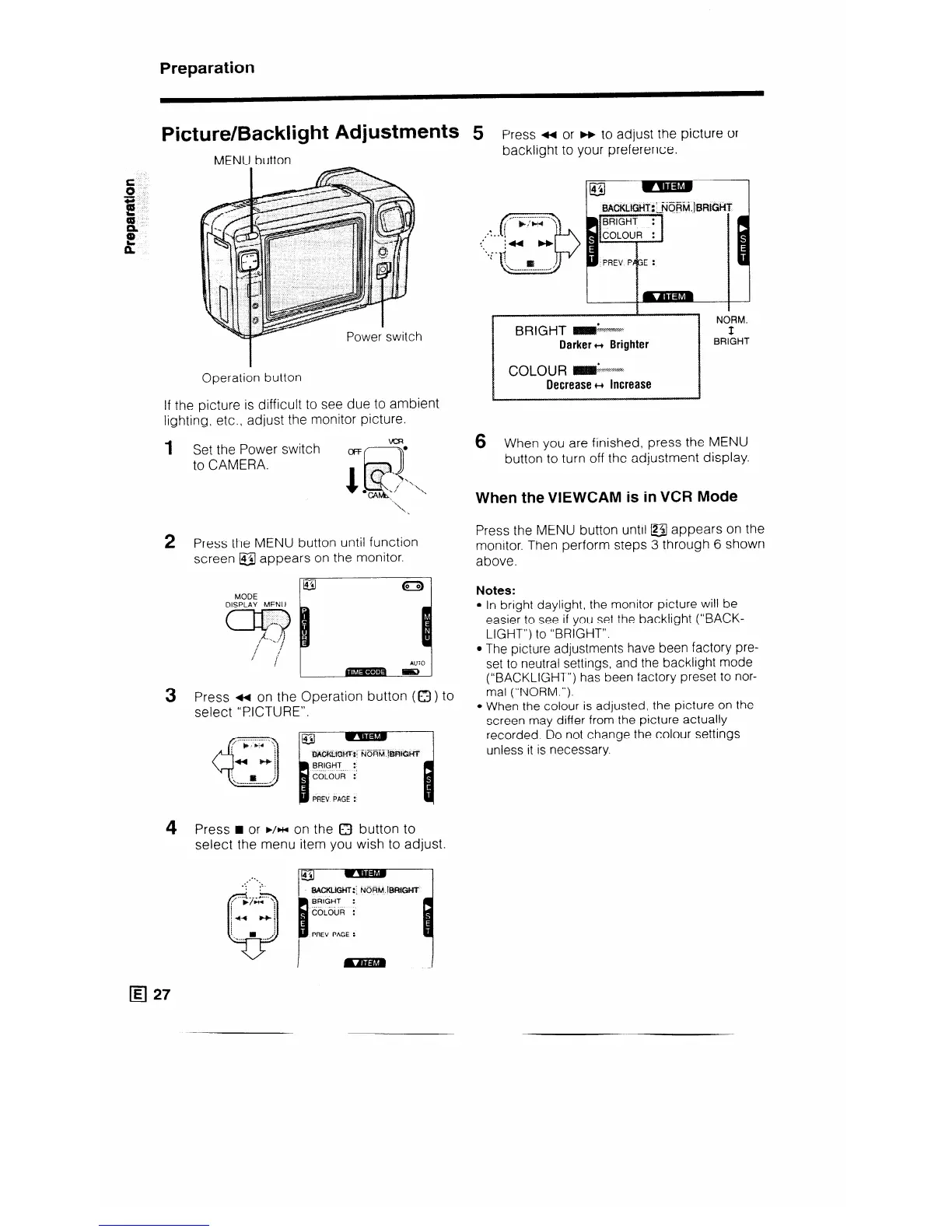
MENU button
Operation button
If the picture is difficult to see due to ambient
lighting, etc., adjust the monitor picture.
1 Set the Power switch
oFFc-y*
to CAMERA.
‘1
‘1
1.
2 Press the MENU button until function
screen @ appears on the monitor.
MODE
DISPLAY MENU
3 Press t( on the Operation button (0) to
select “PICTURE”.
4 Press n or ./HI on the 0 button to
select the menu item you wish to adjust.
q 27
PREV PAGE :
5 P
ress
++ or FF to adjust the picture or
backlight to your preference.
6 When you are finished, press the MENU
button to turn off the adjustment display.
When theVIEWCAM is in VCR Mode
Press the MENU button until @ appears on the
monitor. Then perform steps 3 through 6 shown
above.
Notes:
l In bright daylight, the monitor picture will be
easier to see if you set the backlight (“BACK-
LIGHT”) to “BRIGHT”.
l The picture adjustments have been factory pre-
set to neutral settings, and the backlight mode
(“BACKLIGHT”) has been factory preset to nor-
mal (“NORM.“).
l When the colour is adjusted, the picture on the
screen may differ from the picture actually
recorded. Do not change the colour settings
unless it is necessary.


 To Next Page