Using the On-screen Menu
1 In Camera mode 1
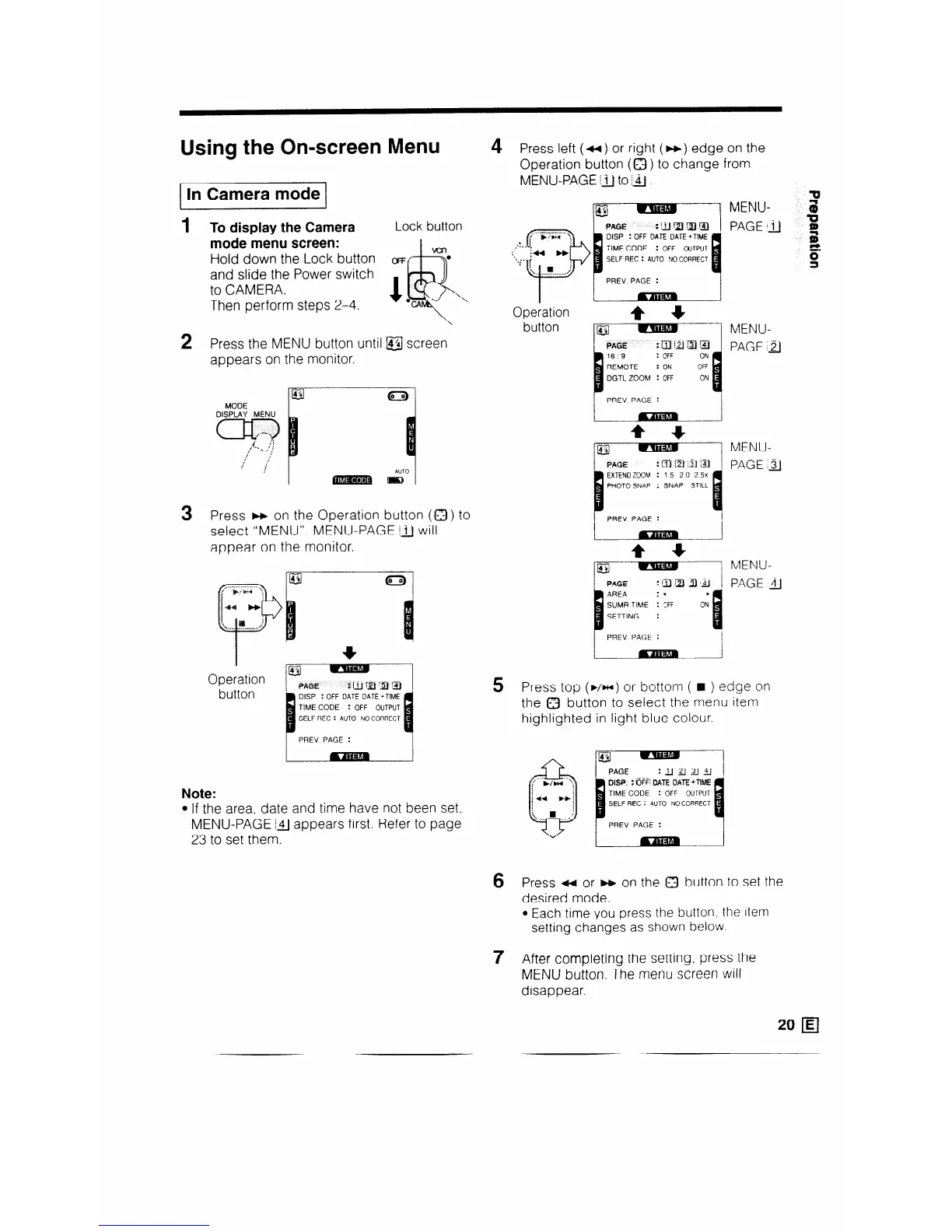
1 To display the Camera
Lock button
mode menu screen:
Hold down the Lock button OFF
f-l-7
y”
and slide the Power switch
to CAMERA.
Then perform steps 2-4.
2 Press the MENU button until @j screen
appears on the monitor.
MODE
DISPLAY MENU
a2
sr
C”‘ \.,
,.
,!
i /
/ ;
:
3 Press w on the Operation button (a) to
select “MENU”. MENU-PAGE iiJ will
appear on the monitor.
I
Operation
button
Note:
l If the area, date and time have not been set,
MENU-PAGE i4) appears first. Refer to page
23 to set them.
4 Press left (a) or right (m) edge on the
Operation button (0 ) to change from
MENU-PAGE iiJ to 141.
=u
MENU- 3
,_.--_._
’ ,‘.M \
,’
*:.. (
id4 H
:..$_ (
p
\. . ..r. . . . . . . ,/
Operation
button
PAGEla !j
=
g
MENU-
PAGE 12
DGTL ZOOM : OFF
MENU-
PAGE :a
: SNAP STILL
PREV PAGE :
SUMR TIME : ;FF
SETTING :
PREV PAGE :
MENU-
PAGE &J
5 Press top (b/w) or bottom ( n ) edge on
the Q button to select the menu item
highlighted in light blue colour.
QISP. :#%F; DATE DATE ‘TIME
: OFF OUTPUT
SELF REC : AUTO NO CORRECT
PREV PAGE :
6 Press M or w on the 0 button to set the
desired mode.
l Each time you press the button. the [tern
setting changes as shown below
7 After completing the setting, press the
MENU button. The menu screen will
disappear.


 To Next Page