Basic Operations
Camera Recording
Digital Image Stabilization
(DW
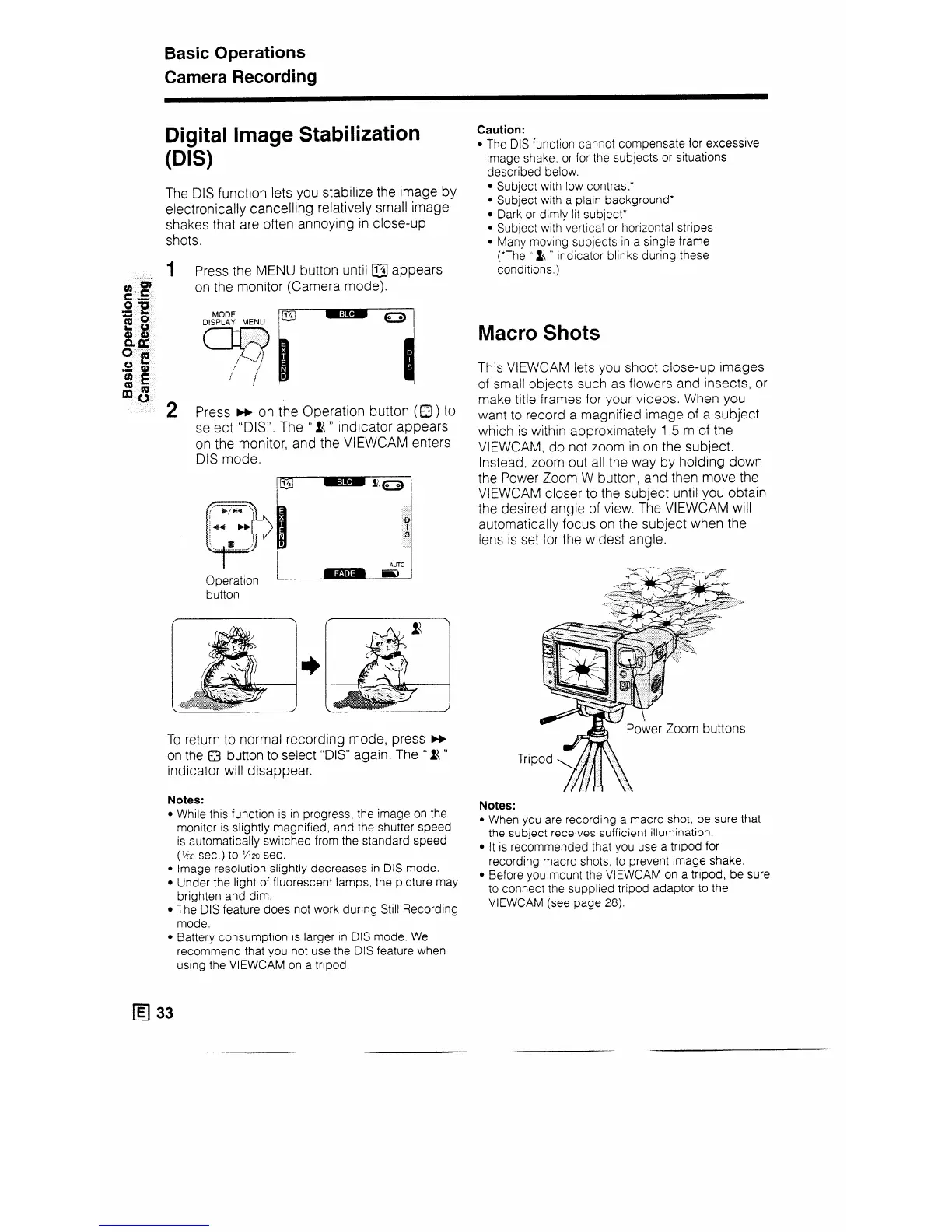
The DIS function lets you stabilize the image by
electronically cancelling relatively small image
shakes that are often annoying in close-up
shots.
1 Press the MENU button until u appears
on the monitor (Camera mode).
DISPLAY MENU
2 Press m on the Operation button (0 ) to
select “DIY. The ” Ii ” indicator appears
on the monitor, and the VIEWCAM enters
DIS mode.
I
Operation
AUTO
button
To return to normal recording mode, press m
on the 0 button to select “DIS” again. The ” it ”
indicator will disappear.
Notes:
l While this function is in progress, the image on the
monitor is slightly magnified, and the shutter speed
is automatically switched from the standard speed
(XC sec.) to XX sec.
l Image resolution slightly decreases in DIS mode.
l Under the light of fluorescent lamps, the picture may
brighten and dim.
l The DIS feature does not work during Still Recording
mode.
l Battery consumption is larger in DIS mode. We
recommend that you not use the DIS feature when
using the VIEWCAM on a tripod.
q 33
Caution:
l The DIS function cannot compensate for excessive
Image shake. or for the subjects or situations
described below.
Subject with low contrast*
Subject with a plain background*
Dark or dimly lit subject*
Subject with vertical or horizontal stripes
Many moving subjects in a single frame
(*The ” ii ” Indicator blinks during these
condrtrons.)
Macro Shots
This VIEWCAM lets you shoot close-up images
of small objects such as flowers and insects, or
make title frames for your videos. When you
want to record a magnified image of a subject
which is within approximately 1.5 m of the
VIEWCAM, do not zoom in on the subject.
Instead, zoom out all the way by holding down
the Power Zoom W button, and then move the
VIEWCAM closer to the subject until you obtain
the desired angle of view. The VIEWCAM will
automatically focus on the subject when the
lens is set for the widest angle.
Tri
Notes:
l When you are recording a macro shot, be sure that
the subject receives sufficient illumination.
l It is recommended that you use a tripod for
recording macro shots, to prevent image shake.
l Before you mount the VIEWCAM on a tripod, be sure
to connect the supplied tripod adaptor to the
VIEWCAM (see page 28).


 To Next Page