Useful Features for Camera Recording
Manual Iris
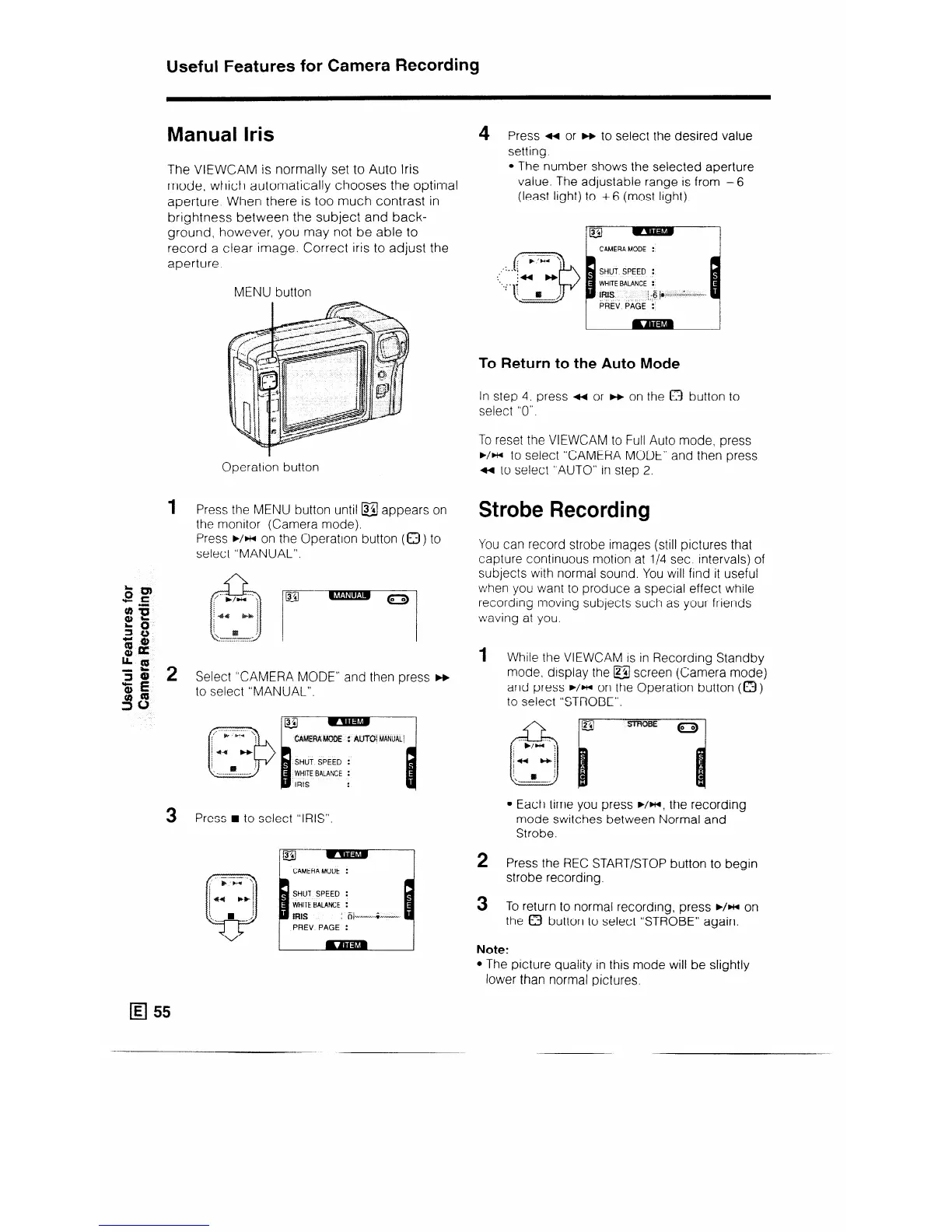
The VIEWCAM is normally set to Auto Iris
mode, which automatically chooses the optimal
aperture. When there is too much contrast in
brightness between the subject and back-
ground, however, you may not be able to
record a clear image. Correct iris to adjust the
aperture.
MENU button
Operation button
Press the MENU button until @ appears on
the monitor (Camera mode).
Press b/w on the Operation button (0) to
select “MANUAL”.
Select “CAMERA MODE” and then press F+
to select “MANUAL”.
SHUT SPEED :
WHITE BALANCE :
Press n to select “IRIS”.
CAMERA MODE :
SHUT SPEED :
WHITE BALANCE :
$tqs
_ fj/__._- . . . . &..-,.
PREV PAGE :
4
Press ++ or m to select the desired value
setting.
l The number shows the selected aperture
value. The adjustable range is from -6
(least light) to + 6 (most light).
I
p’94-l ’
. :
,’
s... ;
: j44 H
. .
r
.;- ?
sf /
-.
CAMERA MODE :
I
To Return to the Auto Mode
In step 4. press t( or H on the 0 button to
select “0”.
To reset the VIEWCAM to Full Auto mode, press
b/w to select “CAMERA MODE” and then press
a to select “AUTO” in step 2.
Strobe Recording
You can record strobe images (still pictures that
capture continuous motion at l/4 sec. intervals) of
subjects with normal sound. You will find it useful
when you want to produce a special effect while
recording moving subjects such as your friends
waving at you.
1 While the VIEWCAM is in Recording Standby
mode, display the @ screen (Camera mode)
and press b/w on the Operation button (Q )
to select “STROBE”.
l Each time you press ~/HI, the recording
mode switches between Normal and
Strobe.
2
Press the REC START/STOP button to begin
strobe recording.
3 To return to normal recording, press b/w on
the 0 button to select “STROBE” again.
Note:
l The picture quality in this mode will be slightly
lower than normal pictures.


 To Next Page