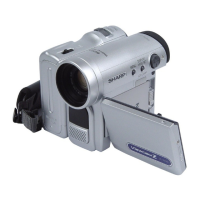
White Balance Lock
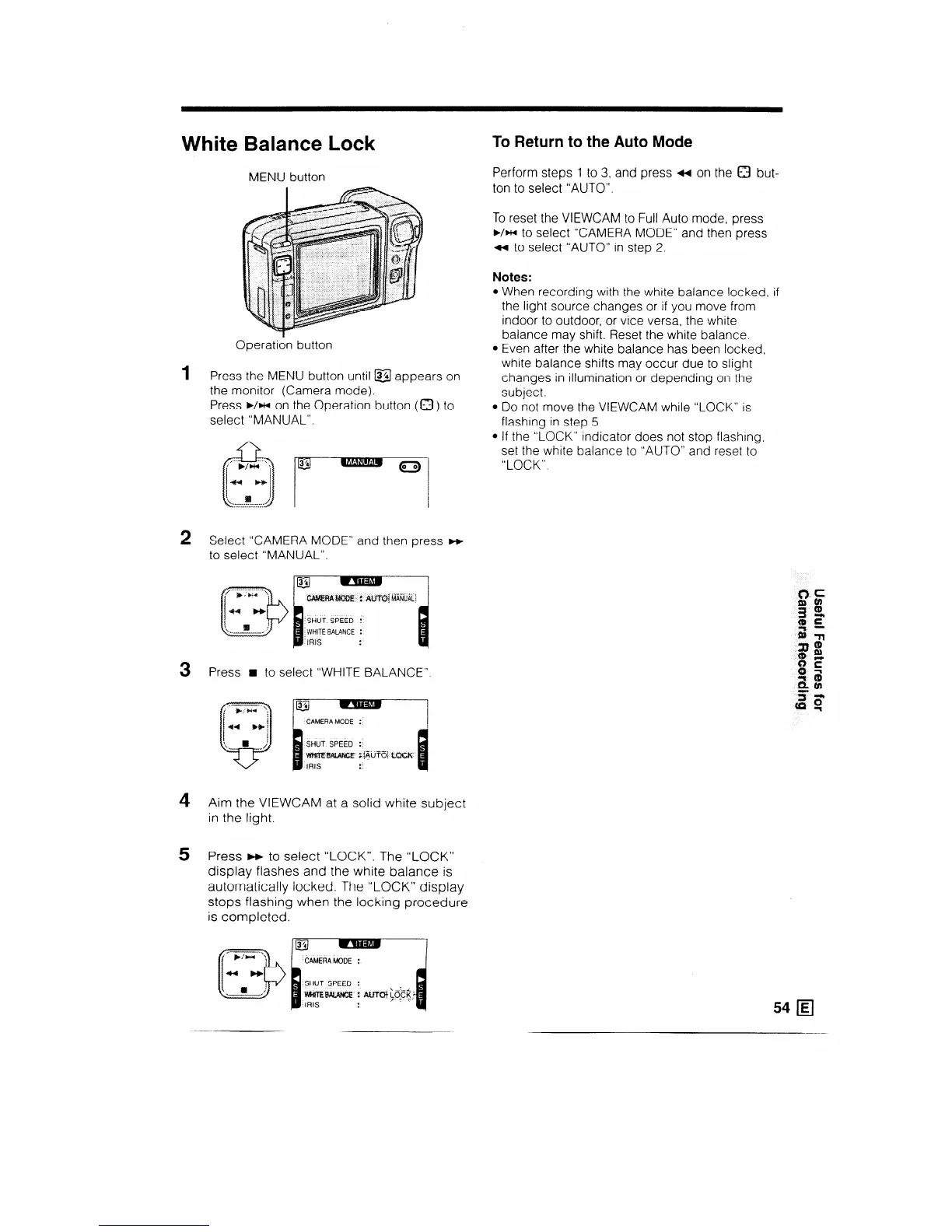
MENU button
Operation button
1 Press the MENU button until @l appears on
the monitor (Camera mode).
Press b/w on the Operation button (a) to
select “MANUAL”.
2
Select “CAMERA MODE” and then press m
to select “MANUAL”.
lg
..--. _. !
MfdERA MUOE i mai MANUAL I
P
SHUT SPEED :
WHITE BALANCE :
‘IRIS
.
.
3
Press n to select “WHITE BALANCE”.
4
Aim the VIEWCAM at a solid white subject
in the light.
5 Press w to select “LOCK”. The “LOCK”
display flashes and the white balance is
automatically locked. The “LOCK” display
stops flashing when the locking procedure
is completed.
1 CAMERAMODE :
I
:SHUT SPEED :
To Return to the Auto Mode
Perform steps 1 to 3, and press 4 on the Q but-
ton to select “AUTO”.
To reset the VIEWCAM to Full Auto mode, press
./HI to select “CAMERA MODE” and then press
4 to select “AUTO” in step 2.
Notes:
l When recording with the white balance locked, if
the light source changes or if you move from
indoor to outdoor, or vice versa, the white
balance may shift. Reset the white balance.
l Even after the white balance has been locked,
white balance shifts may occur due to slight
changes in illumination or depending on the
subject.
l Do not move the VIEWCAM while “LOCK” is
flashing in step 5.
l If the “LOCK” indicator does not stop flashing,
set the white balance to “AUTO” and reset to
“LOCK”.
54 q


 To Next Page