Backlight Compensation
WC)
When the subject is backlit, the image will be
darkened if it is recorded normally. Use the
backlight compensation (BLC) feature to
improve the picture.
1
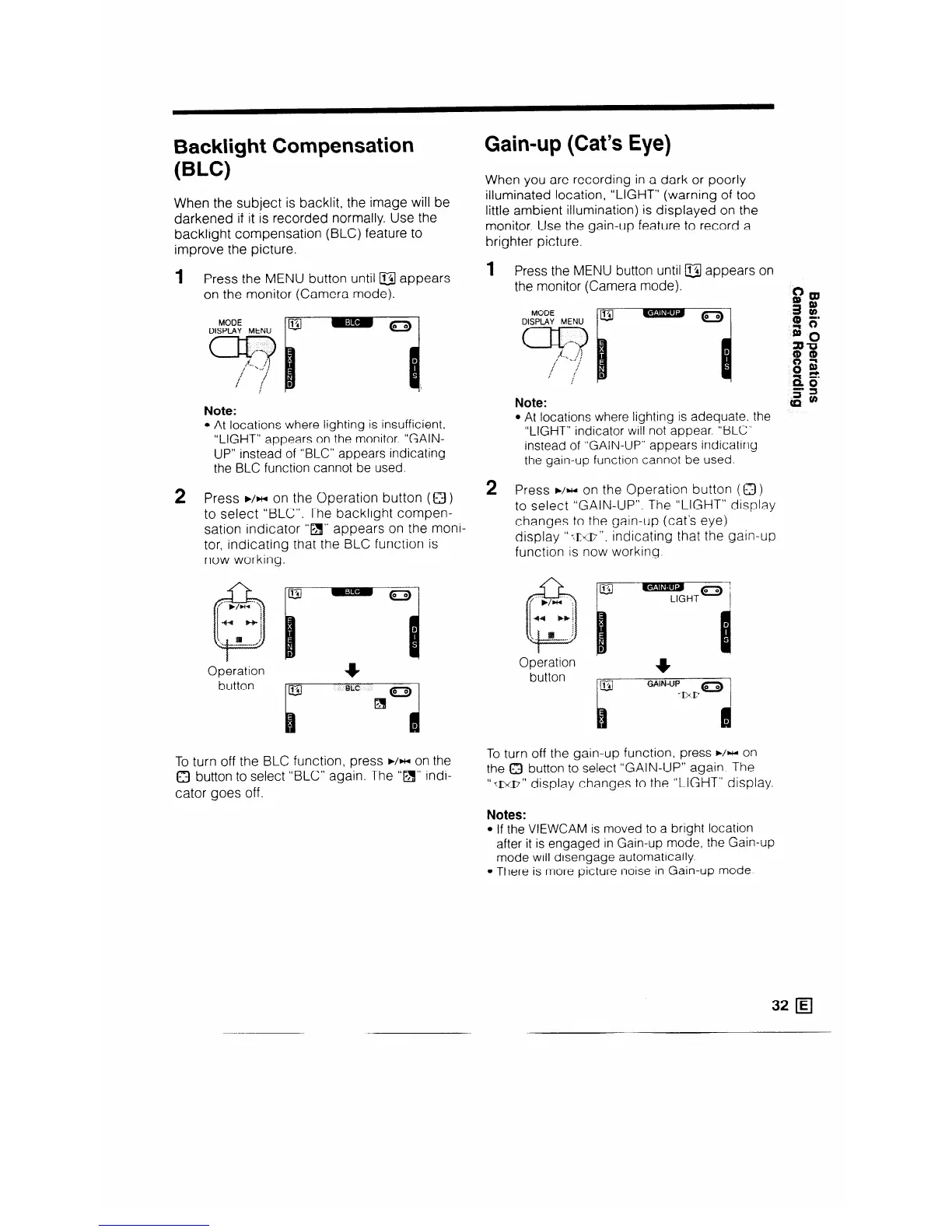
Press the MENU button until u appears
on the monitor (Camera mode).
Note:
l At locations where lighting is insufficient,
“LIGHT” appears on the monitor. “GAIN-
UP” instead of “BLC” appears indicating
the BLC function cannot be used.
2
Press ,/~1 on the Operation button (a)
to select “BLC”. The backlight compen-
sation indicator I‘m” appears on the moni
tor, indicating that the BLC function is
now working.
a
:
0
m
D
B
Operation
+
button
F”Fd
To turn off the BLC function, press ä /HI on the
0 button to select “BLC” again. The I‘m” indi-
cator goes off.
Gain-up (Cat’s Eye)
When you are recording in a dark or poorly
illuminated location, “LIGHT” (warning of too
little ambient illumination) is displayed on the
monitor. Use the gain-up feature to record a
brighter picture.
1 Press the MENU button until @I appears on
the monitor (Camera mode).
Note:
l At locations where lighting is adequate. the
“LIGHT” indicator will not appear. “BLC”
instead of “GAIN-UP” appears indicating
the gain-up function cannot be used.
2 Press F/HI on the Operation button (Q )
to select “GAIN-UP”. The “LIGHT” display
changes to the gain-up (cat’s eye)
display “ :PB”,
indicating that the gain-up
function is now working.
a
7
LIGHT
Operation
button
To turn off the gain-up function press b/m on
the 8 button to select “GAIN-UP” again. The
“T;D(I~” display changes to the “LIGHT” display.
Notes:
l If the VIEWCAM is moved to a bright location
after it is engaged in Gain-up mode, the Gain-up
mode will disengage automatically.
l There is more picture noise in Gain-up mode



 To Next Page