7 PICOSCALE CONTROL GUI
When the system recognizes optional components like the environment sensor, the Breakout-Box
and the MCS2, the rectangle besides the components is green. With the button Show Log the log
of the GUI can be displayed. It shows log entries in case of system start-ups and displays error
codes. Each log entry is formatted with a date and time string and a clear text message. If the
last log entry was a system error message the Show Log button has red borders. The Clear button
deletes all log entries of the GUI.
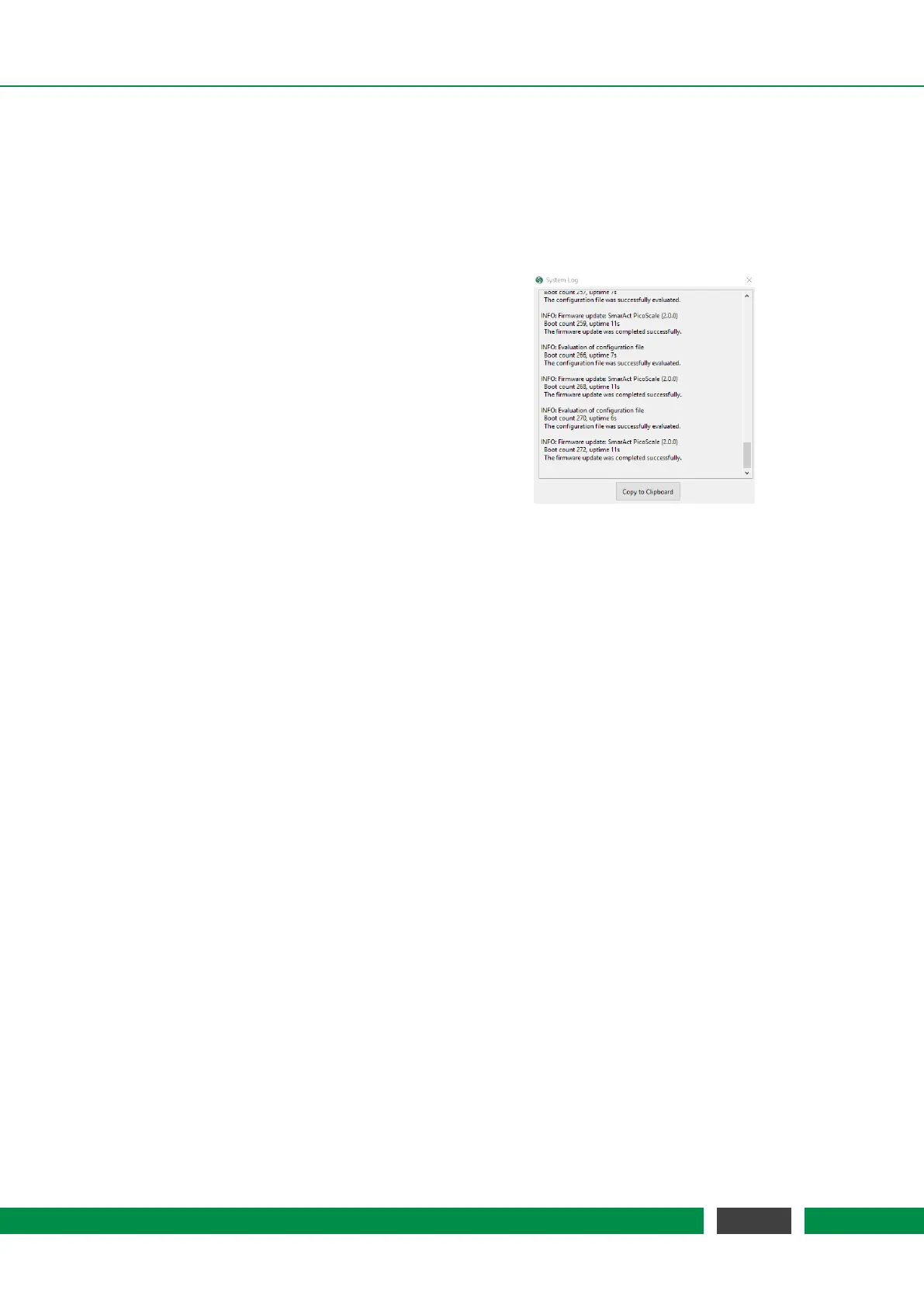
Figure 7.4: System log of the PICOSCALE
controller
All fields in the PicoScale status are updated auto-
matically after connecting to a
PICOSCALE sys-
tem. The system information is important for all
service requests.
The System Log of the PICOSCALE controller
shown in figure 7.4 is located in the menu bar un-
der Help. It contains a list of important system
activities like the activation of optional software
modules. It may also include information about
the reason why a system operation like a firmware
installation (cf. section 6.6.2) has failed. The infor-
mation can be relevant for service requests and
can easily be copied to the clipboard using the but-
ton Copy to Clipboard.
52
PicoScale User Manual


 To Next Page