50 smart CX20
− Press the blue function key (CANCEL) to discard the changes
made so far and to close the window Rename.
5. Press the green function key to leave the Rename mode.
7.1.1.6 Hide Channels in the Channel List
Example: you subscribed not the complete offer of a pay-tv provider, but
only one genre package. Nevertheless, all channels of the pay-tv provider
will appear in the channel list due to the RAPS installation (see section
5.3.8, page 29), where you have to select the pay-tv provider (with its full
range). Therefore, many encrypted channels that are not subscribed are
displayed in the channel list.
Your smart CX20 provides the ability to permanently reduce the list of
programs to free to air and decodable programs. Not decodable programs
are hidden.
1. In the sub-menu Edit Channel – TV Channel List, press the blue func-
tion key (Edit).
2. Press the yellow function key
(Hide) to access the hide mode. All
scrambled channels in the channel list are displayed.
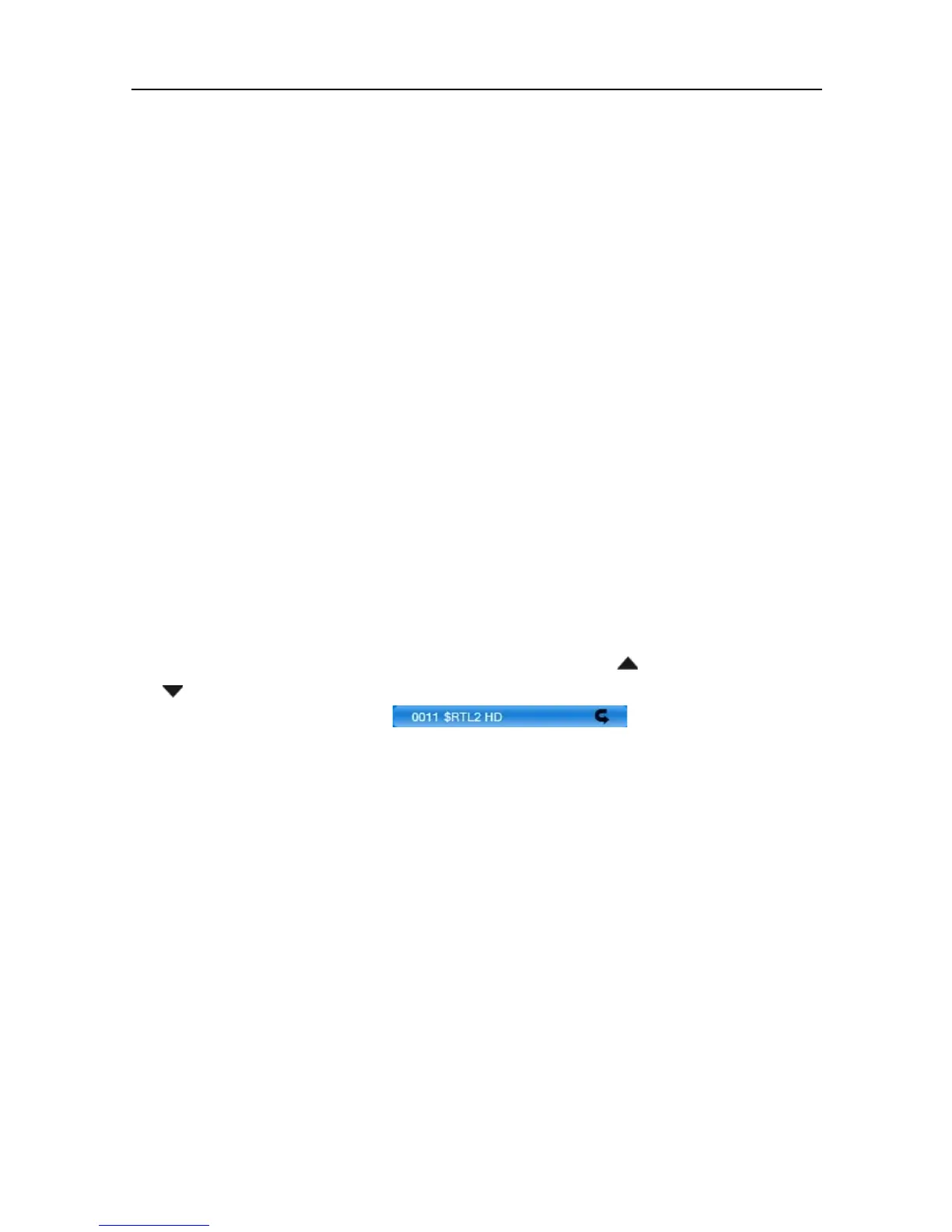
3. Mark the channel to be hidden by using the keys / PR+ and
/ PR-, and confirm by pressing
OK. The respective channel is
correspondingly marked .
Repeat this step as long as all channels to be hidden are marked.
4. Again press the yellow function key
(Hide) or the EXIT key to leave
the hide mode.
If you agree to overwrite the factory-set channel list when leaving the
menu (see above), from now the marked channels will not anymore dis-
played in the channel list. Even, if there is an update of the channel list by
RAPS, the hidden channels remain invisible.
7.1.1.7 Making Hidden Channels Visible Again
You can unhide hidden programs any time, for example, if you add a new
pay-tv package to your subscription:
1. In the sub-menu Edit Channel – TV Channel List, press the blue func-
tion key (Edit).



 To Next Page