Extended Settings and Functions
72 smart CX20
1. Press the key MENU.
2. Select PVR - Storage and
confirm by pressing
. The
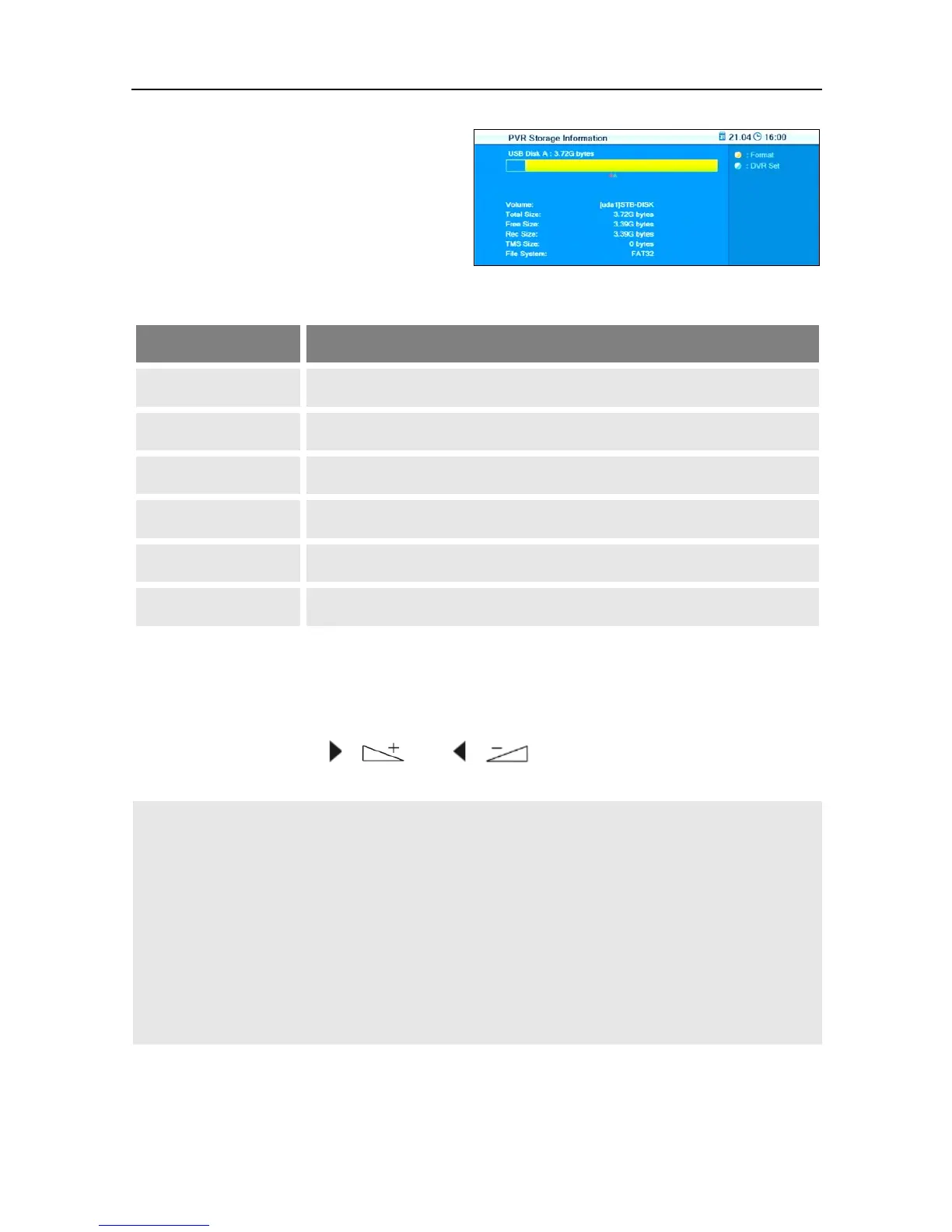
window PVR Storage will
open.
7.5.2.1 Display
List entry Meaning
Volume Name of data storage [uda1]
Total Size: Total size, e.g. 3.72 GB (for a 4GB stick)
Free Size: Free size on data storage (in GB)
Rec Size: Size already reserved for TV recordings and timeshift files
TMS Size Size used for timeshift operation
File System File system of data storage (FAT32 or NTFS)
7.5.2.2 Format Data Storage
1. Press the yellow function key.
2. Select the desired file system in the displayed window at Disk Mode
by using the keys / and / . A selection of the possible file
systems is displayed (FAT32 and NTFS).
In general, NTFS would be the better selection, but it is
not supported by old PC operating systems
(e.g. Windows98).
Thus, smart recommends using the file system FAT32
for compatibility reasons. With FAT32, the max. size of
a file is limited to 4GB. If a recording exceeds such file
size, then the file will be automatically separated into
several parts.
7.5.2.3 Define Default Partitions
The menu item Tools
is used to define default partitions for TV recordings
and timeshift files.



 To Next Page