smart CX20 51
2. Press the yellow function key (Hide) to access the hide mode. All
scrambled channels in the channel list are displayed. Hidden channels
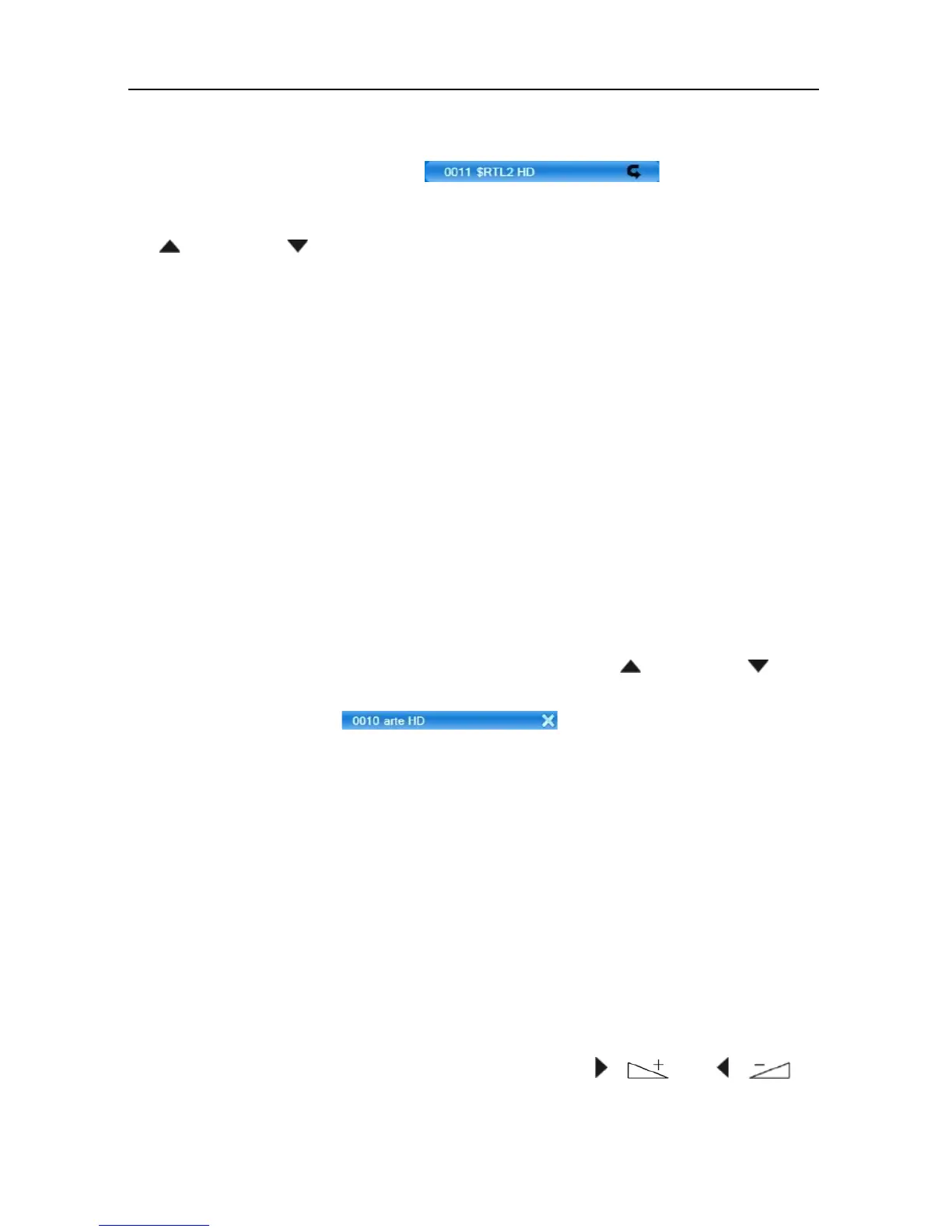
are correspondingly marked .
3. Mark the channel you want to make visible again by using the keys
/ PR+ and / PR-, and confirm by pressing
OK. The hide marking
is deleted.
Repeat this step as long as for all channels you want to make visible
again the marking is deleted.
4. Again press the yellow function key
(Hide) or the EXIT key to leave
the hide mode.
If you agree to overwrite the factory-set channel list when leaving the
menu (see above) the channels whose markings have been deleted will
displayed in the channel list again.
7.1.1.8 Delete Individual Channels from Channel List
1. In the sub-menu Edit Channel – TV Channel List, press the blue func-
tion key (Edit).
2. Again press the blue function key
(Delete) to access the Delete mode.
3. Mark the channel to be deleted by using the keys / PR+ and /
PR-, and confirm by pressing
OK. The respective channel is corre-
spondingly marked .
Repeat step 3 as long as all channels to be deleted are marked.
4. Again press the blue function key
(Delete) or the EXIT key to leave the
Delete mode.
5. If you agree to overwrite the factory-set channel list when leaving the
menu (see above), the marked channels will be deleted.
7.1.2 Delete All
To delete all channels
1. Select Delete All in the menu Edit Channel.
2. Press
OK. You will be asked if you want to delete all channels.
3. Select the answer
Yes
or
No
by using the keys / and / ,
and confirm by pressing
OK.



 To Next Page