smart CX20 69
5. Press OK to start playback (or press the key ).
6. Use the keys , , , , and to control playback.
The buttons on the bottom edge of the Media Player window provide fur-
ther functions. Such functions depend on the selected file type (music,
images, records).
7.5.1.1 Example: Music
Select a track by using the keys / PR+ and /
PR- and press the
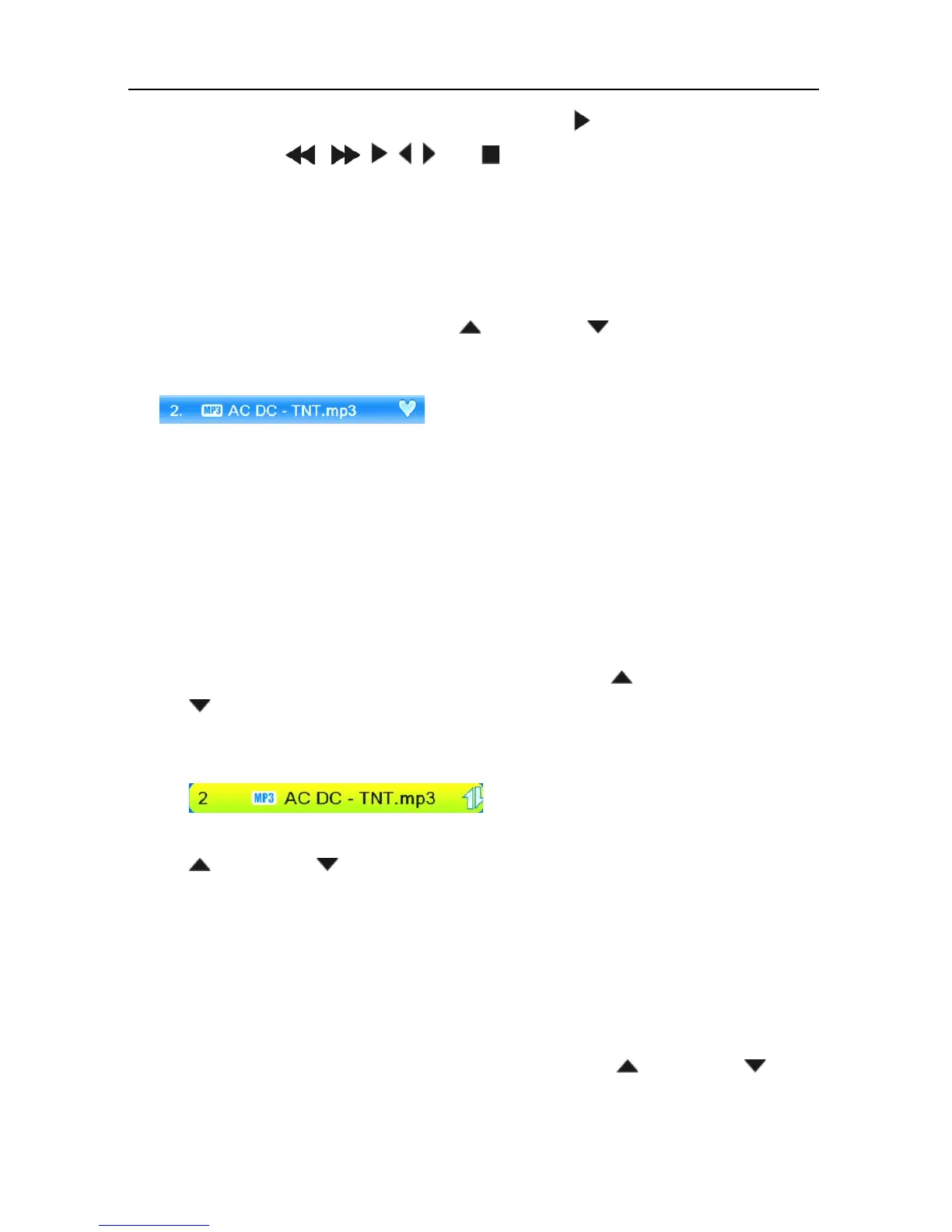
green function key to add this to the play list (favorite list).
The respective track is marked with a heart symbol.
You can repeat this procedure for all tracks to be added to the play list.
Press the yellow function key to add all tracks from the current direc-
tory to the play list.
If pressing the yellow function key again, the play list will be com-
pletely deleted.
Press the red function key (SHIFT) to display the favorite list (play list).
A new window Show Play List will be displayed. Now you can move or
remove files in/from the list:
1. Select a track to be moved by using the keys / PR+ and
/ PR-.
2. Press the red function key (SHIFT) to mark the selected track for
moving.
3. Select the new position of the selected track by using the keys
/ PR+ and /
PR-.
4. Leave the Move function by pressing the red function key (SHIFT)
again.
Now you can close the window Show Play List by pressing EXIT, or
move another track by starting again with step 1, or you may use the
Delete function
1. Select a track to be deleted by using the keys / PR+ and /
PR-.



 To Next Page