102
D717 User Manual Customizing the Phone Settings
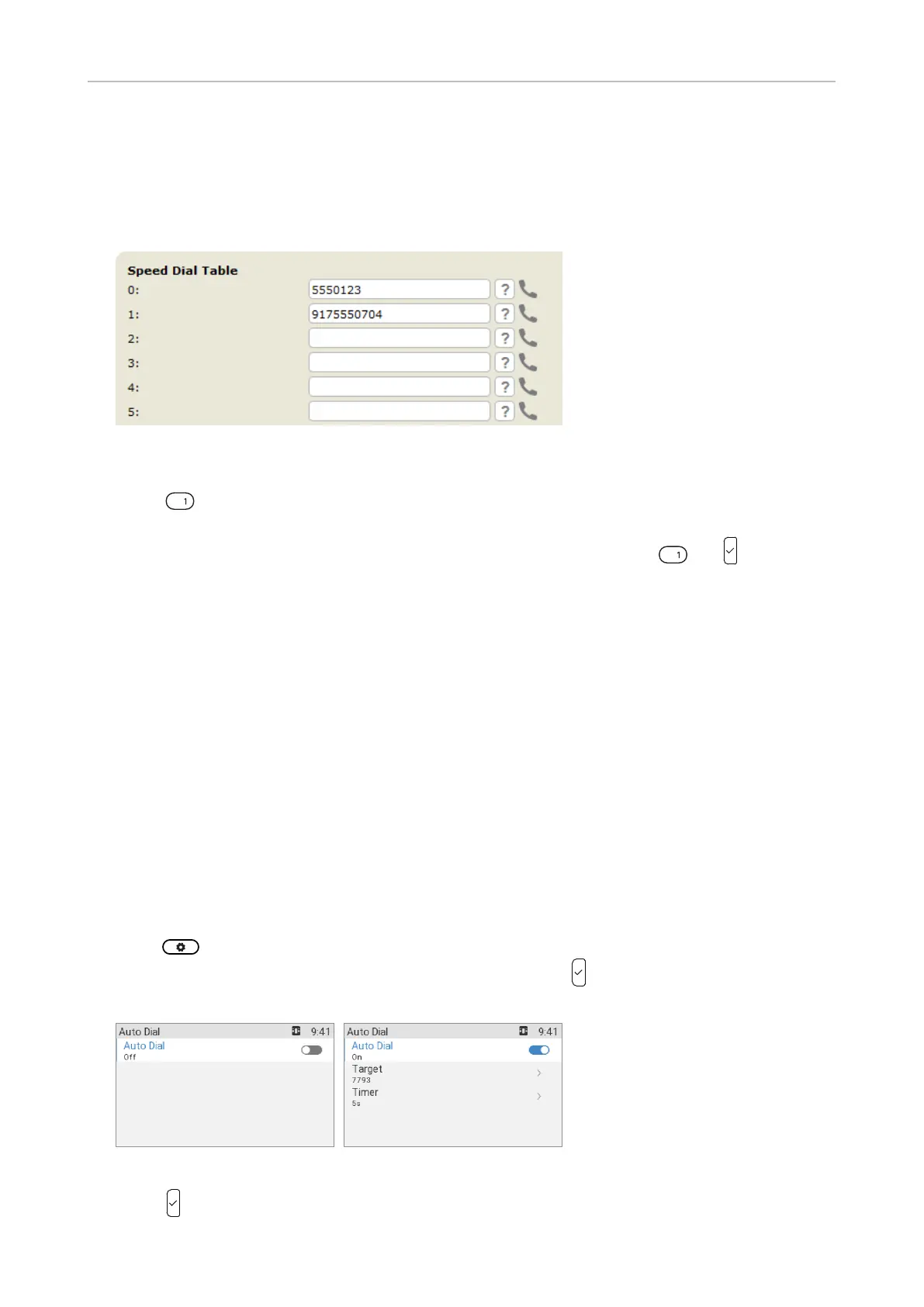
Setting on the web interface
1. In the menu on the left side of the phone's web interface, click on Speed Dial.
2. Enter one phone number with any required prefixes (area code, country code, operator/auto
attendant, etc.) in the text field for each respective number or special character in the table.
Type each phone number without spaces or punctuation between the digits.
For example: You want to be able to speed dial phone number 555-0784 in area code 917 by
typing on the keypad. In conventional notation you might write the number down as (917)
555-0784. In the speed dial table, type 9175550784 into the text field of the number 1.
3. Click on Apply and Save. You can now speed dial the number by pressing and on the
phone.
Auto dial
In the default setting, this function is switched o. When it is enabled, the phone will dial the number
on the display when the time span in seconds specified in this setting has elapsed since the last digit
was typed. The default is 5 seconds. The setting is accessible in admin mode only.
Note: Do not enter a target unless you want auto dial to be used only for one particular
number. With the additional setting Auto dial target, this function can be used on
phones restricted to dialing a single number, in waiting areas like airport lounges or
waiting rooms, for example. For the settings restricting dialing to a predefined number,
see "Auto dial target" on page 103.
Setting on the phone
1. Press .
2. Select Call Features > Outgoing calls > Auto dial and press . The Auto Dial screen appears
(Fig. 1).
Fig. 1 Fig. 2
3. Press to turn the function on. Target and Timer are added to the auto dial screen (Fig. 2).



 To Next Page