46
D717 User Manual Directories
◦ Blue area: The data entered in the textfields will be displayed when the entry is opened on
the phone. The data can be used to sort entries by group, name, organization, etc., and can be
edited on the phone.
- "Group" drop-down menu: Available types are "Friends“, "Family“, "Colleagues“, or "Work".
You can assign a distinct ringtone to each group type: Preferences > Directory Ringtones.
- "Nickname": If you enter a nickname, it will appear under the "Name" header of the
Directory on the web interface.
◦ First name, family (last) name: Will be added in this order under "Name" in the directory,
unless you have also entered a nickname.
◦ Birthday. Uses the format set at Preferences > Appearance tab > General information > U.S.
Date Format (mm/dd): "On" or "O". Enter in DD.MM.YR or MM/DD/YR format. Examples:
Output when US Date Format setting is
Date Input On O
March 5, 1980 5.3.80 or 3/5/1980 03/05/80 05.03.80
March 12, 1980 12.3.80 or 3/12/1980 03/12/80 12.03.80
October 5, 1980 5.10.80 or 10/5/1980 10/05/80 05.10.80
October 12, 1980 12.10.80 or 10/12/1980 10/12/80 12.10.80
◦ Favorite: Tick box to add entry to "Favorites" list.
2. Click on "Add/Edit" to save new entry to directory.
Editing an entry
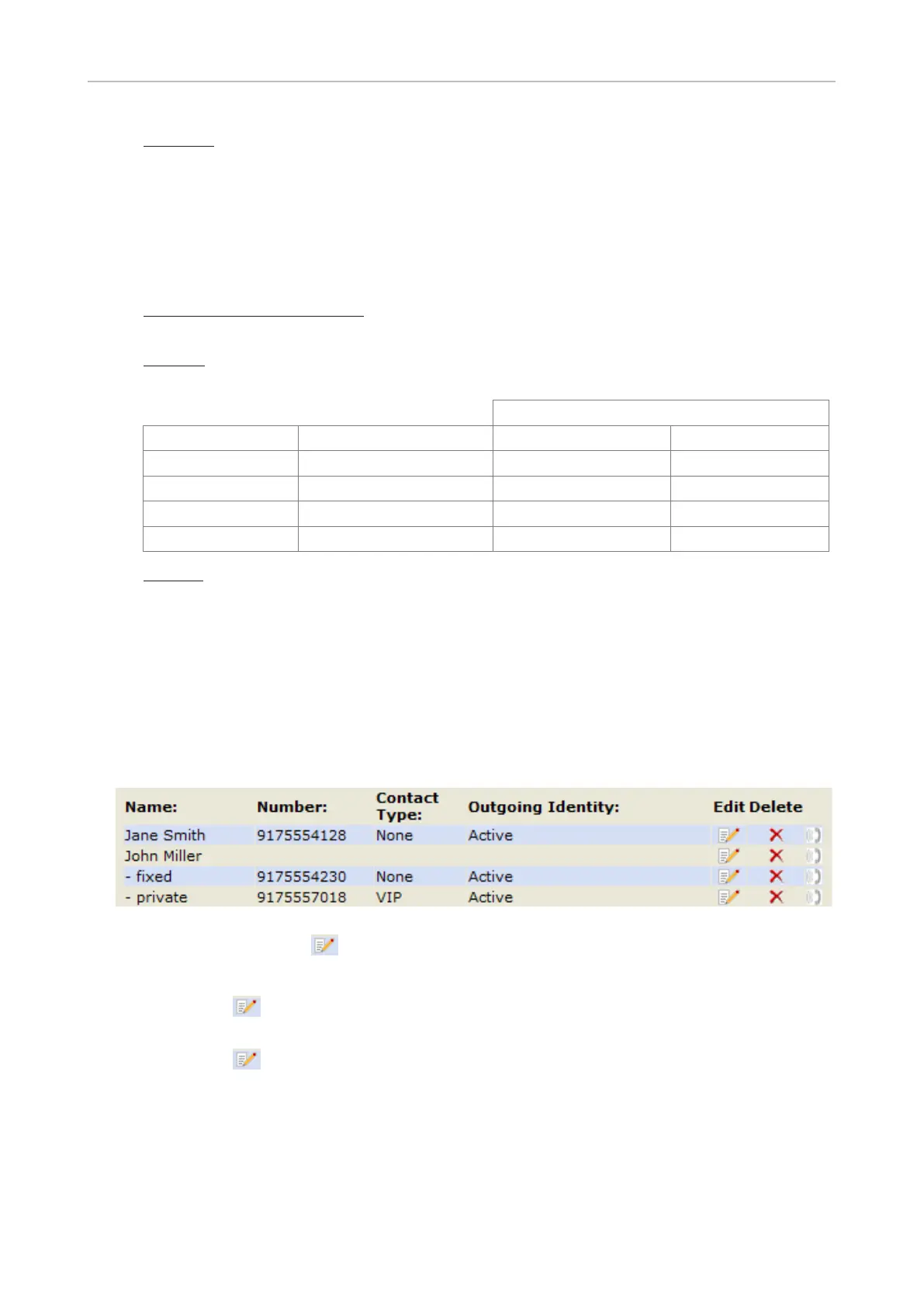
When you open an existing entry, the current information is displayed in the text fields of "Add or Edit
Entry" and two additional buttons, "Add Sub" and "Change", are available (see Fig. 2 and 3, below).
• Editing
Fig. 1
◦ If single entry, click on in the entry's line.
◦ If there is more than one number associated with a name:
- Click on in the name's line if you want to edit/add the first or last name of the date of
birth and the data in the blue area applicable to the master record.
- Click on in a phone number's line if you want to edit the subentry's data (phone
number, number & contact type, outgoing identity, and any blue area data applicable to this
subentry only).
Make changes as necessary and click on "Change".



 To Next Page