95
D717 User Manual Customizing the Phone Settings
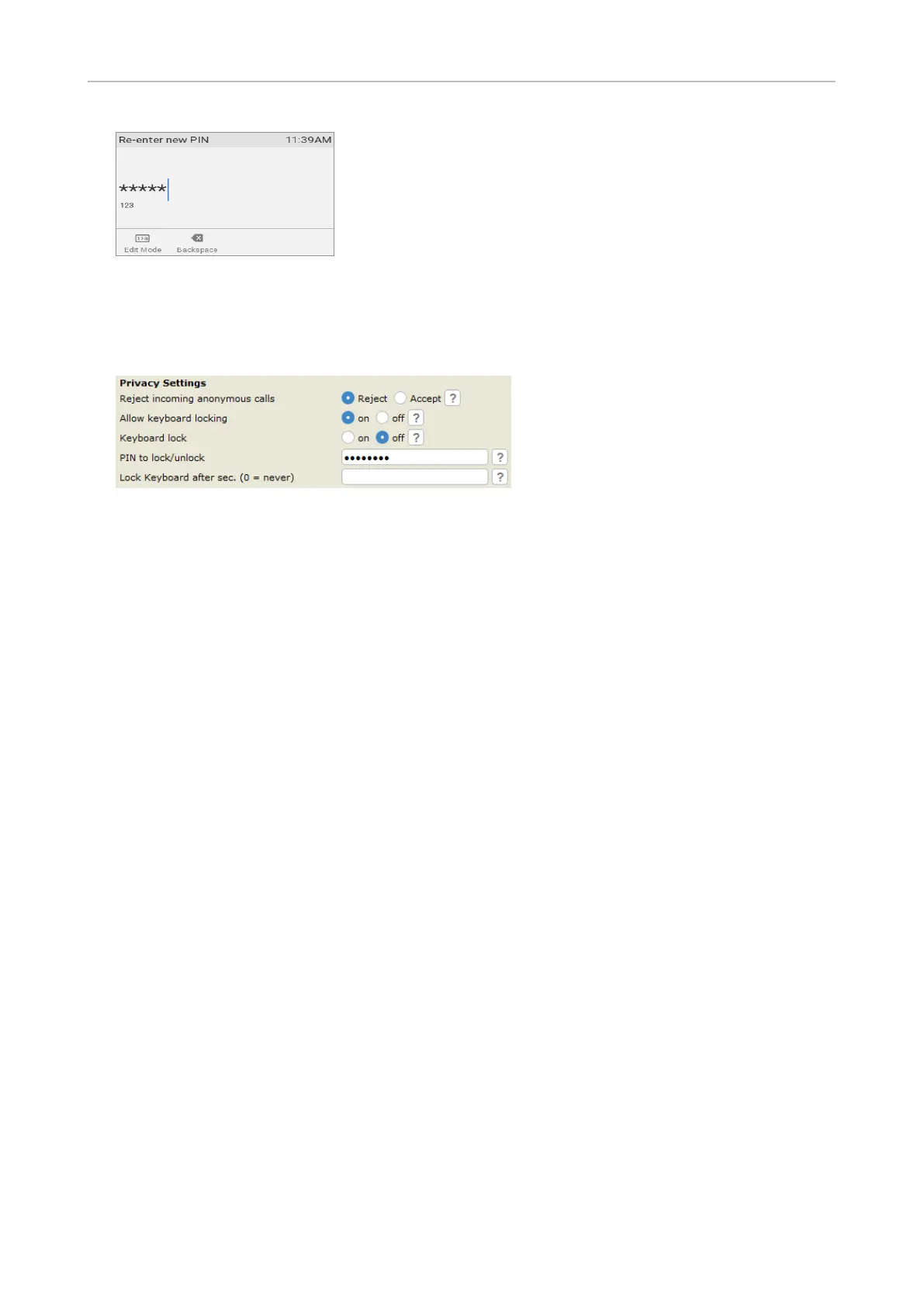
Fig. 7
On the web interface
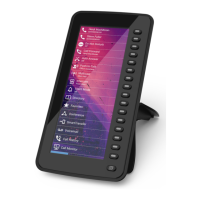
1. Open Preferences page > General tab > Privacy section > PIN to lock/unlock.
Fig. 8
Note: The textfield always contains 8 dots, whether a PIN has been set or not and
regardless of the length of the PIN.
2. Enter the PIN into the textfield. Valid values are the digits 0–9.
3. Click on Apply and Save.
Allow/disallow keyboard locking
In the default setting, the function is enabled. Setting on the web interface:
1. Open Preferences page > General tab > Privacy section > Allow keyboard locking.
2. Click the radio button on to allow, o to disallow the function.
3. Click on Apply and Save.
Automatic keyboard locking after inactivity
In the default setting, the function is disabled (blank text field). Valid values are positive integers.
Setting on the web interface:
1. Open Preferences page > General tab > Privacy section > Lock keyboard after sec.
2. Enter the number of seconds into the textfield.
3. Click on Apply and Save.



 To Next Page