75
D717 User Manual Configuring the Function Keys
SmartLabel keys
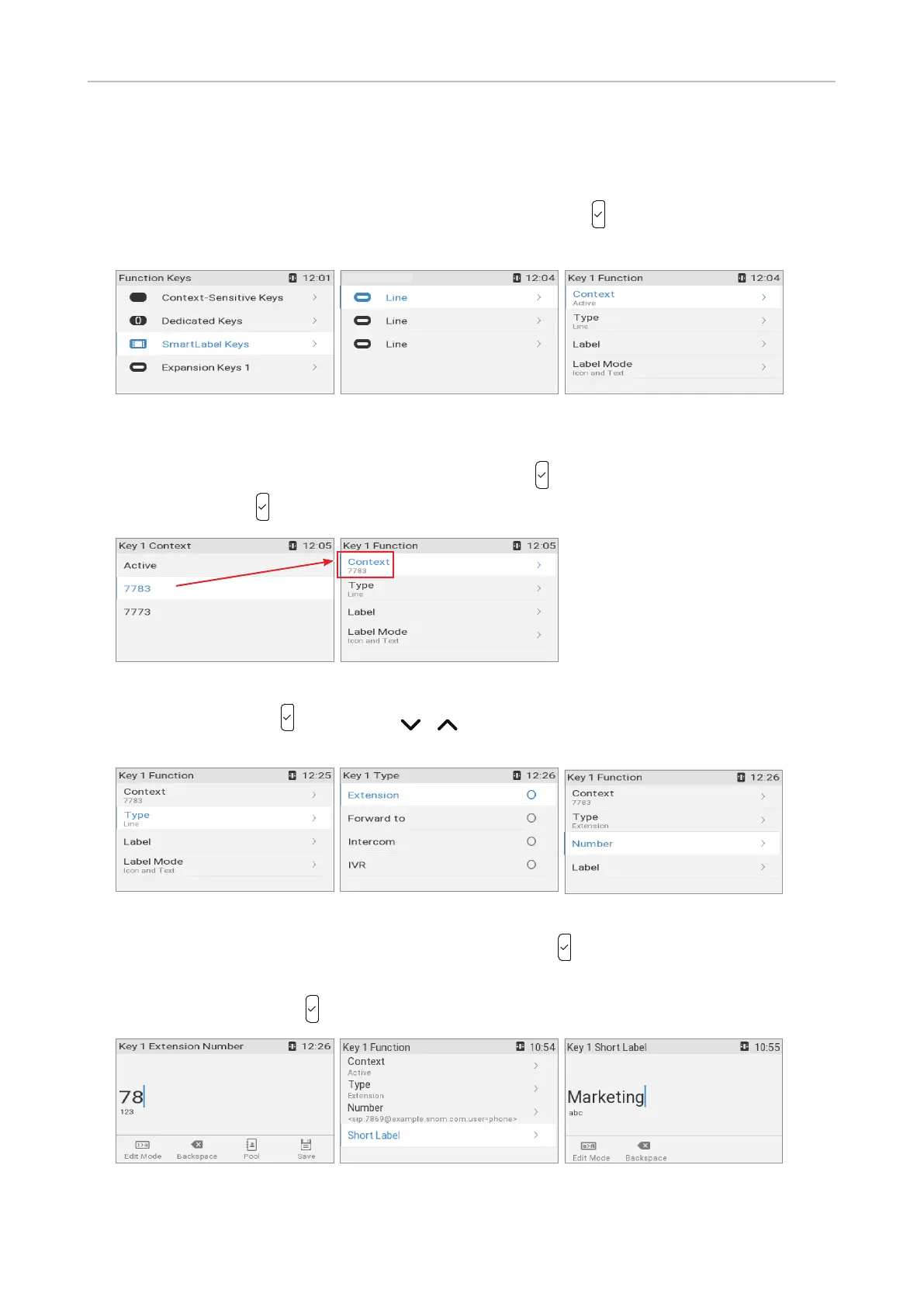
1. Select SmartLabel keys (Fig. 22).
2. In the SmartLabel keys menu, select the key (Fig. 23) and press to open the Key 1 Function
menu (Fig. 24). The LED of the key flashes yellow.
Fig. 22 Fig. 23 Fig. 24
3. The default for Context is Active, i.e., all configured identities whose status is "active". If you want
to restrict the functionality to a configured identity, press . Select the identity from the menu
(Fig. 25) and press .
Fig. 25 Fig. 26
4. Select Type and press (Fig. 27). Use / to scroll to a functionality in the Type menu (Fig.
28). The following prompts depend on the selected functionality.
Fig. 27 Fig.28 Fig. 29
5. In our example, the functionality is Extension (Fig. 28). Press to select and return to the Key 1
Function menu where Number has been added to the menu below "Type" (Fig. 29).
6. Select Number and press .
Fig. 30 Fig. 31 Fig. 32
SmartLabel keys



 To Next Page