77
D717 User Manual Configuring the Function Keys
mapped onto the key will be displayed in the label area instead. Enter a name or other descriptive
text (Fig. 37) and press , or press without entering data.
4. Press briefly to return to the Key Function menu (Fig. 38) which now shows the new setting;
press for 3 seconds to return to the idle screen.
Programming the function keys on the phone's web interface
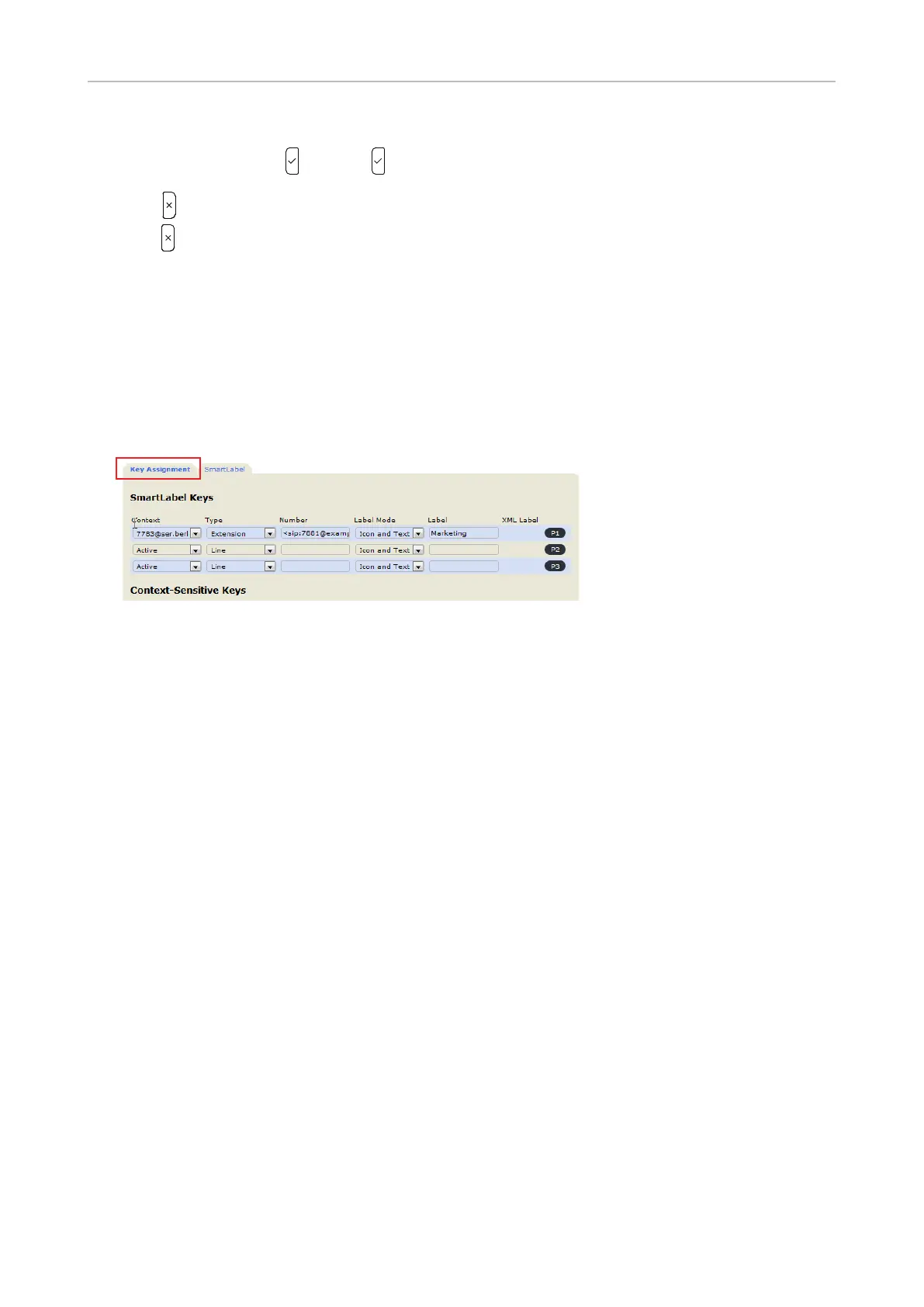
The page has two subpages. Functions and values for the function keys on the phone and any
connected D7 Expansion Modules are mapped on the Key assignment page. The settings on the
SmartLabel page define whether and how the labels are displayed on the idle screen and on call &
other screens. When the SmartLabels are not shown, the LED keys will still react and can be used in
accordance with the functions mapped onto them.
Fig. 1
Configuration of function keys
◦ See "Selected examples for function key programming" on page 79 for mapping
instructions for the dierent key types.
◦ See "Display options for SmartLabel keys" on page 84 for the configuration of the optical
presentation of the labels on the display.
◦ See "Appendix 4 - Programmable Functions" on page 115 for the descriptions of the
functions.
1. On the phone's web interface, click on Function Keys in the menu on the left. When the page is
opened, the Key Assignment page is on-screen, as indicated by the bold font of its tab (Fig. 1,
above). The four types of programmable function keys can be configured on this page.
2. Click the SmartLabel tab to open the settings for the appearance of the SmartLabels on the
display.
3. If you make any modifications to the settings on either page, click Apply to save them before
opening the other subpage or any other page of the phone's web interface, and before closing the
web interface.
4. After you have clicked Apply, the button Save will appear at the top of the page. We strongly
recommend clicking this button as well; any modifications not saved will be lost if and when the
phone is unplugged from its power source or when there is a power outage.
Note: As of firmware version 10, the Save button will appear immediately when you
have clicked on a radio button or selected an item from a drop-down list. In these cases,
you can just click on Save.



 To Next Page