33
D717 User Manual Getting to Know Your Phone
4. Enter the number of seconds in the text field of "Dim after (in seconds)". The default is 20
seconds.
5. Click on Apply and/or Save.
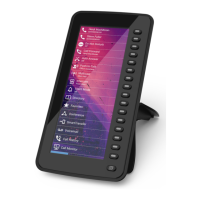
Adjusting display settings for connected D7s
You can adjust the intensity of the display's backlight, the display contrast, and the font size of the
function key labels for the connected D7 expansion modules. The label layout can be adjusted for
each D7 separately. For more information on the module's display layout, please refer to its user
manual at http://wiki.snom.com/Snom_D7/Documentation.
Note: The number of seconds after which the D7 expansion modules will switch from
activity to idle backlight is the number set for the primary display's backlight (see
"Period of Inactivity" on page 32).
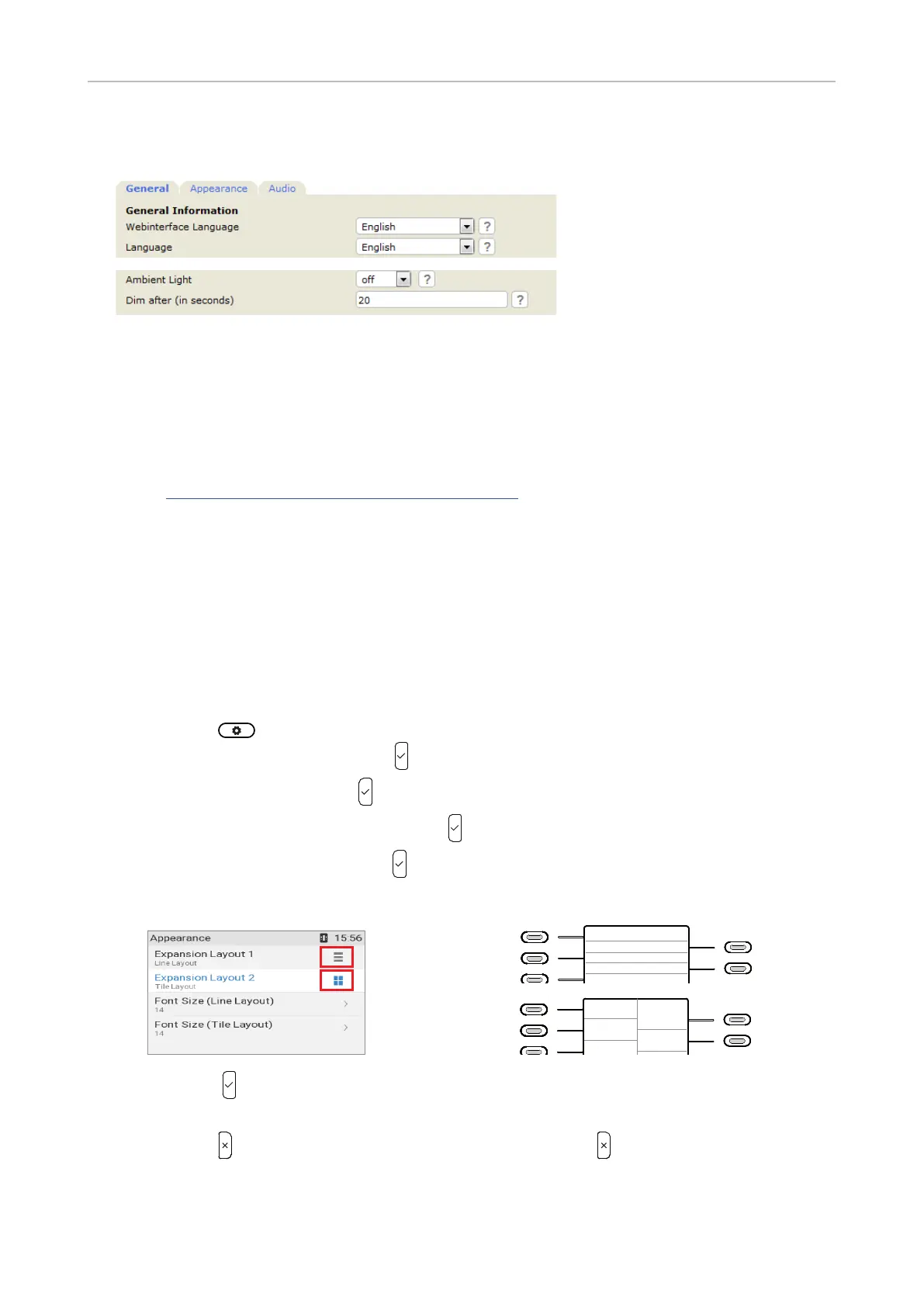
• Appearance.
◦ Layout. The available options are line or tile layout. Line layout is the default. The layout
is adjusted separately for each module, and only connected modules appear in the menu. If
there is more than one, the first D7 in the daisy-chain is listed as "Expansion Module 1", the
second one as "Expansion Module 2", and the third one as "Expansion Module 3".
1. Press .
2. Select Preferences and press .
3. Select Display and press .
4. Select Expansion Modules and press .
5. Select Appearance and press .
6. Select Expandion Module 1, 2, or 3.
1
2
10
11
12
13
14
15
16
17
18
1
2
3
4
5
6
7
8
9
10
11
12
13
14
15
16
17
18
1
2
3
4
5
6
7
8
9
10
11
12
13
14
15
16
17
18
1
2
10
11
7. Press to change the display layout of the selected D7 expansion module from lines to
tiles and vice versa and simultaneously save the modification.
8. Press to return to the Expansion modules menu; press for approx. 3 seconds to
return to the idle screen.
Line layout
Tile layout



 To Next Page