32
D717 User Manual Getting to Know Your Phone
2. Select Preferences and press .
3. Select Display and press .
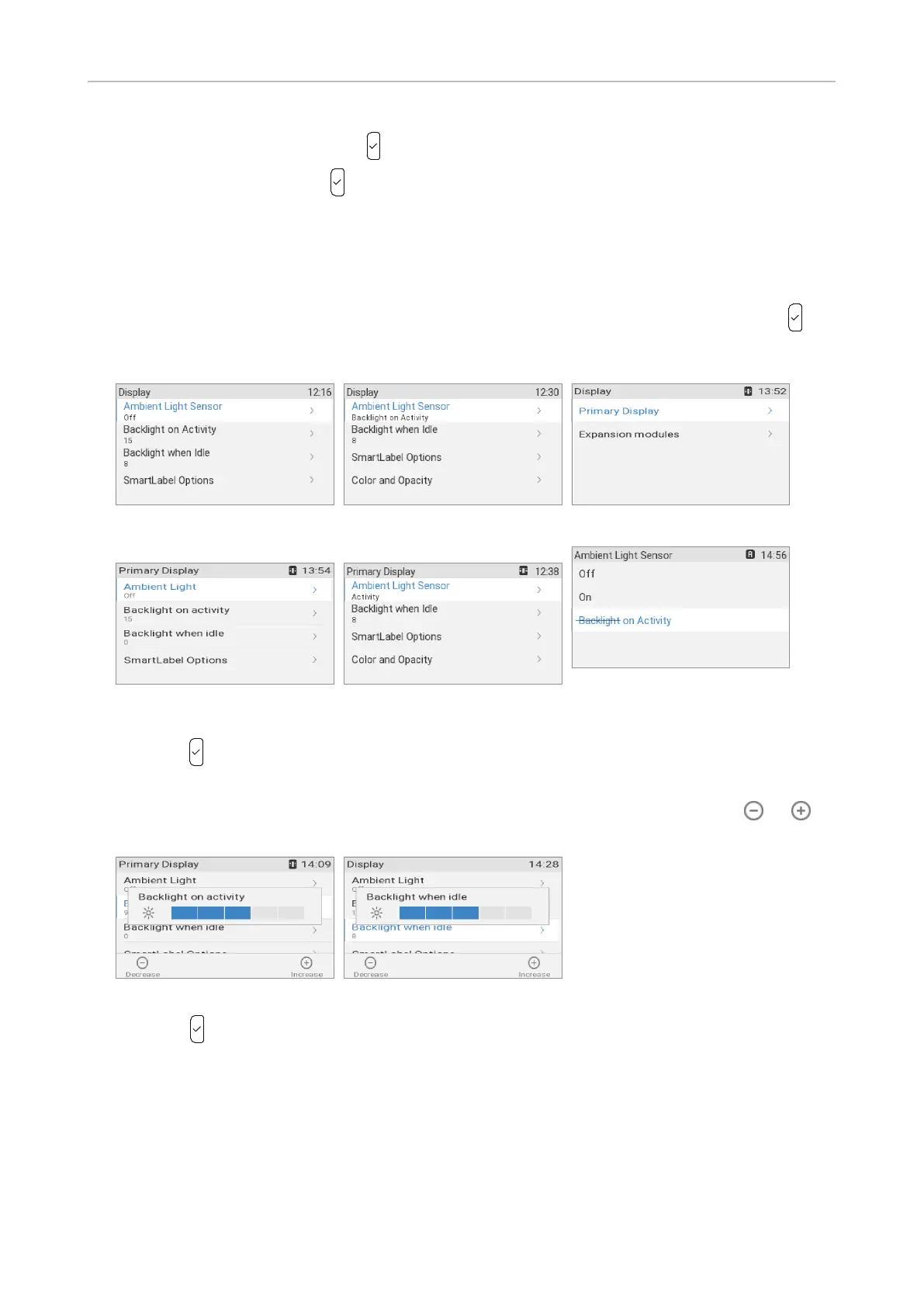
- If there is no D7 expansion module connected to the phone, the Display menu appears
(Fig. 3, if the ambient light sensor setting is o; Fig. 4, if it is set to regulate backlight on
activity).
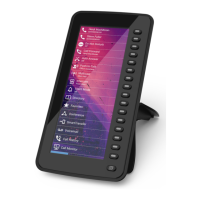
- If a D7 expansion module is connected to the phone, the Display menu has two submenus
(Fig. 5), Primary Display and Expansion Modules. Select Primary Display and press .
The Primary Display menu appears ((Fig. 5, if the ambient light sensor setting is o; Fig. 6
if it is set to regulate backlight on activity).
Fig. 3 Fig. 4 Fig. 5
Fig. 6 Fig. 7 Fig. 8
4. When the ambient light sensor is o, select Backlight on activity or Backlight when idle and
press . If it is set for active states (Fig. 8, Backlight on Activity), only the setting for Backlight
when idle is available.
5. Press the right or left arrow on the navigation key or the function key underneath or in
the function key line to decrease or increase the backlight's intensity (Fig. 9 and 10).
Fig. 9 Fig. 10
6. Press to save and return to the Display or Primary Display menu.
• Period of inactivity. The number of seconds after which the phone will switch from backlight on
activity to idle backlight can be set on the phone's web interface only.
1. Open the phone's web interface (see "Opening the web interface" on page 37).
2. Click on Preferences (see "How the web interface works" on page 38).
3. If necessary, click on the tab General.



 To Next Page