99
D717 User Manual Customizing the Phone Settings
Setting on the web interface
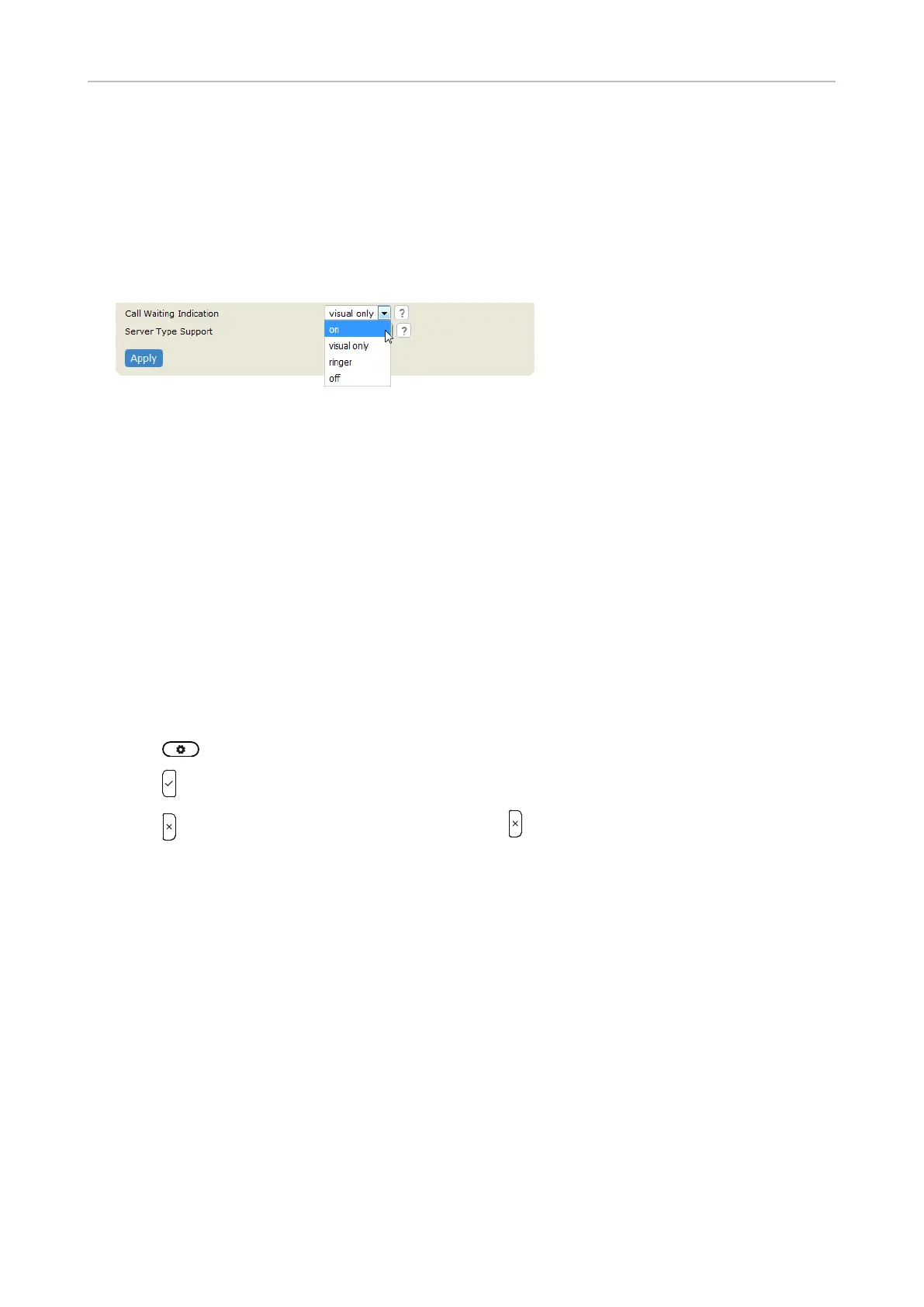
Call waiting is set independently for each identity.
1. In the menu on the left, click on the identity whose call waiting settings you want to change.
2. Click on the SIP tab. The setting Call Waiting Indication is the second to last on the page.
3. Select a setting from the drop-down menu.
4. Click on Apply and Save.
Hiding my caller ID
With this setting your phone number will not be transmitted to any phones you call. Please note
that your call may not be accepted if the other phone is set to reject anonymous calls (see "Rejecting
anonymous calls" on page 100). The default setting is o (radio button Show), i.e., your identity is
transmitted. As of firmware v10, the setting is tied to individual identities configured on the phone.
Setting on the phone
The setting is applied to the current outgoing identity and must be repeated for each configured
identity you want to make outgoing calls anonymously.
1. Press and select Call Features > Outgoing Calls > Hide own outgoing ID.
2. Press to change the setting from no to yes and vice versa.
3. Press briefly to return to the previous menu, press for two seconds to return to the idle
screen.
Setting on the web interface
1. Select the Identity page and click on the Features tab.
2. In the Privacy Settings section, click the radio button Hide of the setting Suppress own number
(CLIP/CLIR).
3. Click on Apply and Save.



 To Next Page