98
D717 User Manual Customizing the Phone Settings
Call waiting
Default setting: When in a call, another call coming in is announced visually in the status line and
acoustically by a double beep. See "Call waiting" on page 56 on how to use this feature. Available
settings:
◦ On: Visual and acoustic announcement of calls waiting
◦ Visual only: Visual announcement of calls waiting in the status line
◦ Ringer: Acoustic announcement by double beeps
◦ O: The call waiting is not announced visually or acoustically; callers hear the busy signal.
Call waiting is set independently for each identity. If you use the phone to change the setting, it will
apply to the current outgoing identity only; if you want it to apply to any other identities on the phone,
you must select each one in turn as the outgoing identity and repeat the setting for each one.
Setting on the phone
The setting is applied to the outgoing identity at the time it is saved. If you want to change the setting
for other identities, select each one as the outgoing identity in turn and repeat the steps.
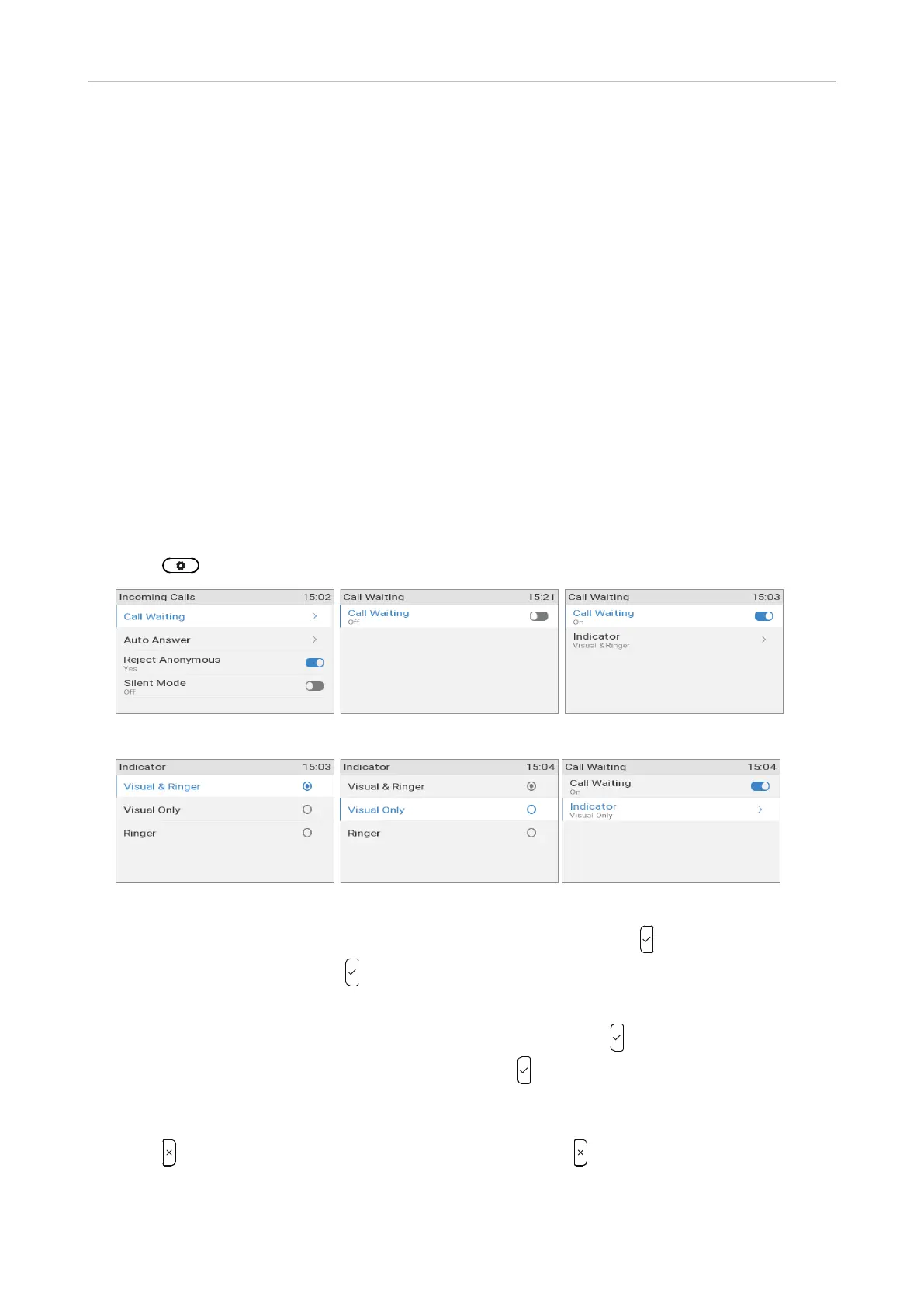
1. Press > Call Features > Incoming Calls > Call Waiting.
Fig. 1 Fig. 2 Fig. 3
Fig. 4 Fig. 5 Fig. 6
◦ To turn call waiting on and o, select Call waiting (Fig. 1) and press . On the Call Waiting
screen (Fig. 2 and 3), press to switch from on to o and vice versa.
◦ When call waiting has been turned o, the Indicator line is not available in the menu (Fig. 2).
◦ When call waiting is enabled (Fig. 3), select Indicator and press . The Indicator menu
appears (Fig. 4). Select a setting (Fig. 5) and press to save the change and return to the Call
waiting menu (Fig. 6). The Indicator setting now indicates the new setting, for example, if you
changed the default setting "visual & ringer" (Fig. 5) to "visual only" (Fig. 6).
2. Press briefly to return to the Incoming calls menu, or press for two seconds to return to the
idle screen.



 To Next Page