34
D717 User Manual Getting to Know Your Phone
◦ Font size. As of FW version 8.9.3, it is possible to adjust the font size for the connected
expansion modules. The size is set separately for line and tile layout, and the respective
setting is applied to all connected modules with line or tile layout, respectively. The default for
both is 14.
1. Press .
2. Select Preferences and press .
3. Select Display and press .
4. Select Expansion Modules and press .
5. Select Appearance and press .
6. Select Font size (line layout) or Font size (tile layout), respectively, and press ..
7. Use the alphanumeric keypad to enter the font size. Press the function key underneath
to delete the character to the left of the cursor if you need to correct your input.
8. Press to save the setting and to return to the Appearance menu.
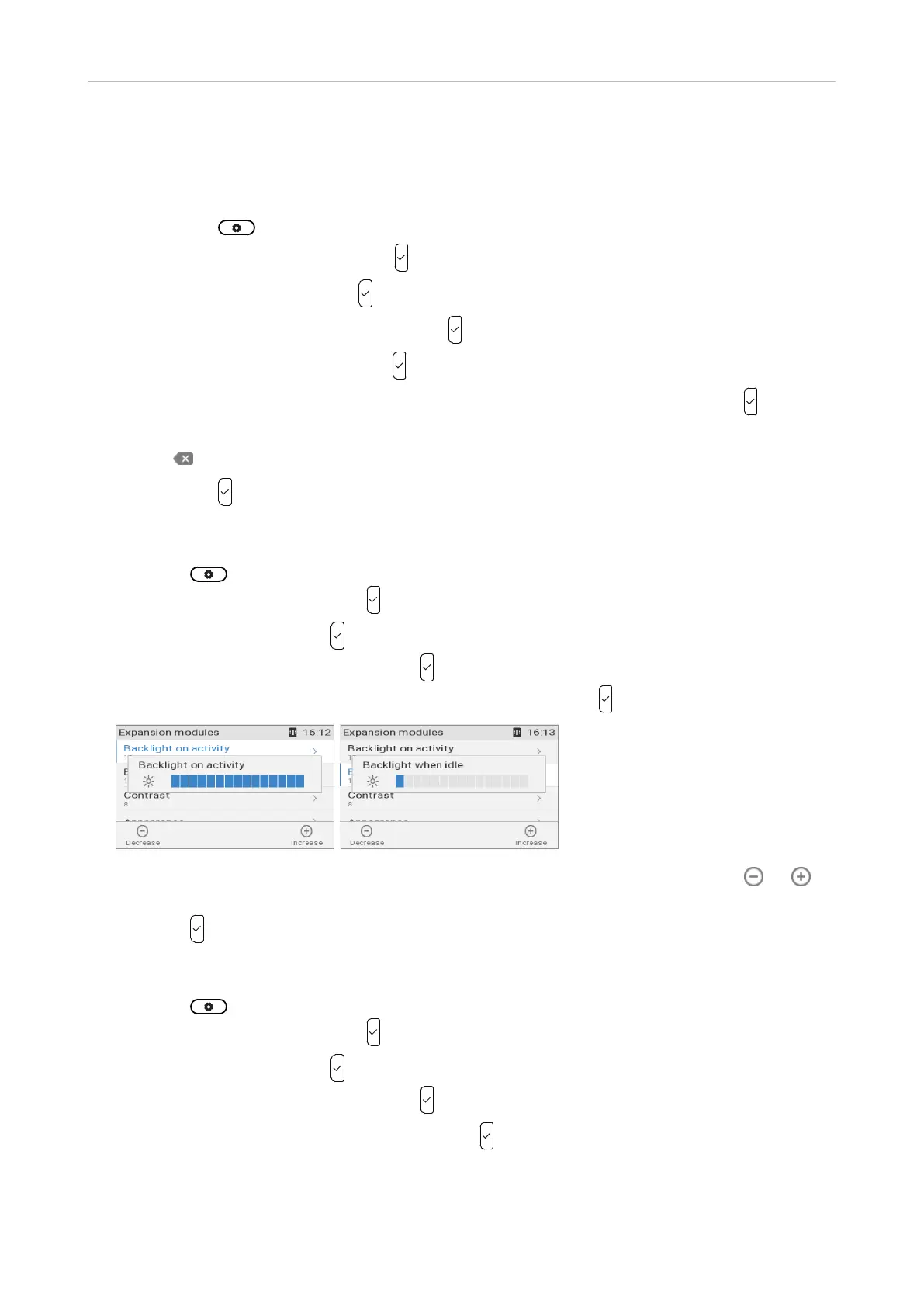
• Intensity of backlight. The setting is applied to all D7 expansion modules connected to the phone.
1. Press .
2. Select Preferences and press .
3. Select Display and press .
4. Select Expansion Modules and press .
5. Select Backlight on activity or Backlight when idle and press .
6. Press the right or left arrow on the navigation key or the function key underneath or in
the function key line to decrease or increase the backlight's intensity.
7. Press to save and return to the Expansion Modules menu.
• Contrast. The setting is applied to all D7 expansion modules connected to the phone.
1. Press .
2. Select Preferences and press .
3. Select Display and press .
4. Select Expansion Modules and press .
5. Select Contrast or scroll down to it and press .



 To Next Page