5-26
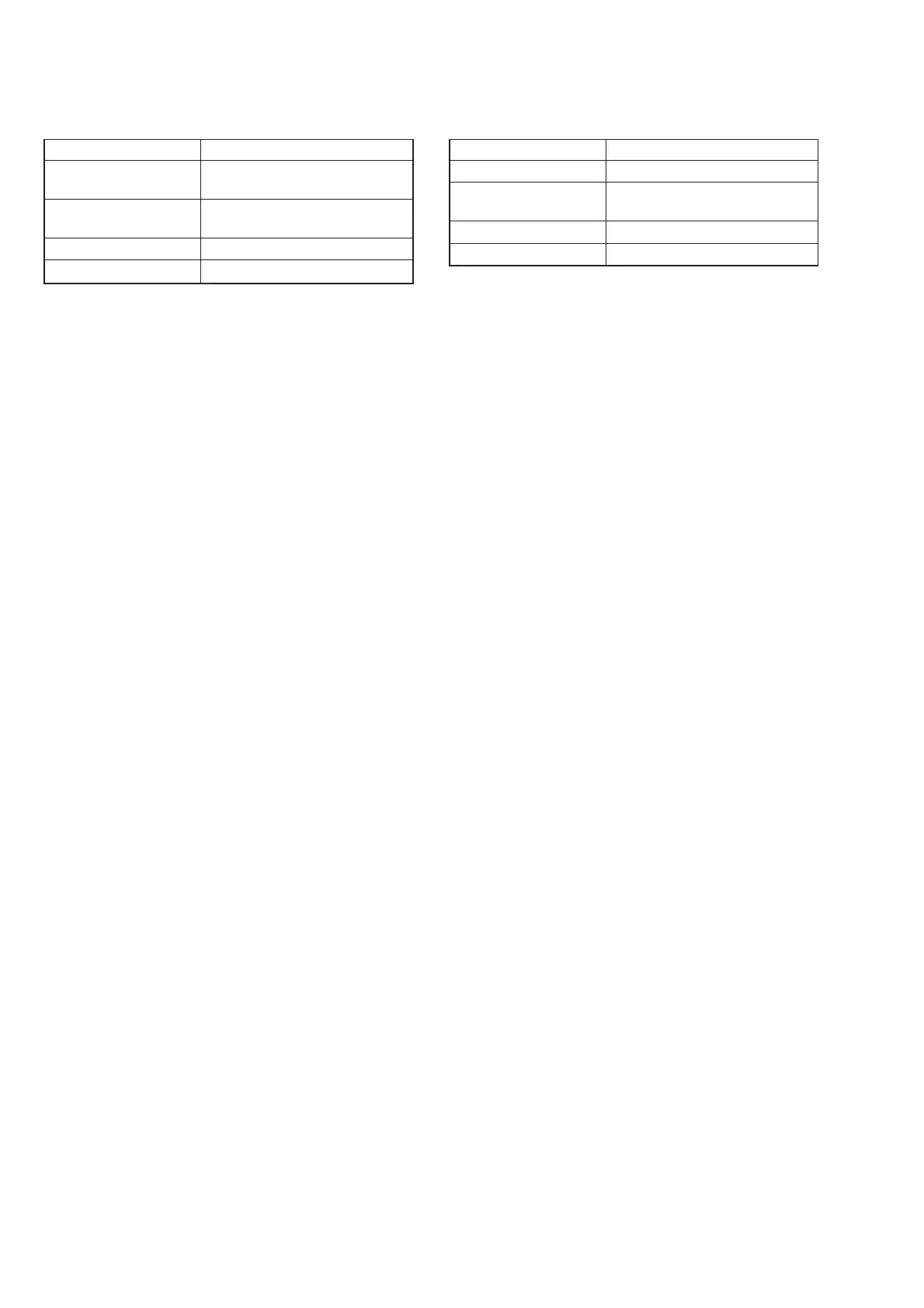
21.CCD Black Defect Compensation Check
Mode STILL
Subject Clear chart
(25 cm from the front of lens)
Measurement Point Displayed data of page: 6,
address: 55
Measuring Instrument Adjusting remote commander
Specified Value 00
Note 1: Check that there are no dust, no dirt and reflection of the
clear chart.
Note 2: Any subject other than the clear chart should be in the
screen.
Note 3: Perform “CCD Black Defect Compensation” before this
checking.
Checking method:
1) Turn the power of the unit OFF and then ON.
2) Wait until the camera picture appear on the LCD screen.
3) Select page: 0, address: 01, and set data: 01.
4) Select page: E, address: 52, after noting down the data, set
data: 50, and press the PAUSE button of the adjusting remote
commander.
5) Select page: F, address: AF, set data: A5, and press the PAUSE
button of adjusting remote commander.
6) Select page: 6, address: 2C, and set data: 01.
7) Select page: 6, address: 90, and set data: 00.
8) Select page: 6, address: 91, and set data: 04.
9) Select page: 6, address: 92, and set data: 00.
10) Select page: 6, address: 93, and set data: 00.
11) Select page: 6, address: 01, set data: 79, and press the PAUSE
button of adjusting remote commander.
12) Select page: 6, address: 30, and set data: 07.
13) Select page: 6, address: 01, set data: 89, and press the PAUSE
button of adjusting remote commander.
14) Select page: 6, address: 02, and check that the data is “01”.
15) Select page: 6, address: 55, and check that the data is “00”.
(If the data other than “00”, black defect compensation has
errors)
Processing after Completing Adjustments:
1) Select page: 6, address: 01, set data: 00, and press the PAUSE
button of adjusting remote commander.
2) Select page: 6, address: 30, and set data: 00.
3) Select page: 6, address: 91, and set data: 00.
4) Select page: 6, address: 2C, and set data: 00.
5) Select page: F, address: AF, set data: B3, and press the PAUSE
button of adjusting remote commander.
6) Select page: E, address: 52, set data noted down at step 4) and
press the PAUSE button of the adjusting remote commander.
7) Select page: 0, address: 01, and set data: 00.
22.CCD White Defect Compensation Check
Mode STILL
Subject Not required
Measurement Point Displayed data of page: 6,
address: 55
Measuring Instrument Adjusting remote commander
Specified Value 07 or less
Note 1: Perform “CCD Black Defect Compensation” before this
checking.
Checking method:
1) Turn the power of the unit OFF and then ON.
2) Wait until the camera picture appear on the LCD screen.
3) Select page: 0, address: 01, and set data: 01.
4) Select page: F, address: B3, set data: 80, and press the PAUSE
button of adjusting remote commander.
5) Turn the power of the unit OFF.
6) Wait for 2 second.
7) Turn the power of the unit ON.
8) Select page: 6, address: 55, and check that the white defection
data is satisfies the specified value.
9) Select page: F, address: B3, set data: A0, and press the PAUSE
button of adjusting remote commander.
10) Select page: 6, address: 01, set data: 87, and press the PAUSE
button of adjusting remote commander.
11) Select page: 6, address: 02, and check that the data is “01”.
12) Select page: 6, address: 55, and check that the data is “00”.
(If the data other than “00”, white defect compensation has
errors)
Processing after Completing Adjustments:
1) Select page: 6, address: 01, set data: 00, and press the PAUSE
button of adjusting remote commander.
2) Select page: F, address: B3, set data: 20, and press the PAUSE
button of adjusting remote commander.
3) Select page: 0, address: 01, and set data: 00.



 To Next Page