S CLASS™ cutter User’s Manual
Basic Operation 2-2
2.1.1 Touch screen
The touch screen provides information and also lets the user change the cutter’s
parameters.
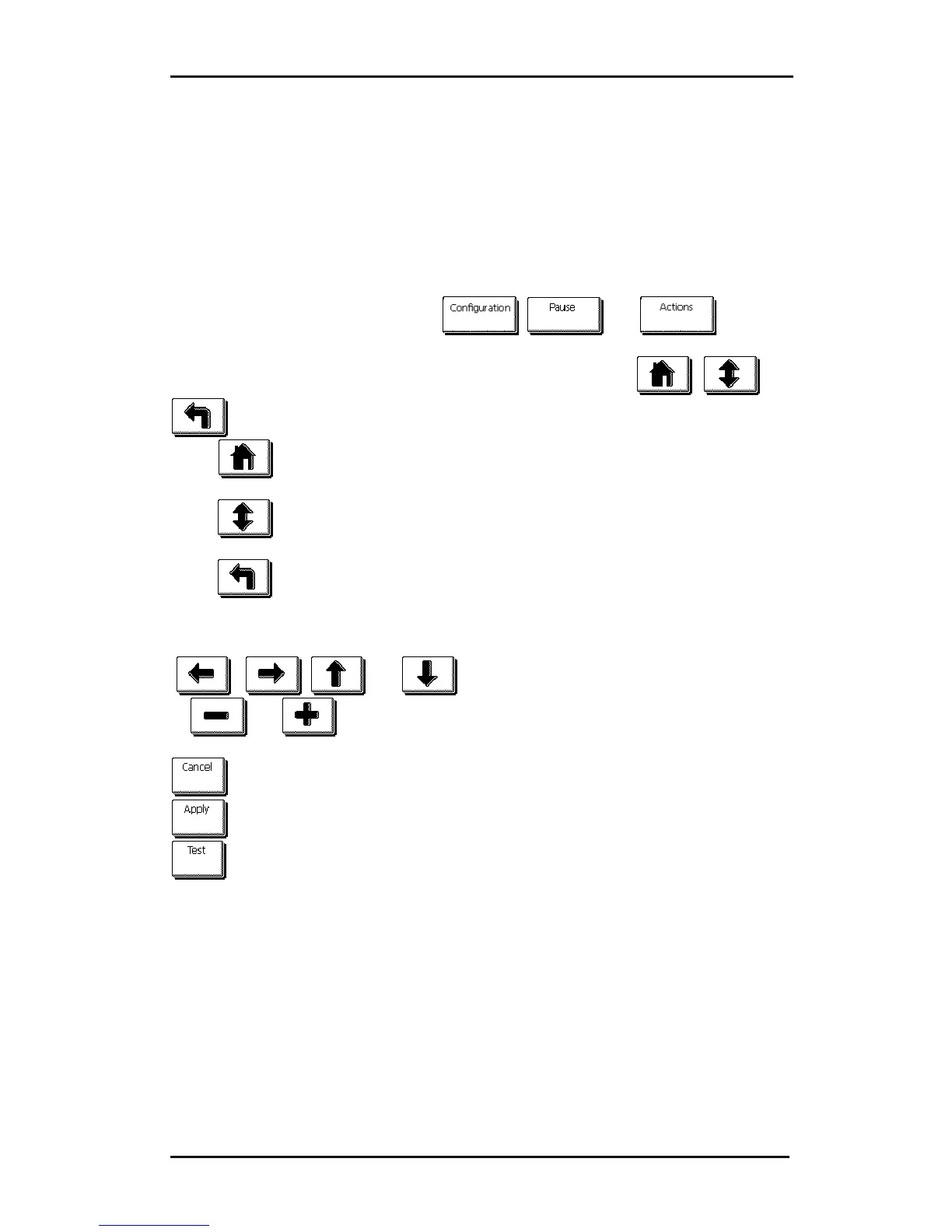
¾ Most common buttons on touch screen:
Normally, the status or current value is visible on the left side of the screen, while the
control buttons appear on the right side.
There are three main control buttons:
,
and .
Once you reach a menu, there are three navigation buttons:
, and
.
Press
to return to the status screen. If media is loaded in the cutter, then the
cutter will come online and be ready to cut a job sent from the computer.
Press
for more menu options. If there are more than 6 options for the chosen
menu, then pressing this button will reveal the rest of the options onscreen.
Press
to return one step in the menu structure.
¾ Other buttons that will appear on the screen are:
, , and arrow buttons to move tool carriage or media
or
and to change the values of parameters.
to cancel an instruction or change in parameter.
to apply a change in parameter.
to initiate an internal test.








 To Next Page