S CLASS™ cutter User’s Manual
Basic Operation 2-16
2.6 Touch screen shortcuts
There exist a couple of handy shortcuts when the cutter is online and waiting for the
computer to send a file. These shortcuts are not explicitly marked on the touch screen
by a button, but using the shortcuts have proved to be very helpful for quick actions.
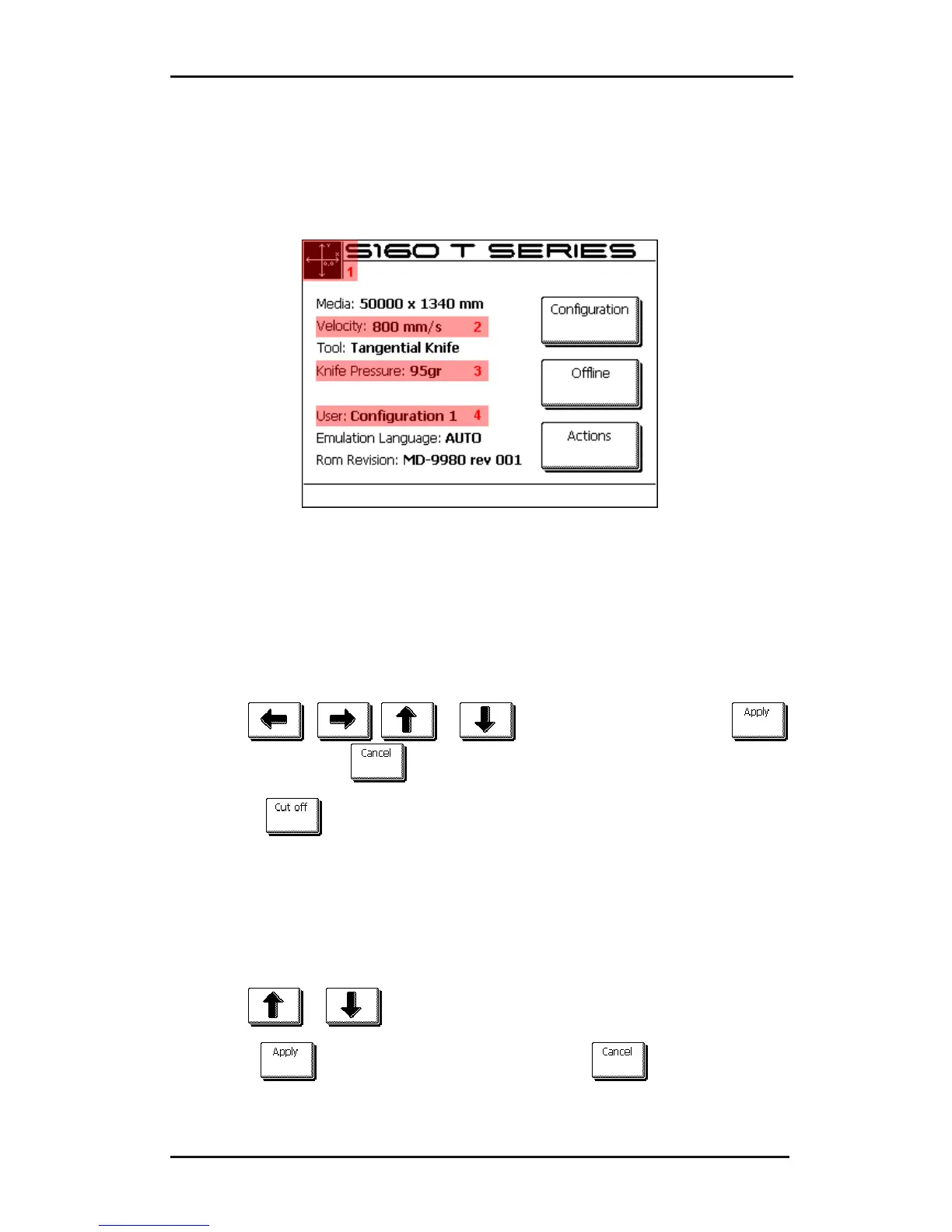
Below is a picture showing the 4 areas for the shortcuts.
FIG 2-7
2-7 SHORTCUT AREAS IN START-UP SCREEN
Pressing these highlighted areas will guide the user directly to the parameter.
2.6.1 Changing origin
Press area 1
The origin menu will appear on screen
1. Use
, , or to reposition the origin; press
to confirm or press
to leave without changing the origin.
2. Press
to cut off a previous job if necessary; the cutter will then
automatically search the front of the media and set the new origin.
2.6.2 Changing velocity
Press area 2
The velocity menu will appear on screen, the current velocity is highlighted.
1. Use
or to change the velocity.
2. Press
to confirm the new velocity or press to leave the menu
without changing the velocity.








 To Next Page