S CLASS™ cutter User’s Manual
Basic Operation 2-13
2.4 How to Change the User (Quick Parameter Change)
The S CLASS™ cutters include 8 user configurations, all of which consist of the same
parameters. Each configuration can have unique parameter settings. This allows the
cutter to be quickly and easily reconfigured for different types of jobs or media.
NOTE: Factory default values for the different users are all set the same.
Changing the User Configuration:
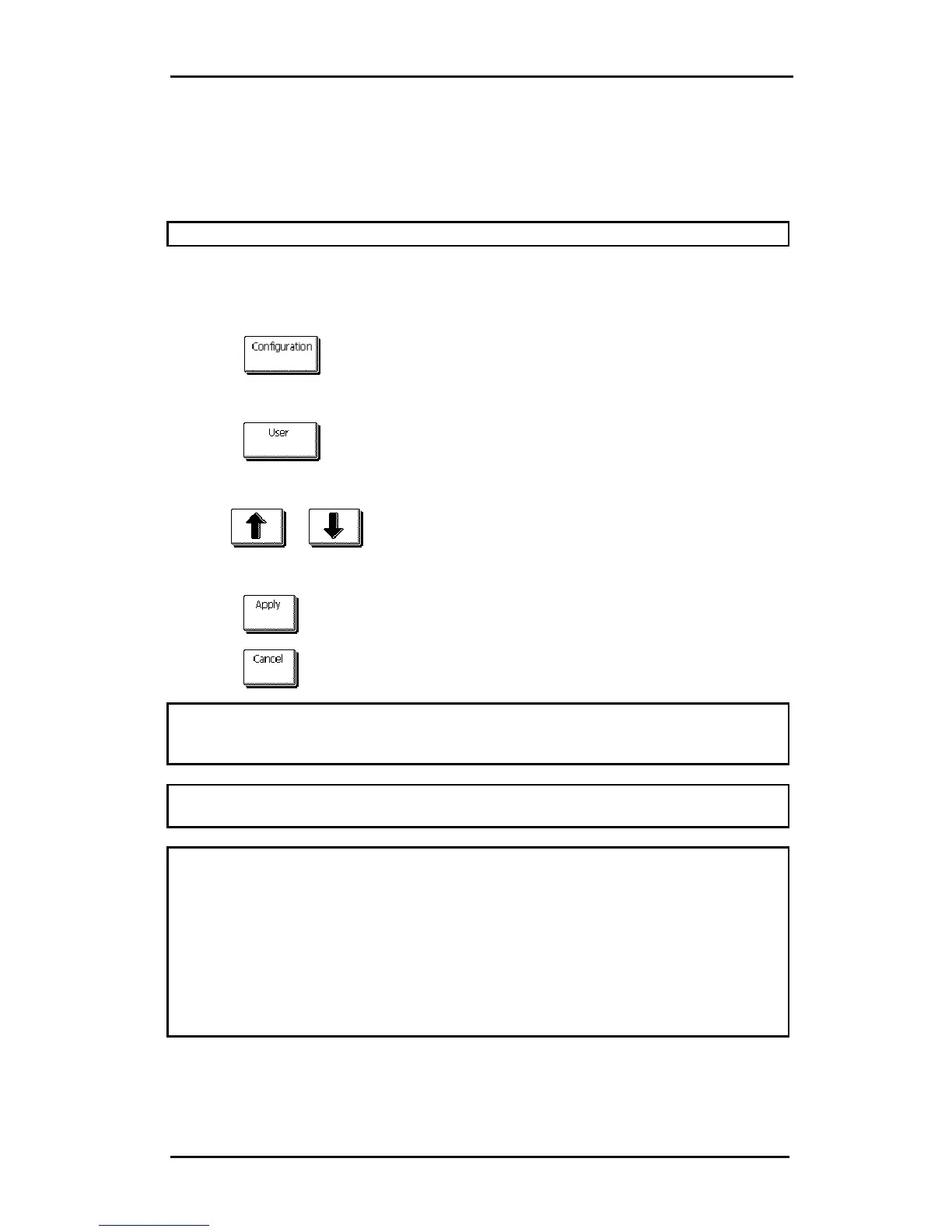
1. Power on the cutter.
2. Press
.
The main menu will appear on the screen.
3. Press
.
The different users will appear on screen.
4. Use
or to change user.
The user (inverse) will change.
5. Press
to confirm the new user.
6. Press
to exit the menu without changing the user.
TIP: Use easy names to quickly recognize what each user is configured to do.
Commonly used names are: Normal, Pen, Slow, Sandblast, Pouncer, Red
intermediate vinyl, etc.
NOTE: The touch screen can be used to change user configurations. User
configuration names can only be modified through Summa Cutter Control (PC only).
NOTE: There is a text file on the manual CD for the Mac users. The name of the file
is “name.enc”.
Edit the second line to change user name.
The second line in that file is: “SET USER01NAME Type_text_here.”.
First change in that line the number of the user’s name that needs to be changed.
Then change “Type_text_here” to the new name. Do not use spaces. Underscores
will be translated to spaces on the touch screen. Maximum length of a user name is
16 characters.
Do not change any other lines in this text file, then save it as text.
Finally send the file to the cutter.







 To Next Page