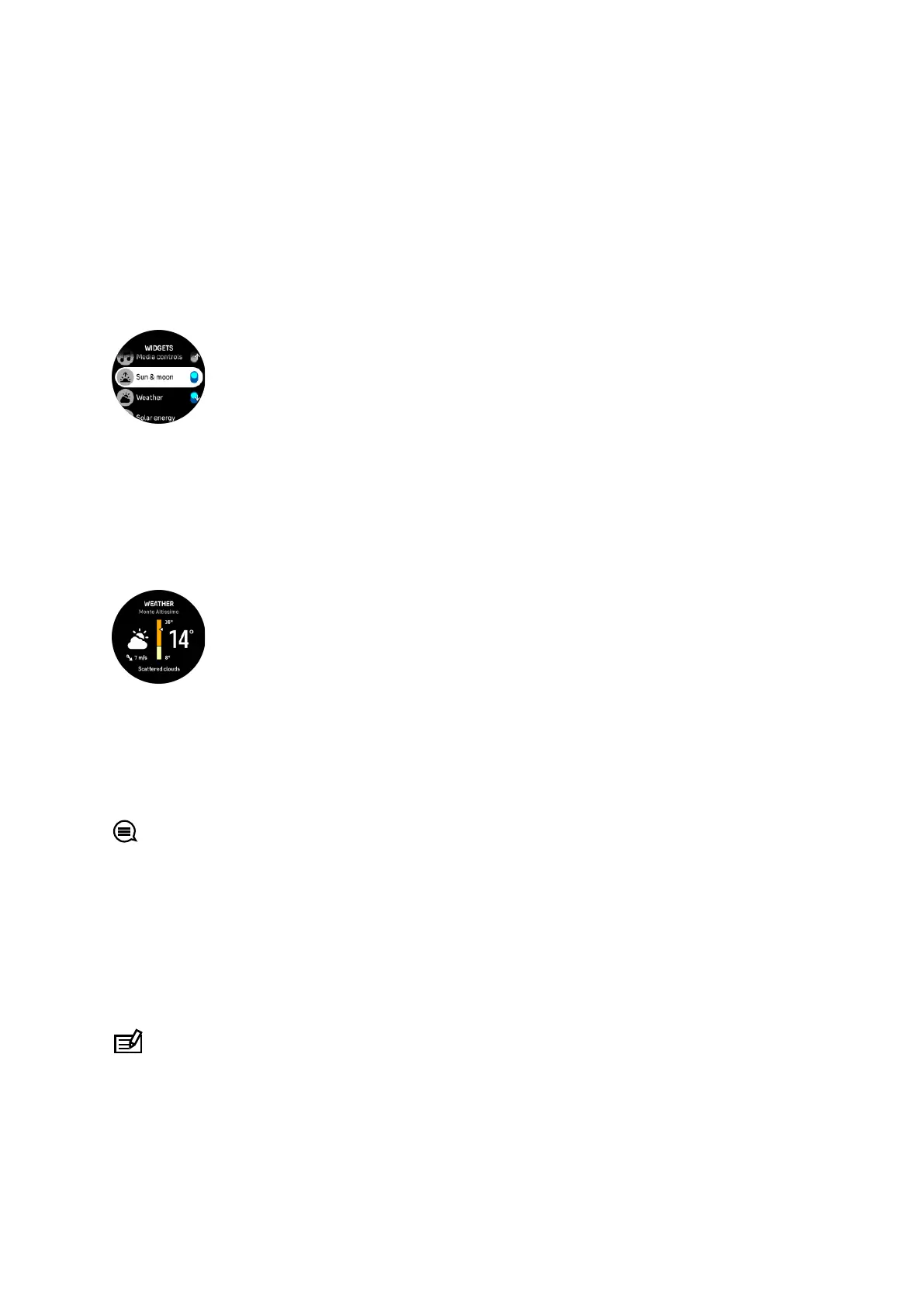
9. Widgets
Widgets give you useful information of your activity and training. The widgets are accessible
from the watch face by swiping up or by pressing the lower button.
It is possible to pin a widget for quick and easy access. Select Customize from the Control
panel or in the Settings to pin a widget.
The widgets can be turned
on/o from the Control panel under Customize » Widgets. Select
which widgets you want to use by turning the toggle on.
You can select which widgets you want to use in your watch by turning them on and o in
Suunto app. You can also select in which order you want the widgets to show in your watch
by sorting them in the app.
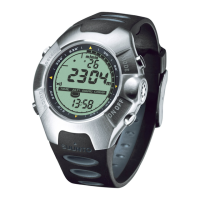
9.1. Weather
From the watch face view, swipe up or press the lower button to scroll to the weather widget.
The weather widget provides you with information of the current weather. It shows the current
temperature, wind speed and direction and current weather type both as text and icon.
Weather types can be, for example, sunny, cloudy, rainy etc.
Swipe up or press the lower button to see more detailed weather data such as humidity, air
quality and forecast data.
TIP: Make sure that you sync your watch with Suunto app regularly to get the most
accurate weather data.
9.2. Notifications
If you have paired your watch with Suunto app, you can get notifications of, for example,
incoming calls and text messages, on your watch.
When you pair your watch with the app, notifications are on by default. You can turn them o
from the settings under Notifications.
NOTE: Messages received from some apps used for communication might not be
compatible with Suunto Ocean.
When a notification arrives, a pop-up appears on the watch face.
Suunto Ocean
87



 To Next Page