4-20
4 PROGRAM MODE
Send Coordinates
The send coordinate option will transfer a job from the instrument to a PC. If the current job is not the
job you want to send, change the current job by going to the View Memory option on page 1 of the Job
Manager Menu. Refer to the View Memory option for instructions on selecting a job.
After confirming the job you want to send, check the communication parameters on the instrument and
the PC software to make sure they match. Stepup the PC first to receive the job. When the PC is ready,
choose the (Send Coords.) option on the Transfer Coordinate data menu.
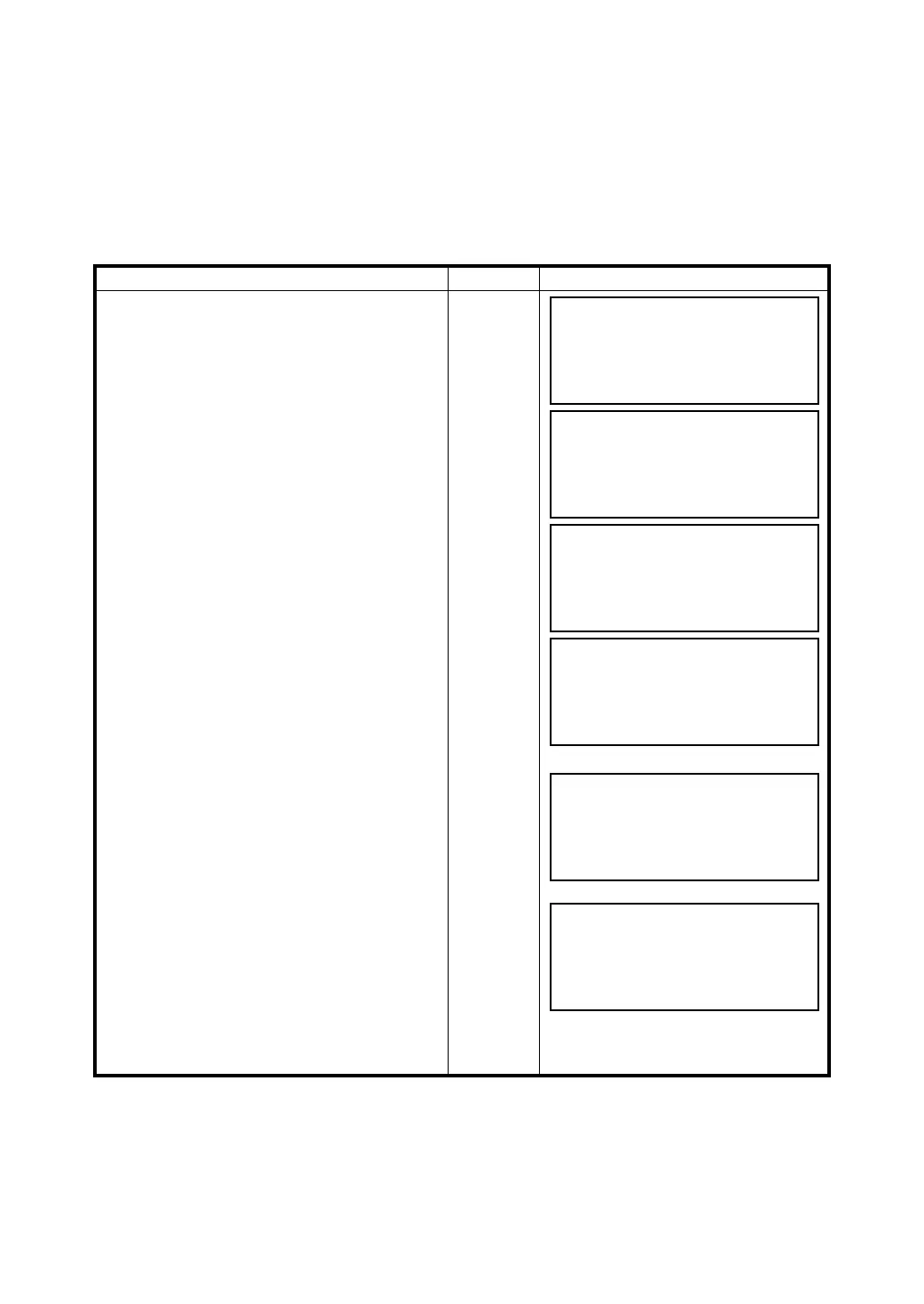
The example below shows how to send a job to the PC.
Operating procedure Operation Display
1 From the Job Manager menu, page 1, press
[F6] key to select page 2.
[F6]
2 Press [F1] Transfer Jobs
3 To send a job press [F2].
4 Get the PC software ready to receive the job.
When the PC is ready, press [F5] (YES) to
send the job. If you press [F6] (NO), the
software will return back to page 2 of the Job
Manager menu. Press [F5] (YES) to send the
job.
[F1]
[F2]
[F5]
5 The next screen waits for the PC to start
sending the job. To abort the send job option
press [F6].
[F6]
6 Once the job is sent the screen shows the
message “Complete” and returns back to
page 2 of the Job Manager menu.
Job Manager (Pg 1/2)
F1 View Memory
F2 Erase a Block of Point
F3 Erase One Point
F4 Create Another Job ↓
Job Manager (Pg 2/2)
F1 Transfer Job
F2 Rename Jobs
F3 Delete a Job
F4 Delete All Jobs ↑
Transfer Coordinate data
F1 Receive Coords.
F2 Send Coords.
F3 Comm Protocol
Transfer Coordinate data
Send Coords.
>Ready
YES NO
Transfer Coordinate data
Send Coords.
>Waiting STOP
Job Manager (Pg 2/2)
F1 Transfer Jobs
F2 Rename Job
F3 Delete a Job
F4 Delete All Jobs ↑



 To Next Page