Connecting the Receiver and a Computer
P/N 7010-0526
2-15
Establishing an RS232 Cable
Connection
1. Using the RS232 cable, connect the serial port of your computer
(usually COM1) to the receiver’s serial port.
2. Press the power buttons on the receiver and computer to turn
them on.
3. Connect to the desired configuration software (PC-CDU,
BTCONF, etc.) as described in the configuration sections.
Establishing a USB Connection
Make sure the computer has the TPS USB driver installed.
1. Using the USB cable, connect the USB port of your computer to
the receiver’s USB port.
2. Press the power buttons on the receiver and computer to turn
them on.
3. Connect to the desired configuration software (PC-CDU,
BTCONF, etc.) as described in the configuration sections.
Establishing a Wireless Connection
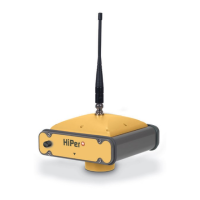
If the HiPer+ receiver is configured with Bluetooth wireless
technology, you can perform file transfer and synchronization
between the receiver and any other external device that supports
Bluetooth wireless technology. For example, an FC-100, or a
computer with USB-to-Bluetooth adapter or PCMCA-to-Bluetooth
adapter installed.
NOTICE
Your receiver may not be configured with a
Bluetooth wireless technology module.
NOTICE
Changing the receiver’s Port B default settings will
affect the Bluetooth link. The default settings for
Port B are: 115200 bps, 8 data bits, 1 stop bit, no
parity, and no handshaking.



 To Next Page