HiPer+ Configuration
HiPer+ Operator’s Manual
3-12
2. Press the power buttons on the receiver and external controller to
turn them on, and start TopSURV.
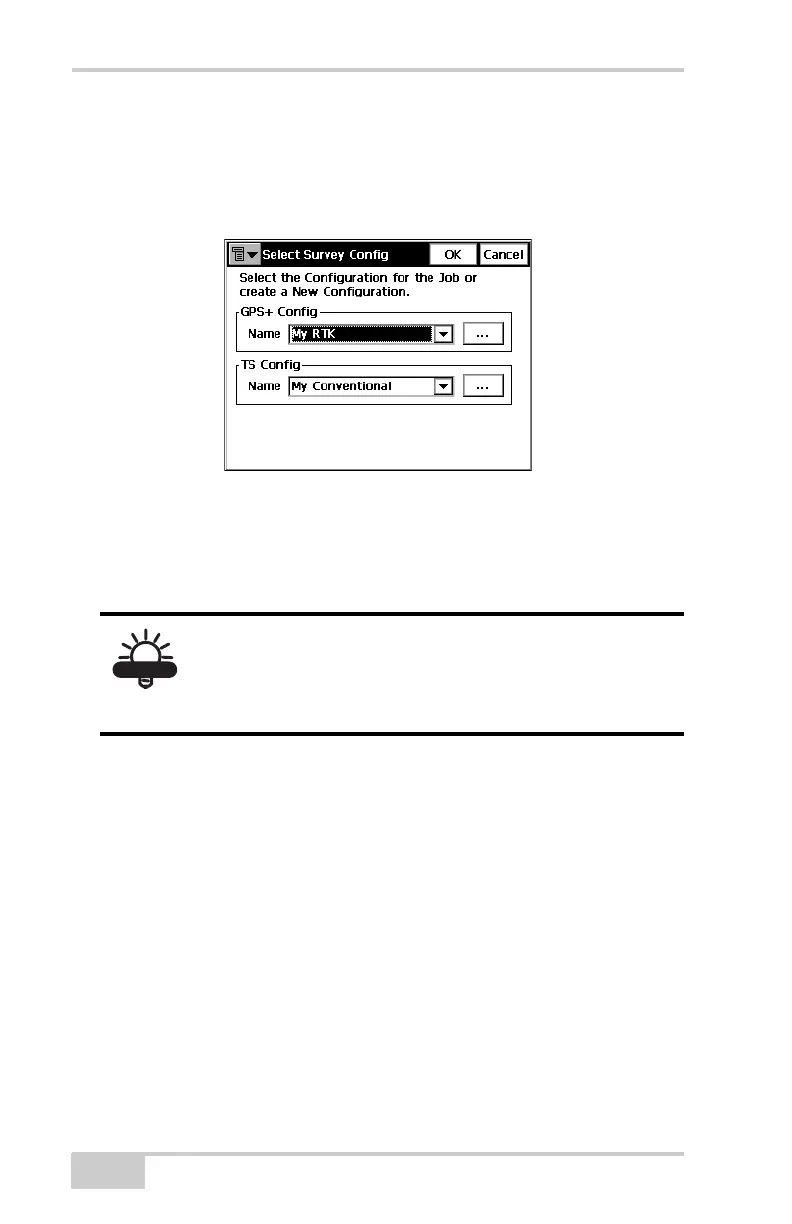
3. Click JobConfigSurvey to open the Select Survey Config
dialog box (Figure 3-11).
Figure 3-11. Select a Survey Configuration
4. From the GPS+ Config drop-down list, select My RTK, or the
name of your GPS+ survey configuration, and click the “...”
(continue) button (Figure 3-11).
5. Press Next to navigate to the Base Radio or Rover Radio
configuration screen, usually a couple dialog boxes beyond the
Select Survey Config screen.
6. On the radio configuration screen, select the appropriate GSM
radio modem and set the following parameters (Figure 3-12):
• Port – C for internal radio modems or D for external radio
modems
• Parity – None
• Data – 8
• Baud – 9600
• Stop – 1
TIP
If this is a new configuration, refer to the TopSURV
User’s Manual for the procedure to configure a new
survey. Otherwise, continue below to configure the
GSM radio.



 To Next Page