MINTER Configuration
P/N 7010-0526
3-27
• Shows the data recording status (REC LED).
• Shows each time data is recorded to internal memory (REC
LED).
• Shows the status of post-processing mode (static or dynamic)
when performing a Post-Processing Kinematic survey with the
help of FN key (REC LED).
• Shows the status (high charge, intermediate charge, or low
charge) of the battery (BATT LED).
• Shows the power status for the receiver (BATT LED).
• Shows the status of the modem and if it receives signals (TX RX
LED).
Use PC-CDU to configure MINTER settings. The procedure below
describes the most common settings; refer to the PC-CDU Reference
Manual for other possible MINTER configurations.
1. Connect your receiver and computer. See “Connecting the
Receiver and a Computer” on page 2-14 for this procedure.
2. On the PC-CDU Main window, click FileConnect.
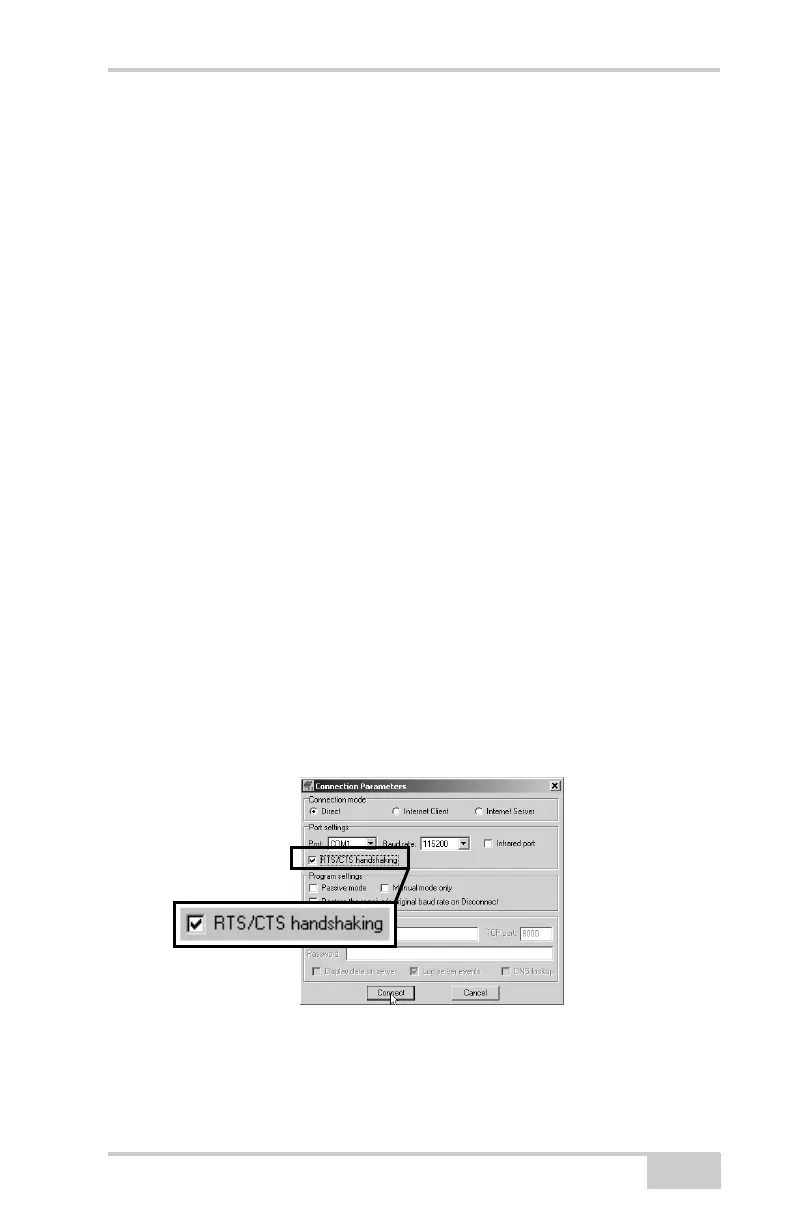
3. On the Connection Parameters dialog box, enable RTS/CTS
handshaking (Figure 3-27).
See “Connecting the Receiver and a Computer” on page 2-14 for
details on setting other parameters.
4. Click Connect.
Figure 3-27. Connection Parameters – MINTER Configuration Settings



 To Next Page