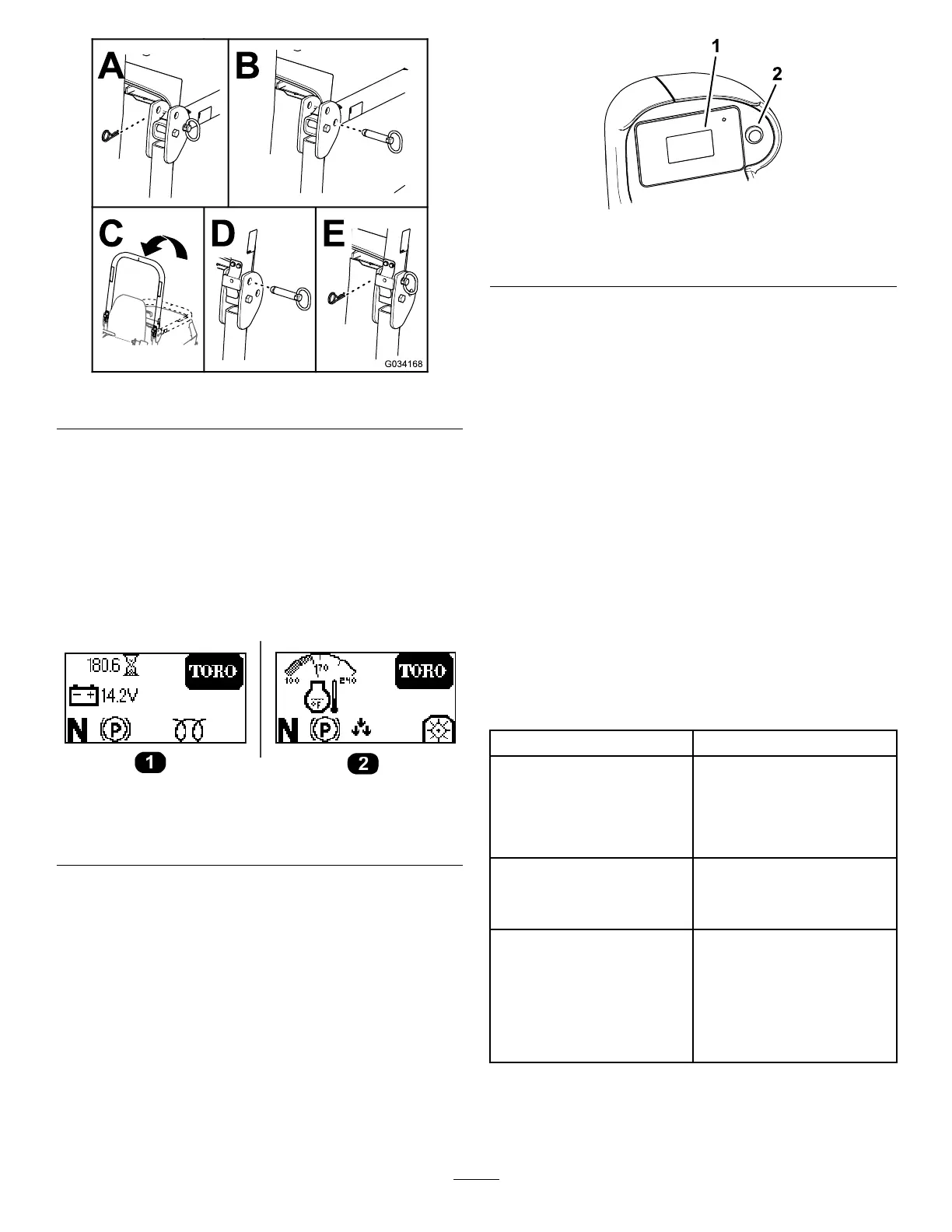
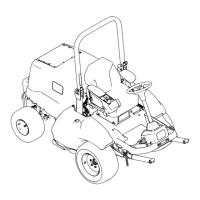
g034168
Figure 34
Understanding the
Display-Screen Information
The display screen shows information about your
machine, such as the operating status, various
diagnostics, and other information about the machine.
There are 2 main-information screens ( Figure 35 ) and
a main menu screen.
g308751
Figure 35
1. Battery level and hour
meter screen
2. Engine temperature
screen
Using the Display-Screen Button
Use the display-screen button (shown in Figure 36 ) to
toggle between the 2 main-information screens and
to access the main menu.
g297898
Figure 36
1. Display screen 2. Display-screen button
• T o access the main menu: Hold down the
display-screen button until the menu items appear
on the screen.
• T o select a menu item: Quickly press the
display-screen button twice.
Y ou can also perform this action to toggle an
option (e.g., toggling between English or metric
units in the S ETTINGS screen).
• T o return to the previous screen (e.g., returning
to the M AIN M ENU screen from the S ETTINGS
screen, or returning to the main-information
screens from the M AIN M ENU screen): Hold down
the display-screen button until the previous screen
appears.
• T o scroll down to the next menu item: Press
the display-screen button once.
Understanding the Menu Items
Main Menu
Menu Item Description
F AULTS
Contains a list of the recent
machine faults. Refer to
the Service Manual or your
authorized T oro distributor
for more information on the
F AULTS menu.
S ERVICE Contains information on the
machine such as hours of
use and counts. Refer to the
Service ( page 40 ) table.
D IAGNOSTICS Lists various states and data
that the machine currently has.
Y ou can use this information
to troubleshoot certain issues,
as it quickly tells you which
machine controls are on/of f
and lists control levels (e.g.,
sensor values).
39


 To Next Page