20 AU-OPR-AureFloFT-EN,
Rev H
FAQ: WHENEVER THE SOFTWARE IS LAUNCHED, IS THE PATIENT NAME ALWAYS NEW PATIENT?
Answer: Yes. In order to change the patient name you would go to [Patient Settings], then select [Add
Patient], [Edit Patient] or select an existing patient.
User Interface Menus
C. Vessel Selection
At the top right corner of each ow channel in Realtime mode there is a [Vessel Selection] button (Fig.
6.2, page 22). This is the place to name vessels to appear on the ow record. A dual-channel Flowmeter
has two places on the Realtime mode screen to name vessels (one for each channel).
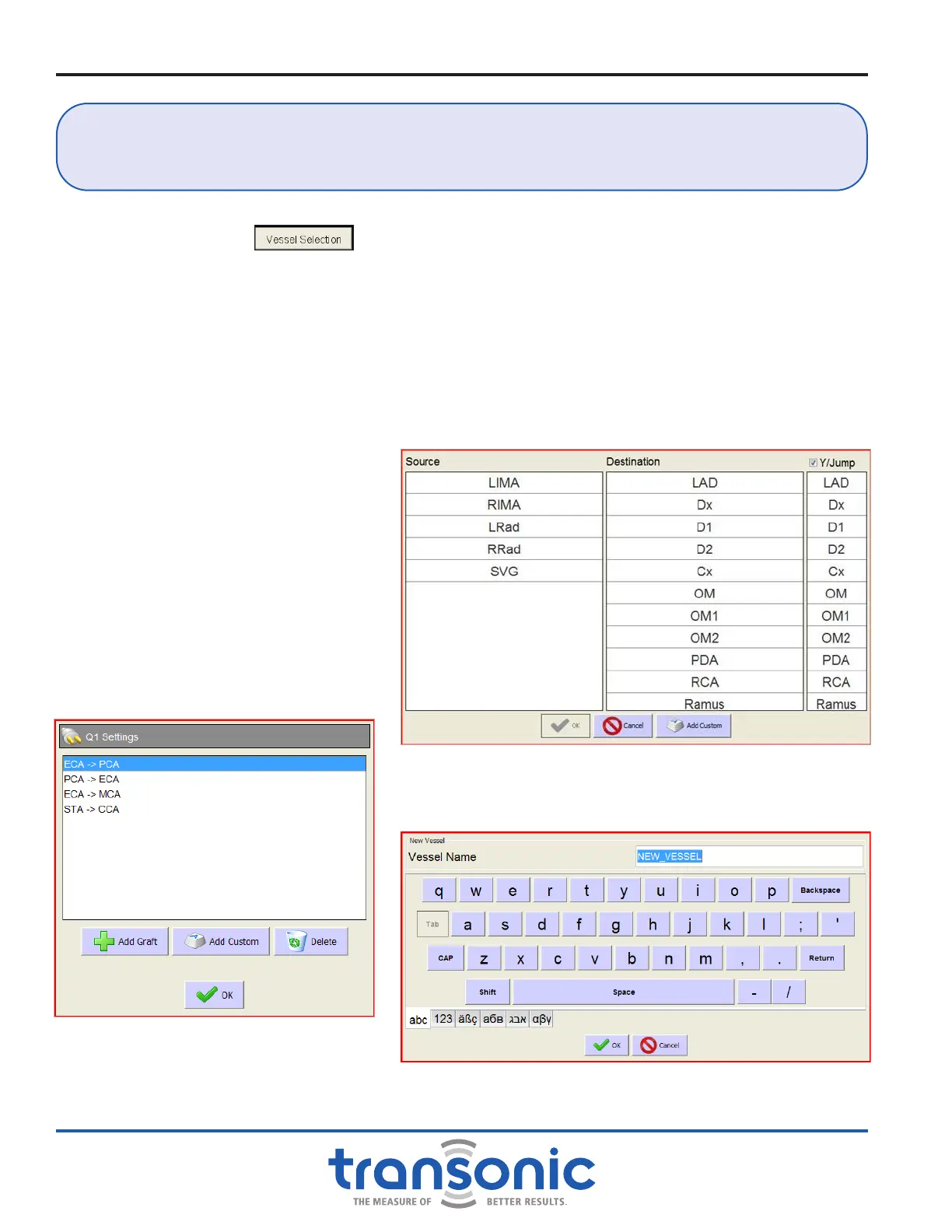
For CABG surgery, tap on the [Vessel Selection] button to see a list of bypass sources and destinations
(Fig. 5.11). Tap items in both Source and Destination columns to create the bypass graft name, then tap [OK]
at the bottom of the dialog box to conrm the name. If, a bypass graft does not appear on the list, tap
[Add Custom] at the bottom of the dialog box to type in the name of a new vessel/graft (Fig. 5.12).
NOTE: To display the Y/Jump items one
must tap on the check box on the top
right corner. A second graft destination
list will appear.
For other surgery types, you will get a list
of common vessel sites rst from which
you can add custom vessels (Fig. 5.13).
NOTE: Vessel selection can be changed
over the course of a single recording.
Vessel selection changes are marked in the
recording as an event with a blue tag.
Fig. 5.11: Vessel selection screen for CABG surgery allows for quick selection
of source and destination with optional Jump.
Fig. 5.12: Add Custom Vessel or Graft screen
Fig. 5.13: Vessel Section screen for non-CABG
surgeries. Vessels listed depends
on surgery selected. Recent custom
vessels will also be displayed.



 To Next Page