AU-OPR-AureFloFT-EN,
Rev H
23
B. Recording Mode: Capturing Continuous Flow Data
The [Start Recording] button is accessible when a Flowprobe is connected to the Flowmeter.
Touching [Start Recording], will begin recording ow data, which can be reviewed in
Flowtrace
®
or Retrace. The ow waveform is displayed on the screen. Selecting [Start
Recording] changes the program header into “Recording” mode.
When FlowTrace
®
is in Recording Mode, [Start Recording] is no longer active, and instead
[Stop Recording] can be used to stop the recording. Recording Mode will continue to
collect data until [Stop Recording] is tapped. Multiple recordings can be made for each case
and these can be reviewed in the Portfolio view either as a Snapshot or a recording. NOTE:
Recordings must be at least 8 seconds long (one full screen) to be properly saved.
C. Snapshot Mode: Taking a Picture of the
Flow Waveform & Data
The Snapshot function is used to capture and save
ow data for printing or review. Snapshots can be
taken from either Realtime or Recording mode.
Taking a Snapshot captures the last 8 seconds of
ow measurement information. The Snapshot also
displays Mean Flow, Pulsatility Index (PI), D/S or
DF (if present) and Heart Rate (HR) (Fig. 6.7, page
25).
A Snapshot can also be created from any point in a saved
Recording. To do this, open a Recording, scroll through the
Recording to the point you want to capture and tap [Take
Snapshot]. The Snapshot is added to the Portfolio for later
review or printing. Multiple Snapshots can be taken from each
Recording.
1. PRINTING SNAPSHOTS
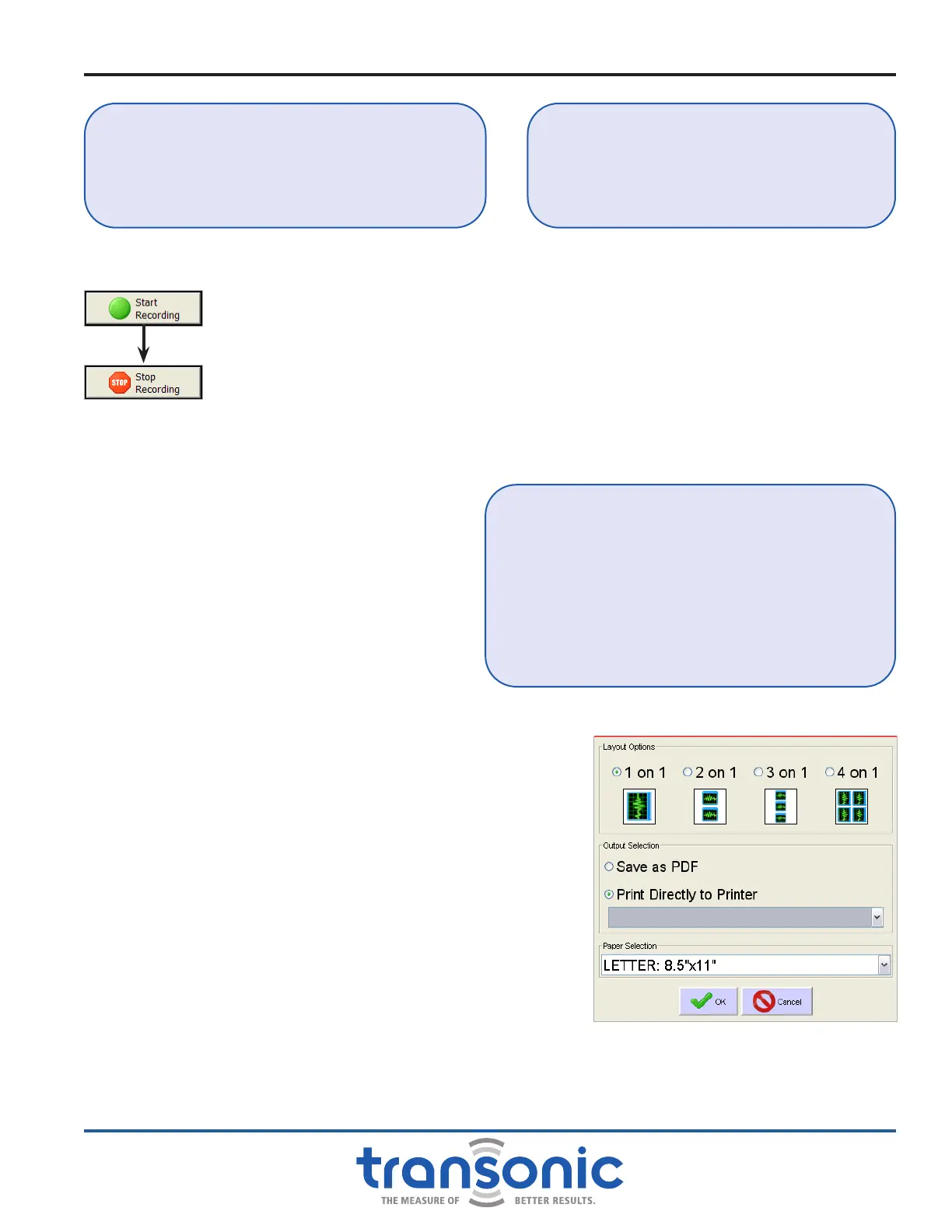
When in Snapshot mode pressing the [Print] button will
cause the Snapshot to be sent directly to the attached
printer as a full page print (Fig. 6.7, page 25). FlowTrace
®
will then return to the Realtime screen. To save as a PDF or
print multiple Snapshots on a single page, printing must be
done from the Portfolio mode (Fig. 6.4). Select a Snapshot
to activate the [Print] and [Tag Selected]. Press [Print] to
print selected Snapshot only or select and [Tag Selected]
all Snapshots to be printed before pressing [Print] to print
multiple Snapshots at a time. Any notes associated with the
Snapshot will also be printed with the Snapshot.
FAQ: HOW DO I GET BACK TO THE REALTIME
SCREEN AFTER THE SNAPSHOT IS TAKEN?
Answer: In the lower right hand corner of the
screen, tap on [Realtime] to return to the
screen you started from.
AureFlo
®
Operation
FAQ: IF I AM TAKING A MEASUREMENT IN
REALTIME MODE, WILL I BE ABLE TO TAKE A SNAPSHOT?
Answer: Yes, a Snapshot can be taken in Realtime
mode. You may also take a Snapshot while you are
recording in Recording mode.
FAQ: WHEN I TOUCH [TAKE SNAPSHOT] WHILE
RECORDING, THE SNAPSHOT APPEARS ON THE SCREEN.
DOES THIS ALSO STOP THE REALTIME RECORDING?
Answer: No. If a Snapshot is taken while Recording,
the Snapshot will be displayed on the screen while
the recording is progressing uninterrupted. To return
to the Realtime screen, tap the [Realtime] button.
You will then be able to [Stop Recording] or
capture another Snapshot using [Take Snapshot].
Fig. 6.4: Select a non-tagged Snapshot and
pressing [Print], to print selected
Snapshot only. Pressing [Print] with a
Tagged Snapshot selected will cause all
Tagged Snapshots to be printed.



 To Next Page